To be honest, if you are a OnePlus user in India like me, you might sometimes look for really easy ways as to how to switch off OnePlus phone. Exactly why do we switch off our phones? There can be many simple reasons. For me, it helps save battery during long trips, just like when I am travelling or staying out for the whole day. It also helps fix small problems like slow apps, hanging screens, or phone lag.
Sometimes, I just want a short break from constant notifications and calls. In this guide, I will show you how to power off a OnePlus phone step by step in a really easy way. I will explain methods that are perfect for beginners and also share some simple tips for common problems. So, let’s get started!
Also read: Top OnePlus 15R Alternatives In India: Best Value Options!

Why You Might Need to Turn Off Your OnePlus Mobile
Switching off your OnePlus phone is not something you do every day. But clearly, it can be very useful in many situations. Even knowing how to switch off OnePlus can help you understand your phone better. It is super easy to turn off your phone, and undoubtedly, it can solve many common problems. You may have even thought of this before, but did not pay much attention.
Save Battery: If you are not using your phone for a long time, like that during travel or power cuts, turning it off is enough to save battery. Background apps stop working, so no power is wasted. This is very helpful when charging is not available.
Fix Problems: Sometimes apps crash, or the phone becomes slow or hot. Clearly, switching off the phone can fix these issues. It gives the phone a fresh start. It is super easy and works well most of the time.
Airplane Mode Alternative: While travelling in flights, turning off your phone is undoubtedly safer than only using Airplane mode. It completely stops all signals, which is important for safety.
Maintenance: During software updates or while cleaning your phone, switching it off is enough to keep everything safe. Many people have thought of this before, and it is a good habit.
In India, where power cuts are common, knowing how to turn off your OnePlus mobile quickly is very useful. Like that, you can manage your battery better and avoid problems.
Always back up your data before turning off your phone, just in case. Using Google Drive or the OnePlus Switch app is super easy and enough to keep your data safe.
Also read: OnePlus 15: Best Camera Settings for Night Mode, Portrait & Zoom!
Different Approaches On How To Switch Off OnePlus Phone!
OnePlus phones run on OxygenOS, which is based on Android. The ways to switch off have changed a bit in newer versions like OxygenOS 15 and 16. Don’t worry! It’s not rocket science! Here are the main methods.
Using the Power Button

The power button is on the right side of your OnePlus phone. In older models, a long press directly shows the power menu. But in the latest OxygenOS, it might open the voice assistant instead.
Here’s how to use it if set up correctly:
- Find the power button on the side.
- Press and hold it for 2-3 seconds.
- If the power menu appears, tap “Power off”.
- Confirm if asked.
If it opens the assistant, you need to change the settings. We’ll cover that later.
Using Power + Volume Buttons
This is the quickest way for most new OnePlus phones, like OnePlus 13, 14, or 15. It brings up the power menu without issues.
Steps:
- Hold the power button and the volume up button at the same time.
- Keep holding until the power menu shows (about 1 second).
- Tap “Power off” or slide the button if needed.
- Your phone will shut down.
Note: On some models, use volume down instead of up. Try both if one doesn’t work. This method works even if the screen is on or off.
For restart OnePlus phone, choose “Restart” from the same menu.
Also read: Master The OnePlus 13 Camera: 5 Pro Tips for Stunning Photos!
Using the On-Screen Power Menu
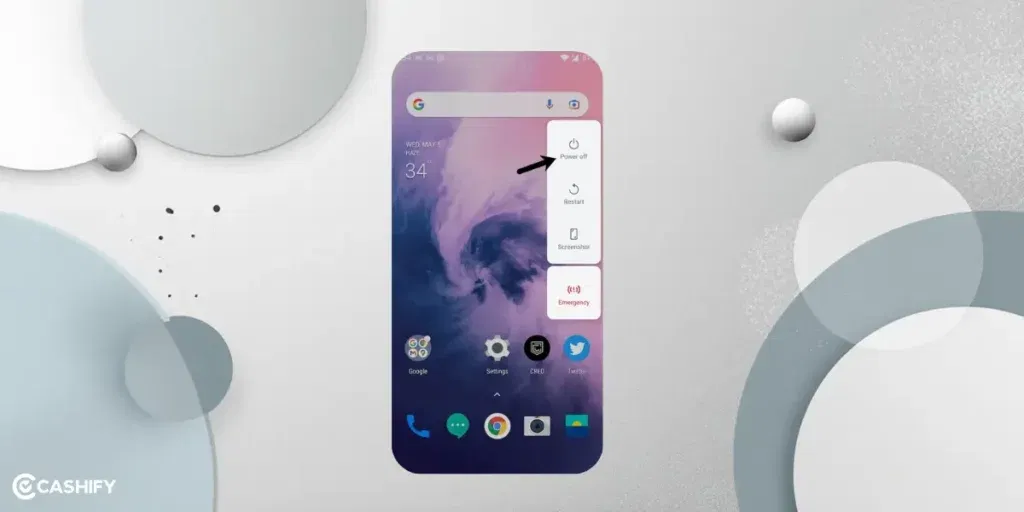
If you don’t want to use buttons, try the on-screen option. This is handy if buttons are hard to press.
- Swipe down twice from the top to open quick settings.
- Look for the power icon (it might be in the full panel).
- If not there, tap the pencil icon to edit quick settings.
- Add the “Power” tile if available.
- Tap the power icon to open the menu.
- Select “Power off”.
In the latest OxygenOS, the power menu might not be in quick settings by default. If missing, use other methods.
Using the Accessibility Menu
This is perfect for users with button problems or those who prefer touch controls. First, enable it.
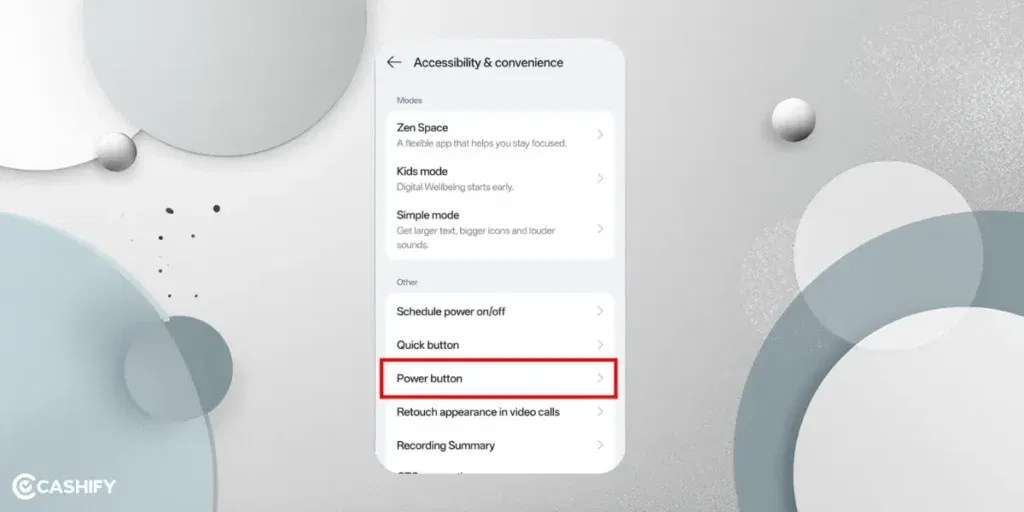
To enable:
- Go to Settings > Accessibility & Convenience (or System Settings > Accessibility).
- Tap “Accessibility Menu”.
- Turn on “Accessibility Menu shortcut”.
- Choose how to access it – like two-finger swipe up or floating button.
Now, how to switch off OnePlus using this:
- Open the accessibility menu using your shortcut.
- Tap the power icon in the menu.
- Select “Power off” or “Restart”.
This menu floats on screen for easy access. Turn it off when not needed to save space.
Tip: If you are new to OnePlus, practice these steps on a charged phone. It avoids surprises during low battery.
Also read: Unlock Stunning Shots! Best Vivo V50 Camera Settings Revealed!
Step-by-Step Instructions for New OxygenOS Versions
OxygenOS 15 and 16 (on phones like OnePlus 15) have small changes for better security. Here’s a detailed guide for the latest versions.
Check Your Version:
Go to Settings > About Phone. Look for OxygenOS version.
Main Method (Power + Volume Up):
- Press power and volume up together.
- Menu appears with Power off, Restart, Emergency.
- Tap Power off.
- Wait 30 seconds for the full shutdown.
If Screen is Frozen:
- Hold power + volume down for 10-15 seconds.
- Phone vibrates and restarts automatically.
- Then, use normal method to power off.
Schedule Auto Power Off:
- Go to Settings > Battery > More settings.
- Find “Scheduled power on/off”.
- Set a time to auto turn off.
- Great for nightly shutdowns.
These steps work on models like OnePlus Nord series too. If your phone is older (OxygenOS 12 or below), long press power button alone might work.
Also read: Oneplus 13s vs Nothing Phone 3: Which Phone Should You Buy?
How To Change Power Button Behaviour Settings
Don’t like the default? Customise it!
- Open Settings.
- Search for “Power button” or go to System Settings > Buttons & Gestures (or Accessibility & Convenience > Power button).
- Tap “Press and hold the power button”.
- Change from “Voice Assistant” to “Power menu”.
- For double press, set to “Camera” or “None”.
Now, long press power button shows the power off option directly. This is useful if you rarely use the assistant.
FAQs On How To Switch Off OnePlus Phone
How do I restart OnePlus phone if it’s slow?
Use Power + Volume Up to open menu, tap Restart. Or hold power + volume down for force restart.
Can I turn off OnePlus mobile without buttons?
Yes, enable Accessibility Menu or use scheduled power off in battery settings.
Why does the power button open Assistant instead of the power menu?
It’s default in new OxygenOS. Change in Settings > Power button > Press and hold.
What if my OnePlus phone turns off randomly?
Check for updates, clear junk apps, or do a hard reset. Visit service if hardware issue.
Also read: Everything You Need To Know About OnePlus AI Is Here!
How to power off OnePlus Nord series?
Same methods as above. Nord uses OxygenOS too.
Is there a way to auto turn off at night?
Yes, in Settings > Battery > Scheduled power on/off.
Final Thoughts On How To Switch Off OnePlus
Learning how to switch off a OnePlus phone is easy and helpful for everyone. I would say that using the power button is the simplest way. Now that we use phones every day, it is important to know that there are also button combos and accessibility options. These steps work for most OnePlus models. If any problem comes, simple things like software updates can fix it. Lastly, we should keep the phone charged and updated for good performance.
Also read: How To Deal With Battery Drain Issue On OnePlus Nord CE 4?
If you’ve just bought a new phone and don’t know what to do with your old phone, then here’s your answer. Sell old mobile to Cashify and get the best price for it. If you are planning to buy a new phone, check out Cashify’s refurbished mobile phones. You can get your favourite phone at almost half price with six-month warranty, 15 days refund and free delivery.