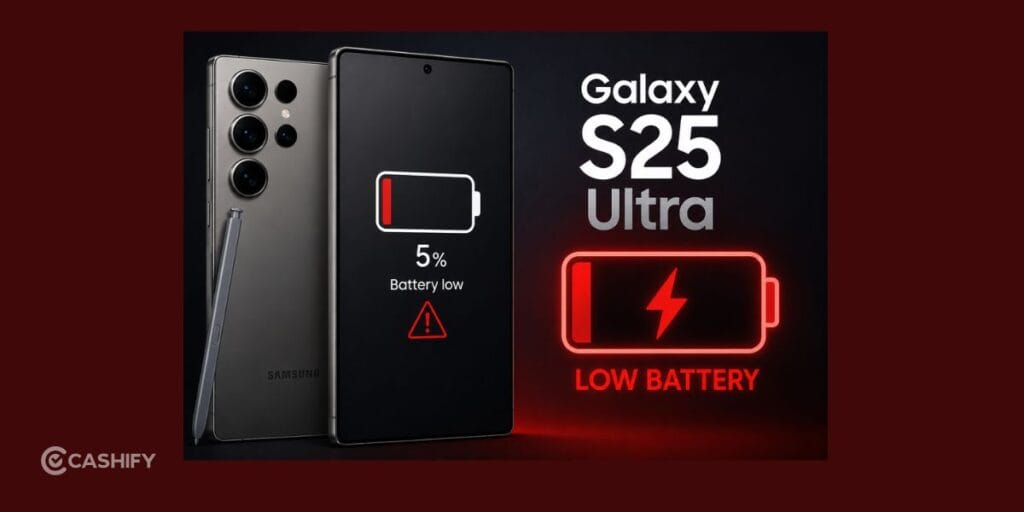
If you are facing the Samsung Galaxy S25 Ultra battery draining fast issue after installing the Samsung July update, you’re not alone. Many Galaxy S25 Ultra users have reported faster battery drain, unexpected heating, and higher battery usage after the latest software update. The good news is that this usually isn’t a hardware problem.
In most cases, the issue is caused by background apps, post-update optimization, Smart Switch data transfer, or certain settings consuming more power than usual. Before you think about replacing the battery or resetting your phone, there are a few fixes worth trying.
This guide explains why the problem happens and how you can fix Samsung Galaxy S25 Ultra battery draining fast issue with simple changes.
Also Read: Play GTA 6 Without Buying A Console: Why PS5 On Rent Is Worth It
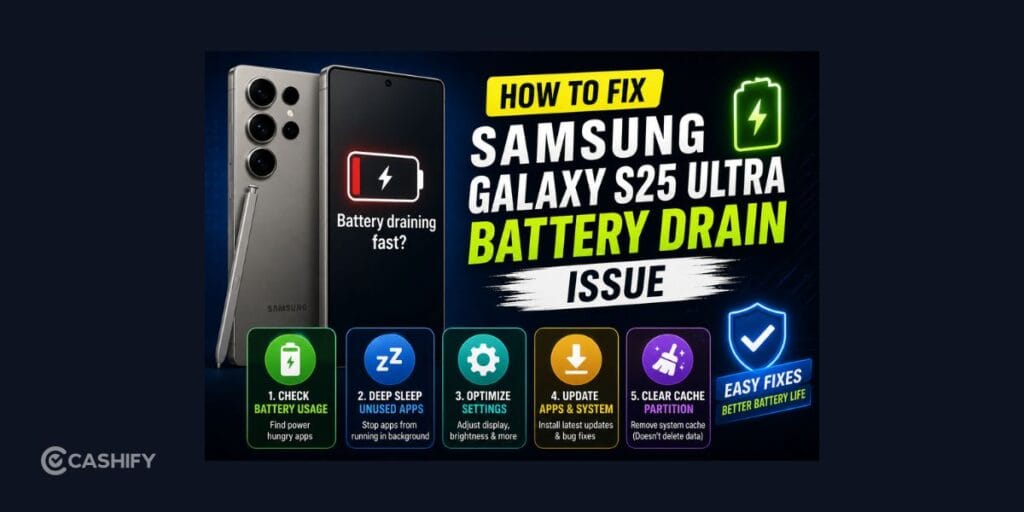
Quick Fix Checklist
If you don’t want to go through the entire guide, start with these fixes first:
- Check Settings > Battery to see if one app is consuming unusually high battery
- Put rarely used apps into Deep Sleep
- Update all apps from both the Google Play Store and Galaxy Store
- Give your phone 7–14 days after the July update to complete optimization
- Clear the cache partition if battery drain continues
If these steps don’t help, continue reading to identify what’s causing the problem.
Why Is the Samsung Galaxy S25 Ultra Battery Draining After the July Update?

For most users, the battery itself isn’t causing the Samsung Galaxy S25 Ultra battery draining fast issue. Instead, the latest update can temporarily increase power consumption while your phone adjusts to the new software.
The exact cause differs from one device to another, but these are the reasons reported most often.
Post-Update Optimization
Every major One UI update triggers several background tasks. Your phone rebuilds app data, optimizes system files, updates search indexes, and relearns your usage habits through Adaptive Battery. During this time, it is normal to notice slightly higher battery usage and a warmer phone.
Smart Switch Migration
If you recently upgraded from another Galaxy phone and transferred everything using Smart Switch, some cached files or app settings may not work perfectly with the new software. This can cause background processes to consume more battery than expected.
Background Apps
Apps like Instagram, WhatsApp, Facebook, cloud storage services, shopping apps, and email clients constantly sync data in the background. After a software update, this activity can become more aggressive until everything stabilizes.
Weak Network Signal
Your phone uses more power when it struggles to maintain a stable 5G or mobile connection. If battery drain mainly happens while travelling or indoors, poor network coverage could be contributing to the problem.
Backup Or Sync Issues
Some Reddit users have also reported Samsung Cloud or WhatsApp backup services getting stuck after the latest update. If your phone keeps trying to complete a backup in the background, it can drain cause the Samsung Galaxy S25 Ultra battery draining fast issue much faster than usual.
Also Read: Love FIFA? Try These Best Consoles To Play FC 26
How Do You Know What’s Causing The Battery Drain?
Before changing multiple settings, spend a minute identifying what matches your situation. This makes it much easier to choose the right fix.
| What You’re Noticing | Most Likely Cause | What To Try First |
| Battery drain started immediately after updating | Post-update optimization | Wait a few days and keep your phone updated |
| Phone feels warm even when idle | Background apps or syncing | Check Battery Usage and Deep Sleep unused apps |
| Battery drops quickly on mobile data | Weak 5G or poor network | Use Wi-Fi where possible or switch to LTE in low-signal areas |
| Battery became worse after moving data from another Galaxy phone | Smart Switch migration | Consider a fresh setup if other fixes don’t help |
| One app is using much more battery than everything else | Faulty app or background activity | Update or reinstall that app |
Once you’ve identified the likely cause, you can focus on how to fix the Samsung Galaxy S25 Ultra battery draining fast issue. You can choose the fix that matters instead of changing every setting on your phone.
Fix 1: Stop Apps From Draining Your Battery In The Background
The biggest reason behind unexpected battery drain is often background activity rather than the battery itself.
Many apps continue syncing data, refreshing notifications, checking your location, or running backup services even after you’ve closed them. Individually, these apps don’t consume much power, but together they can noticeably reduce battery life.
Start by opening Settings > Battery and checking which apps are using the most battery. If an app appears at the top of the list despite barely being used, it may be running unnecessarily in the background.
Samsung also gives you the option to limit background activity automatically. Go to Settings > Battery > Background Usage Limits and enable Put Unused Apps to Sleep. For apps you rarely open, adding them to Deep Sleep prevents them from quietly consuming battery throughout the day.
While you’re reviewing your settings, consider turning off features you don’t use regularly, such as Nearby Device Scanning or changing Always-On Display to Tap to Show instead of keeping it active all day.
These changes don’t affect the overall experience of using your phone, but together they can make a noticeable difference to fix the Samsung Galaxy S25 Ultra battery draining fast issue.
Also Read: New Vs Refurbished Samsung Galaxy M53: Battery Life And Performance Compared
Fix 2: Optimize Your Display Without Compromising Everyday Use
Your display is one of the biggest consumers of battery power, but that doesn’t mean you have to make the screen look worse.
The Galaxy S25 Ultra’s adaptive 120Hz refresh rate delivers smoother scrolling and animations, but it also uses more power than the standard 60Hz mode. If battery life is your priority for the next few days, switching to Standard Motion Smoothness can help reduce power consumption.
Another setting worth trying is Samsung’s Light Performance Profile. It slightly lowers peak performance during demanding tasks but has very little impact on everyday activities like browsing, messaging, watching videos, or using social media. In return, your phone can run cooler and consume less battery.
You should also consider enabling Dark Mode. Since the Galaxy S25 Ultra features an AMOLED display, darker pixels require less power than bright white backgrounds. If you spend several hours reading, browsing, or messaging each day, Dark Mode can quietly improve battery life without changing how you use your phone.
The idea isn’t to fix Samsung Galaxy S25 Ultra battery draining fast issue by disabling premium features permanently. Instead, these settings help reduce unnecessary power consumption while Samsung’s software settles after the update.
Fix 3: Give Your Phone Time To Finish Optimizing
If the battery drain started immediately after the July update, patience may be one of the most effective ways to fix Samsung Galaxy S25 Ultra battery draining fast issue.
After every major software update, Android continues working in the background even after the installation is complete. It reorganizes system files, rebuilds app data, and learns your daily usage patterns through Adaptive Battery. During this period, it’s common to notice slightly higher battery usage and occasional heating.
Unless the battery is draining unusually fast during light use, continue using your phone normally for about 7–14 days. Many users report that battery life gradually improves once the optimization process finishes.
If you’re still experiencing significant battery drain after this period, move on to the remaining fixes, which focus on app compatibility and system maintenance.
Also Read: OnePlus N6x Launch Date, Expected Price And Specs: All You Need To Know
Fix 4: Update Your Apps And Clear The System Cache
If waiting a week or two doesn’t improve battery life, the next step is to check whether an app or the system itself is causing the issue.
Start by updating all your apps from both the Google Play Store and the Galaxy Store. After a major One UI update, developers often release compatibility patches to fix bugs, improve performance, and reduce battery consumption. Running outdated apps on the latest software can sometimes lead to unnecessary background activity.
If everything is already up to date but you are still facing the Samsung Galaxy S25 Ultra battery draining fast issue, clearing the system cache is worth trying.
Unlike a factory reset, wiping the cache partition doesn’t delete your photos, messages, or apps. It simply removes temporary system files that may have become outdated after the update. These files can occasionally cause unusual battery drain, slower performance, or random heating.
Many experienced Galaxy users clear the cache partition after every major software update because it gives the system a clean starting point without affecting personal data.
Tip: If your phone became noticeably slower or warmer immediately after the update, clearing the cache partition can be more helpful than reinstalling apps.
Fix 5: Consider A Fresh Setup Only As A Last Resort
If you’ve tried everything else and the battery is still draining much faster than before, the problem could be related to how your phone was set up.
Many users who restored data using Smart Switch found that battery life improved only after setting up the phone as a new device. While Smart Switch is reliable for most people, it can occasionally carry over cached files or app settings that don’t work well with the latest version of One UI.
That doesn’t mean you should immediately factory reset your phone.
A fresh setup should only be considered if:
- Battery drain continues even after 7–14 days
- Your apps are fully updated
- Clearing the cache partition hasn’t helped
- Battery Usage doesn’t point to a specific app causing the problem
If you do decide to reset your Galaxy S25 Ultra, try installing apps manually instead of restoring everything through Smart Switch. It takes a little longer, but it also reduces the chances of carrying old software issues onto your new setup.
For most users, though, this step to fix the Samsung Galaxy S25 Ultra battery draining fast issue won’t be necessary.
When Should You Be Concerned?
Some battery drain after a software update is completely normal, especially during the first few days. However, there are situations where the issue may need more attention.
You should consider contacting Samsung Support or visiting an authorized service centre if:
- Your battery loses more than 20–30% charge during light use
- The phone becomes unusually hot even while sitting idle
- Battery drains heavily overnight without being used
- The issue continues for more than two weeks after the update, even after trying the fixes above
Also Read: 3 Best Budget Mirrorless Cameras You Will Actually Want To Buy In 2026
Final Thoughts
If your Galaxy S25 Ultra started losing battery quickly after the latest update, don’t assume the battery is damaged. In most cases, the issue is linked to software optimization, background activity, or app compatibility rather than the battery itself.
Start with the simpler ways to fix the Samsung Galaxy S25 Ultra battery draining fast issue, give your phone enough time to settle after the update, and only consider a factory reset if the problem continues. For most users, these steps are enough to restore normal battery life without replacing the device.
Frequently Asked Questions
Why is my Samsung Galaxy S25 Ultra battery draining after the July 2026 update?
Several users noticed higher battery usage after installing Samsung’s July 2026 update. In most cases, this happens because the phone is completing background optimization, certain apps aren’t fully compatible with the update yet, or features running in the background are consuming more power than usual. The issue is usually temporary and improves after a few adjustments.
How long does battery optimization take after a Samsung update?
Samsung’s Adaptive Battery typically needs 7–14 days to learn your usage patterns after a major software update. During this period, battery life may fluctuate as the phone rebuilds system data and optimizes installed apps.
Does Smart Switch really affect battery life?
Not for every user, but it can in some cases. If app settings or cached data transferred from an older Galaxy phone don’t work properly with the new software, they may continue running in the background and drain the battery. This is why some users notice better battery performance after setting up the phone as a new device.
If you’ve just bought a new phone and don’t know what to do with your old phone, then here’s your answer. Sell old mobile to Cashify and get the best price for it. If you are planning to buy a new phone, check out Cashify’s refurbished mobile phones. You can get your favourite phone at almost half price with six-month warranty, 15 days refund and free delivery.