If you are an app developer, tester, or simply curious about iPhone’s advanced features, enabling developer mode is an essential step. This mode unlocks access to a variety of tools that help you build, test, and debug iOS applications directly on your device. In this blog, let us understand what is developer mode, how to enable it, why to use it and more.
Also Read: How To Recover Deleted Call History On iPhone: Step-By-Step Guide
What is Developer Mode?
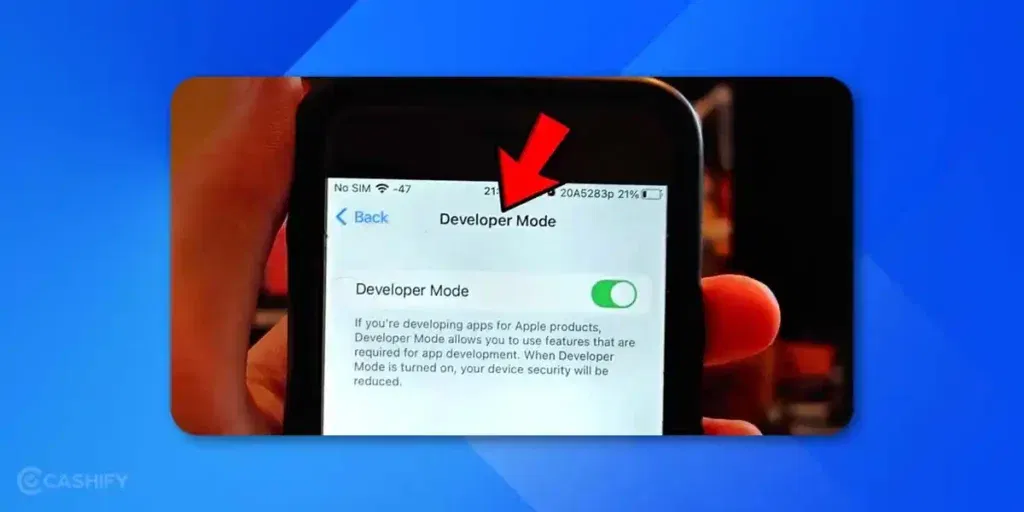
Developer mode on an iPhone is a special setting designed for app developers and advanced users. When enabled, it allows access to features that help in app testing and debugging. For instance, you can:
- Install apps that are not from the official App Store
- Use detailed logging tools to monitor app performance
- Enable remote debugging for troubleshooting
- Interact with iOS in ways that are normally restricted for security reasons
Think of Developer Mode as a backstage pass to your iPhone’s inner workings- it gives you more control, but also requires careful handling.
Why Use Developer Mode?
There are several reasons why you might want to enable Developer Mode:
- App Development and Testing: If you’re building apps, you need to test them on real devices. Developer Mode lets you run apps directly from development environments like Xcode.
- Debugging: It offers access to debugging tools that help identify and fix issues in apps.
- Install Custom Apps: You can install apps outside the App Store for testing or internal use.
- Access Advanced Features: Features like network logging, simulated conditions, or system diagnostics become available.
- Learning & Exploration: Developers and tech enthusiasts use it to explore the iOS system and learn more about how apps and the operating system work.
Note: If you’re just a regular user, Developer Mode may not offer much benefit, and enabling it might expose your device to risks.
Also Read: Vivo T4R Vs Moto G86 Power: Which Budget Phones Wins In 2025?
How to Enable Developer Mode On iPhone?
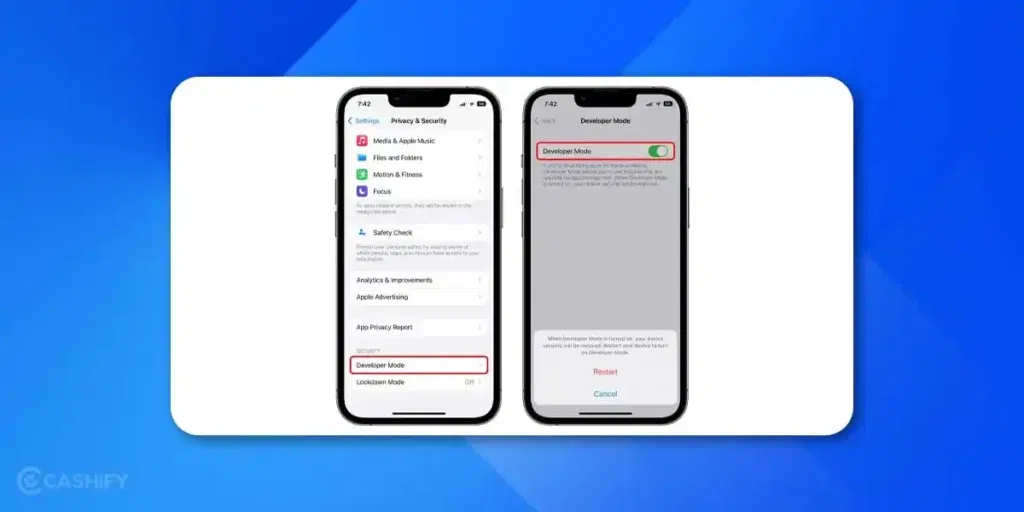
There are two methods to enable Developer Mode on your iPhone- directly on the device or via a Mac using Xcode. Let us talk about both the methods in detail here:
Method 1: Enable Developer Mode Directly on Your iPhone
1. Install the Development Build
- First, use a tool like Expo or Xcode to create and install the development version of your app on your iPhone.
- Once the app is installed, open it.
- You’ll see a prompt asking you to enable Developer Mode, just tap OK to move forward.
2. Go to Developer Mode in Settings
- Open the Settings app, then head to Privacy & Security.
- Scroll down to find Developer Mode.
3. Turn Developer Mode On
- Next, toggle on the Enable Developer Mode option.
- Your iPhone will warn you about security and ask you to restart.
- Tap Restart.
4. Confirm Activation
- After your iPhone restarts, unlock it. You’ll see a system prompt asking you to confirm Developer Mode activation.
- Tap Turn On, then enter your passcode to finalize the process.
And that’s it! Developer Mode is now active, letting you run and debug your development builds directly on your iPhone.
Also Read: Realme 15 Pro Vs Oppo Reno 14: Which One’s Worth Your Money?
Method 2: Enable Developer Mode Using Mac with Xcode
This method is perfect if you haven’t installed a development build yet or prefer managing things from your Mac.
1. Connect Your iPhone to Your Mac
- Use a USB cable to plug your iPhone into your Mac.
- When your iPhone asks “Trust This Computer?”, tap Trust and enter your passcode if needed.
2. Open Xcode and Find Your Device
- Launch Xcode, then go to the menu and select Window > Devices and Simulators.
- Under the Devices tab, find your iPhone.
- If Developer Mode isn’t enabled, Xcode will show a warning with steps on what to do next.
3. Enable Developer Mode on the iPhone
- On your iPhone, navigate to Settings > Privacy & Security > Developer Mode, then toggle it on.
- You’ll be prompted to restart- tap Restart.
4. Finish Up
- After reboot, unlock your iPhone.
- Tap Turn On on the system prompt, and enter your passcode to confirm.
Also Read: Samsung Galaxy S25 FE Leaks: Specs, Price & Launch Date Revealed
What Happens After Enabling Developer Mode?
Once Developer Mode is enabled:
- Your iPhone can install and run apps from development environments.
- You gain access to advanced debugging tools.
- Additional settings related to app testing and system diagnostics appear.
- Some security restrictions are relaxed, allowing deeper system access for testing.
- You can simulate various device conditions like poor network, low battery, etc.
Note: Keep in mind that enabling Developer Mode can increase your security risk, as it opens up features that could be exploited if your device falls into the wrong hands.
How To Disable Developer Mode On iPhone?
If you no longer need Developer Mode on your iPhone, you can easily turn it off by following these steps:
- Open the Settings app on your iPhone.
- Go to Privacy & Security.
- Scroll down and tap Developer Mode.
- Toggle the switch OFF to disable Developer Mode.
- Your iPhone will prompt you to restart, tap Restart to complete the process.
After your device restarts, Developer Mode will be disabled, and your iPhone will return to its normal security settings.
Important Notes & Security Tips
Here are some important things to keep in mind when enabling developer mode on iPhone:
- Enable Developer Mode only if you trust the apps and tools you use. It allows apps outside the App Store to run, which can expose your device to security risks.
- Be cautious when installing apps from unknown sources. Developer Mode bypasses some of iOS’s usual protections.
- Turn off Developer Mode when you no longer need it. This helps keep your iPhone secure.
- Keep your iPhone and Mac updated. Running the latest iOS and Xcode versions ensures smoother development and better security.
- Use a strong device passcode. Developer Mode requires passcode confirmation and protects your device from unauthorized access.
Also Read: Dimensity 9400 Vs Snapdragon 8 Elite: Gaming And AI Faceoff 2025
Troubleshooting Tips
Sometimes, enabling Developer Mode might not go as expected. If you face any issues, try these troubleshooting tips to get everything up and running smoothly.
- Can’t find the Developer Mode option? Make sure your iPhone is running iOS 16 or later and has been connected to a Mac with Xcode at least once.
- Having trouble enabling Developer Mode? Try restarting your iPhone and attempt the process again.
- Xcode doesn’t detect your iPhone? Verify your USB cable is working properly and that you’ve trusted the connected computer on your device.
- Developer Mode toggle is grayed out? Check that your iPhone is correctly linked to your Apple Developer account, or try disconnecting and reconnecting it to your Mac.
- Still experiencing problems? Update both your iPhone’s iOS and your Mac’s Xcode to the latest versions, then carefully follow the steps again.
Final Thoughts
Enabling Developer Mode on your iPhone gives you access to a bunch of handy tools that make building, testing, and exploring apps much easier. Whether you’re a seasoned developer or just curious to learn more about how your iPhone works, Developer Mode lets you explore deeper into iOS.
That being said, it’s a good idea to use Developer Mode carefully. Keep your iPhone updated, use strong security settings, and turn off Developer Mode when you’re done to keep your device safe.
Also Read: Apple A18 Pro Vs Dimensity 9400: The 2025 Winner Will Surprise You
Frequently Asked Questions
How do I enable developer mode on my iPhone?
To enable Developer Mode on an iPhone with iOS 16 or newer, just go to Settings > Privacy & Security > Developer Mode and switch it on. Your iPhone will ask you to restart, once it reboots, tap Turn On and enter your passcode to confirm.
Why is developer mode not working on my iPhone?
If you don’t see “Developer Mode” under Privacy & Security, don’t worry. You need to connect your iPhone to a Mac running Xcode first. Open a project in Xcode 14 Beta 3, plug in your phone, and then check Settings > Privacy & Security again- Developer Mode should show up now.
Is it safe to enable developer mode on iOS?
Generally, turning on Developer Mode on your iPhone is safe. Apple has strong security measures in place to keep your device protected, even when Developer Mode is switched on.
If you’ve just bought a new phone and don’t know what to do with your old phone, then here’s your answer. Sell old mobile to Cashify and get the best price for it. If you are planning to buy a new phone, check out Cashify’s refurbished mobile phones. You can get your favourite phone at almost half price with Six-month warranty, 15 days refund and free delivery.