If you have ever wished you had a way to keep certain WhatsApp conversations away from curious eyes- without deleting anything or relying on the archive feature, you’re not alone. Whether you hand your phone to a friend for a moment or share your device with family, sometimes you just want to make sure your private chats stay private. WhatsApp now gives you a built-in tool designed exactly for this: Chat Lock. This feature lets you hide any WhatsApp chat- including group chats- in a secure, protected folder that only you can access.
In this post, you’ll learn how to secretly hide your WhatsApp chat on Android, iPhone, Web, and Windows, plus everything you should know about unlocking, restoring, and managing locked conversations.
Let’s start with the basics.
Also Read: Struggling With Your IG Feed? Reset The Instagram Algorithm In 2025
What Chat Lock Actually Does?
Chat Lock adds a special layer of privacy to your conversations. When you lock a chat:
- It disappears from your regular chat list.
- It moves into a separate folder called Locked Chats.
- You must unlock it using your phone’s authentication- like your passcode, fingerprint, or Face ID.
- You can also choose a secret code, which acts like a password just for hidden chats.
- Message notifications show up without revealing who messaged you or what they said.
So instead of seeing names and message previews, all you’ll see is a simple line like:
“WhatsApp: 1 new message.”
This helps protect your privacy even when someone sees your notifications.
Note that depending on your app language, the feature may appear as Chat Lock or Chat Block, but both names refer to the same thing.
How To Hide Chats On WhatsApp?
The exact steps vary slightly depending on whether you’re using Android, iPhone, Web, or the Windows app. The core process is the same everywhere: you choose a chat → lock it → access it later through the Locked Chats folder.
Below is the device-specific breakdown.
1. How to Hide WhatsApp Chats On Android?
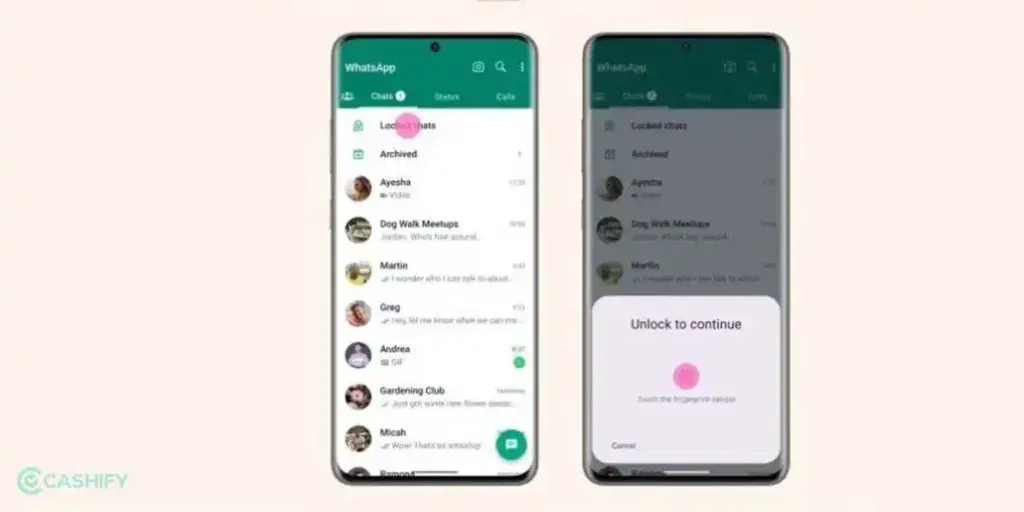
Android gives you a very straightforward way to lock and hide any WhatsApp chat.
Lock or Unlock a Chat
- Press and hold the chat you want to hide.
- Tap More options (three dots).
- Select Lock Chat.
- Confirm using your fingerprint, PIN, or passcode.
To unlock it later, follow the same steps and choose Unlock Chat.
Set Up a Secret Code
After you turn on Chat Lock, you can choose a secret code- this works like a password for hidden chats.
- Go to Locked Chats.
- Tap More options → Chat lock settings → Secret code.
- Enter your code, tap Next, and confirm.
You can disable the secret code anytime from the same menu.
View Your Locked Chats
- Scroll down your chat list and tap Locked Chats,
OR - If you hid the folder, type your secret code in the Search bar.
Hide the Locked Chats Folder
In the Locked Chats folder, open Settings, then turn on Hide Locked Chats.
Unlock and Clear All Locked Chats
If you forget your secret code or want to reset everything:
- Open Settings.
- Go to Privacy → Chat Lock → Unlock and clear locked chats.
This wipes all locked chats from the folder. You can restore them only if your last backup includes the messages.
Also Read: How to Delete Your Snapchat Account in Minutes (2025 Guide)
2. How to Hide WhatsApp Chats on iPhone?
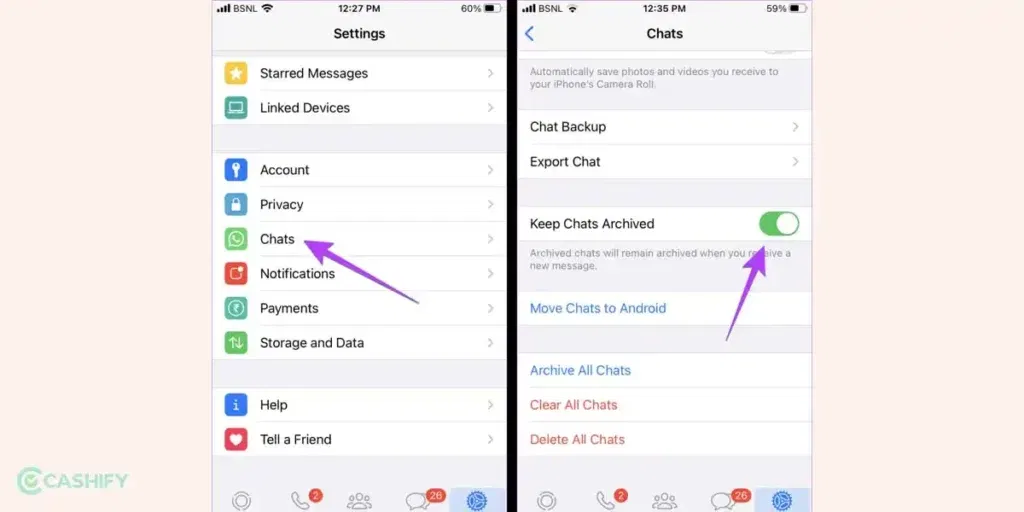
The process to lock or hide WhatsApp chats on iPhone is almost identical to Android, with only a few gesture differences.
Lock or Unlock a Chat
- Swipe left on the chat or long-press it.
- Tap More → Lock Chat.
- Authenticate with Face ID, Touch ID, or your passcode.
Create a Secret Code
- Open Locked Chats.
- Tap Settings → Secret code.
- Create and confirm your code.
View Your Locked Chats
Swipe down in the Chats tab → Tap Locked Chats,
or, enter your secret code in the Search bar if the folder is hidden.
Hide the Locked Chats Folder
Inside Locked Chats → Settings, toggle on Hide Locked Chats.
Unlock and Clear All Locked Chats
Go to Settings → Privacy → Chat Lock → Unlock and clear locked chats.
Just like Android, restoring cleared chats only works if your backup includes those messages.
Also Read: 5 Best High-End Smartphone Alternatives To Vivo X300 Pro In 2025
3. How to Hide WhatsApp Chats on Web?
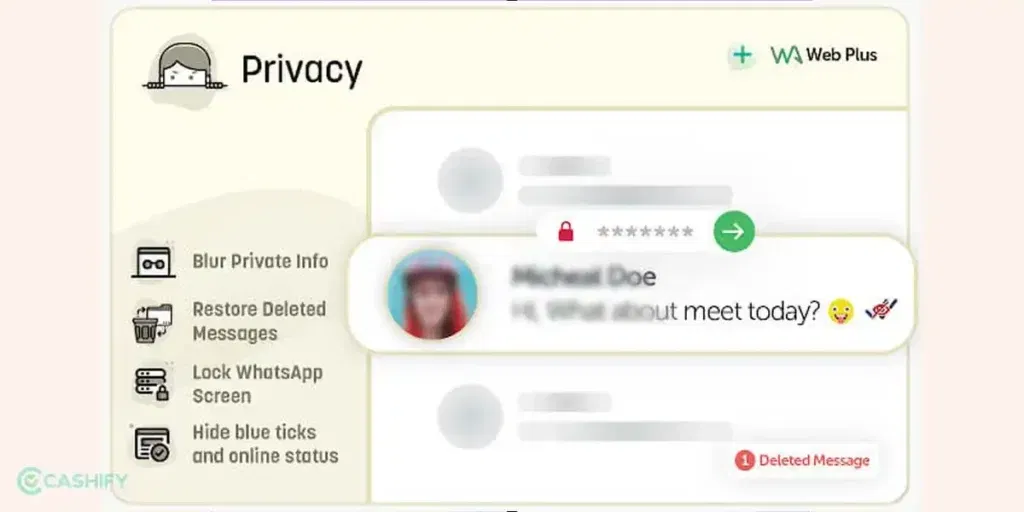
WhatsApp Web too supports Chat Lock and hide chats, but it relies on your phone for authentication and secret code setup.
Lock or Unlock a Chat
- Right-click on the chat.
- Select Lock Chat.
- Authenticate through your phone.
Open Locked Chats
- Click the Chat lock Unlocked icon,
OR - Type your secret code in Search.
Hide the Locked Chats Folder
This must be enabled from your phone (Android or iPhone).
Unlock and Clear All Locked Chats
You can find the option under Settings → Privacy → Chat Lock, but you still need your phone to confirm.
4. How to Hide WhatsApp Chats on Windows?

The Windows app works almost exactly like WhatsApp Web to hide chats.
Lock or Unlock a Chat
- Right-click the conversation.
- Select Lock Chat.
Open Hidden Chats
Use the Search bar and enter your secret code.
Clear All Locked Chats
This action must be completed using your primary phone.
5. What About Mac?
WhatsApp hasn’t added Chat Lock to the Mac app yet. You can only view or respond to locked chats after unlocking them on your phone.
Also Read: iQOO 15 Vs iQOO 13: Five Key Improvements You Must Know
What Happens To Notifications When You Lock A Chat?
When you lock or hide chats, WhatsApp automatically hides anything that could reveal who messaged you or what they said. This means your privacy stays protected even if someone sees your phone screen or checks your notifications.
Here’s what changes:
- No names are shown: the sender’s name is completely hidden.
- No message previews appear: you won’t see text, emojis, images, or voice note indicators.
- You’ll only see a simple generic notification like: “WhatsApp: 1 new message.”
- Tapping the notification won’t open the message unless you unlock your Locked Chats folder.
- If you use a secret code, you must enter it before you can see the content.
Important Things To Know About Hidden Chats
Before relying on Chat Lock, here are some key details that can help you understand how WhatsApp hide chats feature behave:
- Locked chats stay locked even after switching phones, as long as you restore your WhatsApp backup. You will need your device authentication set up on the new phone to access them.
- Calls aren’t blocked– you can still receive WhatsApp calls from locked contacts or groups.
- Media saving is limited– you can still save photos and videos manually, but features like Media Visibility (Android) or Save to Photos (iPhone) do not work for locked chats.
- You can hide the Locked Chats folder entirely. If you do, the only way to access it is by typing your secret code in the Search bar.
- If you forget your secret code, you can reset everything using the “Unlock and clear locked chats” option- but this will delete all locked messages and media.
- Clearing locked chats is permanent unless your most recent backup contains those messages.
- Other people in the chat won’t know when you lock or unlock a conversation- Chat Lock is completely private.
Final Thoughts
Chat Lock is one of the best ways to add real privacy to your WhatsApp experience. Instead of deleting messages, archiving chats, or installing third-party apps, you now have a clean, secure method built directly into WhatsApp.
Whether you’re on Android, iPhone, Web, or Windows, you can lock and hide chats on WhatsApp only in a few seconds- and you stay in complete control of who sees your conversations.
Also Read: OnePlus 15 Vs Google Pixel 10: What’s Better For Your Money In 2025?
If you’ve just bought a new phone and don’t know what to do with your old phone, then here’s your answer. Sell old mobile to Cashify and get the best price for it. If you are planning to buy a new phone, check out Cashify’s refurbished mobile phones. You can get your favourite phone at almost half price with Six-month warranty, 15 days refund and free delivery.