Thinking of selling your old Samsung phone? It can be a smart way to upgrade affordably. But only if your personal information is fully wiped. Before handing over the device to its new owner, you must erase the Samsung data safely so your photos, chats, passwords, and files don’t fall into the wrong hands. This guide article helps you through the complete step-by-step process to clean your device securely.
Also Read: iPhone Air vs OnePlus 13: Buyback Value Face-Off
Why Should You Erase Your Samsung Phone Data Before Selling?
With so many important things stored on smartphones like banking applications, saved passwords, social media accounts, and private media, if you don’t erase the data from your Samsung device before passing it to another person, they can easily have access to all of your data. This is why performing a complete wipe of the Samsung device is vital for:
- Protecting your identity and accounts
- Ensuring there are no personal files left on the device
- Selling the phone with confidence
- Providing a fresh start to the next owner
Also Read: Galaxy Z Fold7 vs Pixel 9 Pro Fold: Resale Rate Face-Off
Steps To Erase Your Samsung Phone Data
Now, let’s go through the steps to erase your Samsung phone data.
1. Backup Your Personal Data
You should back up everything important to you before you delete your Samsung data. There are many ways to back up your data. Let’s have a look at them.
Backup Options
- Samsung Cloud will allow you to sync your contacts, messages, and settings.
- Google Accounts will back up your pictures, application data, and call history.
- External Storage, like your SD card or computer.
Make sure you back up your data before cleaning the phone so that you do not lose any important information.
Also Read: iPhone 17 vs Pixel 10 Pro XL: Resale Price Battle Revealed
2. Sign Out of Your Samsung & Google Accounts
Next, you’ll want to sign out of your Samsung and Google Accounts.
Signing out of your accounts is necessary when deleting Samsung data. To sign out of your accounts, follow the given instructions.
- Open the Settings Application
- Then, click the Accounts & Backup button
- Select the Manage Account
- Click on each Account and select Remove Account
- Sign out of your Samsung Account separately
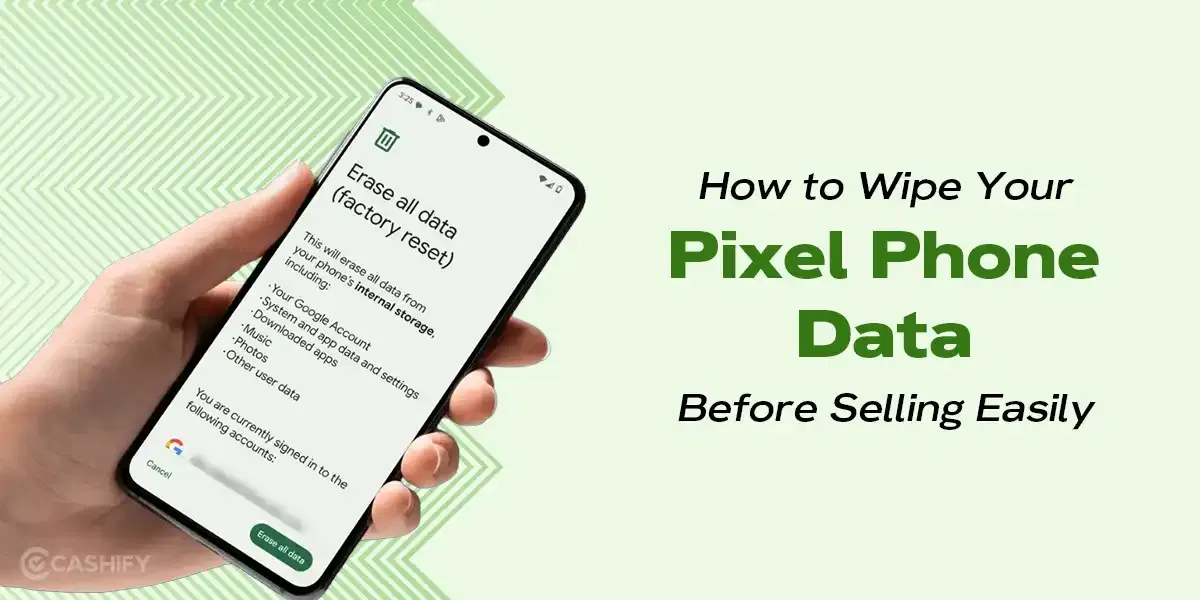
3. Perform A Factory Reset
By signing out of your Samsung and Google accounts, you’ll prevent the new owner from being able to activate your phone
Once you’ve completed all the above steps, your phone will be ready to erase Samsung data.
Follow the steps below to factory reset your phone.
- Open the Settings Application
- After that, click on General Management
- Click on Reset
- Then, tap on Factory Data Reset
- Confirm and enter your PIN or Password
- Click Reset again. Your Device will restart, and all your data will be deleted.
Also Read: Galaxy Z Fold7 vs Vivo X200 Pro: Buyback Rate Comparison
Selling Guide For Maximum Buyback
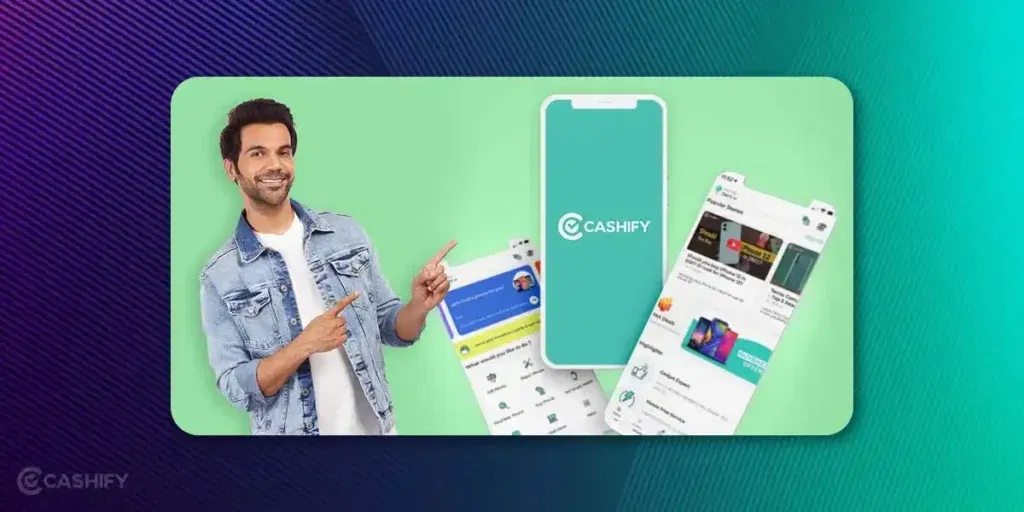
Now, when you know how to erase your Samsung Phone’s data, here comes the next step. Yes step of selling it. To sell your Samsung phone and get a nice service and buyback, you need to select the best resale platform. Cashify can be perfect for that because it offers services like no-cost device pickup in over 1000+ cities, fast and secure payments, and a desirable quote for smartphones and laptops.
Selling Steps For Cashify
After completing the whole bunch of how to erase Samsung data, let’s discuss the steps to sell your Samsung phone.
- Head to the official website of Cashify or download the app.
- Click on the “Sell Old phone” option.
- Now you have to select the Samsung brand, and you will be redirected to the Sell Old Samsung Phone.
- There, you can choose the device’s model.
- Next, you will be asked a few questions about the condition of your phone.
- Once you have answered everything correctly, you can click on Continue and get the exact value of your iPhone.
- Finally, click on Sell now, enter your details, schedule a pickup, and within the given time, a dedicated person will reach out to your doorstep.
Frequently Asked Questions
Why should I erase data before selling my Samsung phone?
Erasing data protects your privacy and prevents others from accessing your personal info and accounts.
How do I back up my Samsung phone data safely?
Use Samsung Cloud, Google backup, or transfer files to external storage like an SD card or PC.
How do I perform a factory reset on my Samsung phone?
Navigate to Settings, then go to General Management. After that, select Reset, then Factory Data Reset, then confirm with your PIN to erase all data.
Buying refurbished mobile phones was never this easy. Sell your old phone and get exclusive offers & discounts on refurbished mobiles. Every refurbished phone is put through 32-point quality checks to ensure like-new standards and comes with a six-month warranty and 15-day refund. Buy refurbished phone easily on no-cost EMI today!