In this guide, we will tell you how to save pictures from google photos to gallery! Google Photos is one of the most popular platforms for storing pictures and videos. But some people see more convenience in having the same pictures in their own phone gallery app. There’s nothing wrong with it. In fact, the native gallery app is faster, and you get offline access as well. You can view your photos fast.
The good news is that transferring photos from Google Photos to your gallery takes only a few taps. The exact process depends on how many pictures you want to save. Let’s check out all the details:
Also Read: How To Download Video From Any Website: Quick And Easy Steps!
How To Save A Single Picture From Google Photos?
If you only need one image saved to your phone gallery, follow these steps:
- Open the Google Photos app.
- Tap the picture you want.
- Open the three-dot menu in the top-right corner. You can also swipe upward on the photo.
- Tap Download.
After the download finishes, the image appears in your phone’s gallery or camera roll.
Sometimes you may see Delete from device instead of Download. That simply means the photo is already saved on your phone.
How To Save Multiple Pictures At Once?
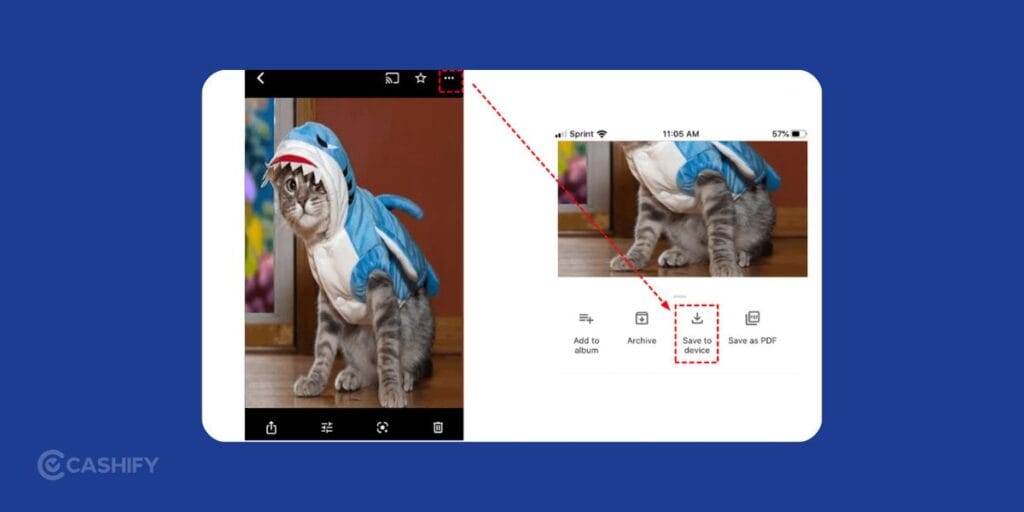
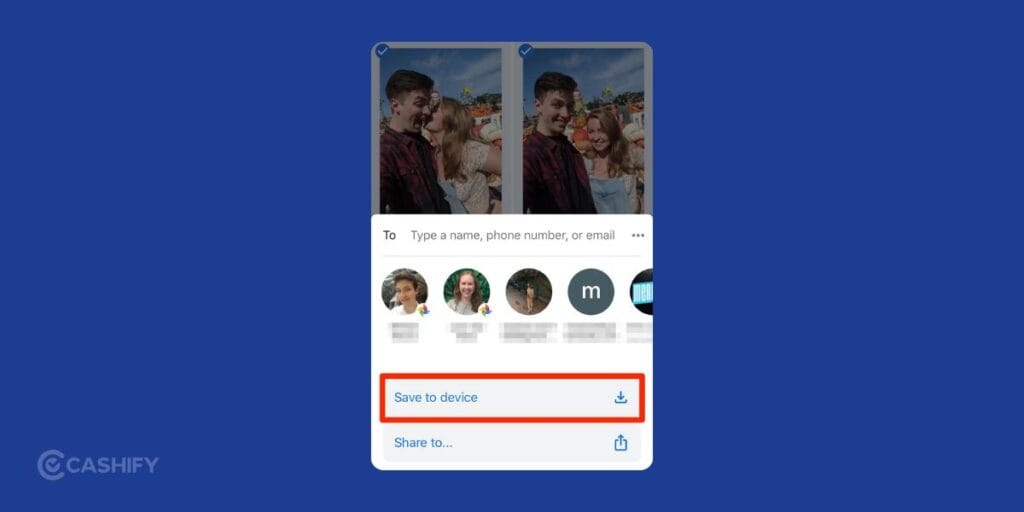
If you want to transfer multiple images together, Google Photos lets you select multiple files quickly.
- Open Google Photos.
- Press and hold the first image until a checkmark appears.
- Select additional photos.
- Tap the Share icon.
- Choose Save to device or Save x images.
The selected pictures will move into your local gallery storage.
Also Read: How To Use Google AI Studio For Free (Step-By-Step Beginner Guide)
How To Download Your Entire Google Photos Library?
People switching phones or creating backups often want every picture saved locally. Since the app does not include a massive “Select All” option, Google Takeout becomes the easiest solution.
Use Google Takeout For Bulk Downloads
Google Takeout helps export all pictures from your account.
- Open the Google Takeout page in a browser.
- Click Deselect all.
- Scroll down until you find Google Photos.
- Check the box beside it.
- Scroll down and tap Next step.
- Pick a delivery method like Send download link via email.
- Tap Create export.
Google will prepare ZIP files containing your pictures.
How To Extract The Downloaded Files From Google Takeout?
After receiving the email:
- Open the download link.
- Download the ZIP files.
- Extract the files on your phone or computer.
- Move the images into your gallery folder if needed.
Once extracted, the photos become accessible directly from your gallery app.
Why Pictures Sometimes Don’t Appear In Gallery
Some users save images successfully but still cannot see them inside the gallery. Usually, this happens because:
- The gallery app has not refreshed yet
- The file stayed inside the Downloads folder
- Storage permissions are disabled
- The image remains cloud-only
If you restart the phone or scan media files, it will often fix the issue.
Also Read: How To Delete Contact From WhatsApp: Quick & Easy Steps!
Tips Before Downloading Large Photo Collections
Downloading thousands of images can take time and storage space. Make that you always:
- Use a stable Wi-Fi connection
- Check available phone storage
- Keep the device charged
- Organise folders after extraction
Large exports may arrive in several ZIP files instead of one.
FAQs
How can I transfer photos from Google Photos to Gallery?
Open Google Photos, select the pictures you want, tap the Share icon, then choose Save to device. The photos will appear in your phone gallery after the download finishes.
How do I save images from Google to my phone gallery?
Open the image in Google Photos, tap the three-dot menu, then select Download. The picture will automatically save to your local gallery storage.
Can I delete photos from my phone without deleting from Google Photos?
Yes, you can remove photos only from your phone storage by using the Delete from device option inside Google Photos. This keeps the cloud copy safe inside your Google account.
How do I save photos out of Google Photos?
You can save single images, multiple pictures, or your entire photo library. For full backups, use Google Takeout to download ZIP files containing all stored photos.
Final Thoughts
If you know the right steps, saving pictures from Google Photos to your gallery is pretty simple. You can either transfer a single photo or transfer large amount of pictures through Google Takeout.
Also Read: How To Record Screen In Windows 11: Quick Ways!
No matter which method you choose, your memories stay accessible even without internet access. Share this guide with your friends to let them know about this trick. Let me know if you have any doubts in the comment section below. I would love to hear you out.
If you’ve just bought a new phone and don’t know what to do with your old phone, then here’s your answer. Sell old mobile to Cashify and get the best price for it. If you are planning to buy a new phone, check out Cashify’s refurbished mobile phones. You can get your favourite phone at almost half price with six-month warranty, 15 days refund and free delivery.