We watch a lot of content on our devices. There is some content which we feel like sharing to other, but there’s no way. Imagine you see a cool video on Instagram and you feel like sharing to someone on WhatsApp. But the person doesn’t use Instagram. There’s no point in sharing just the link. In this case, knowing how to download videos from any website comes in really handy.
Many people save videos for offline access, travel, research, or personal archives. This guide explains how to download videos from any website through simple steps across desktop, Android, and iPhone devices.
Also Read: How To Use Google AI Studio For Free (Step-By-Step Beginner Guide)
Desktop Methods: How To Download Video From Any Website
Desktop systems remain the easiest route for large video files. Chrome, Edge, Firefox, Windows, and Mac support many useful tools.
Browser Extensions For Chrome, Edge, And Firefox
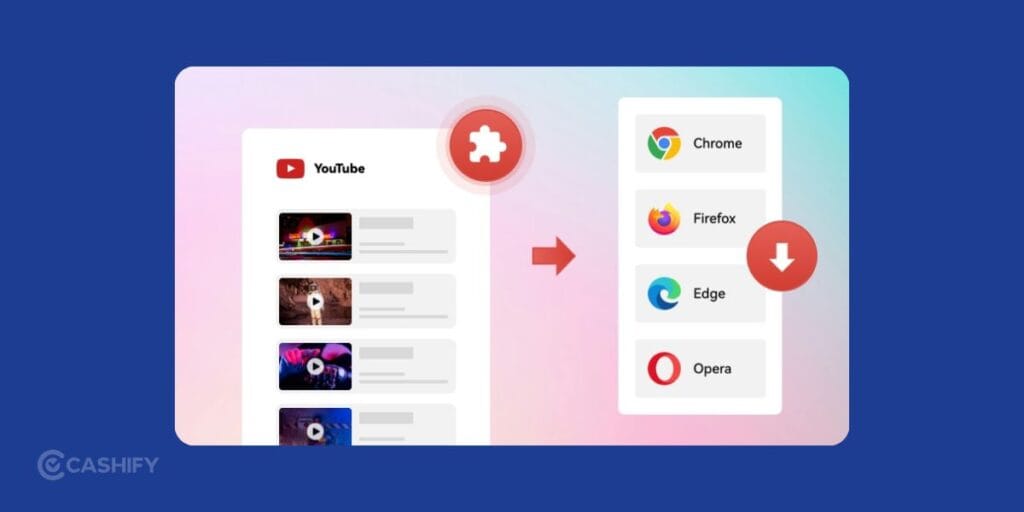
Browser add-ons work fast since everything happens inside the browser itself.
Step 1: Install A Video Downloader Extension
Add Video DownloadHelper to Chrome, Edge, or Firefox.
Step 2: Open The Video Page
Visit the site and start playback. The extension icon normally becomes active once the clip starts.
Step 3: Save The File
Click the extension icon and choose the preferred resolution. The file then saves directly onto the computer.
Desktop Apps For Windows And Mac
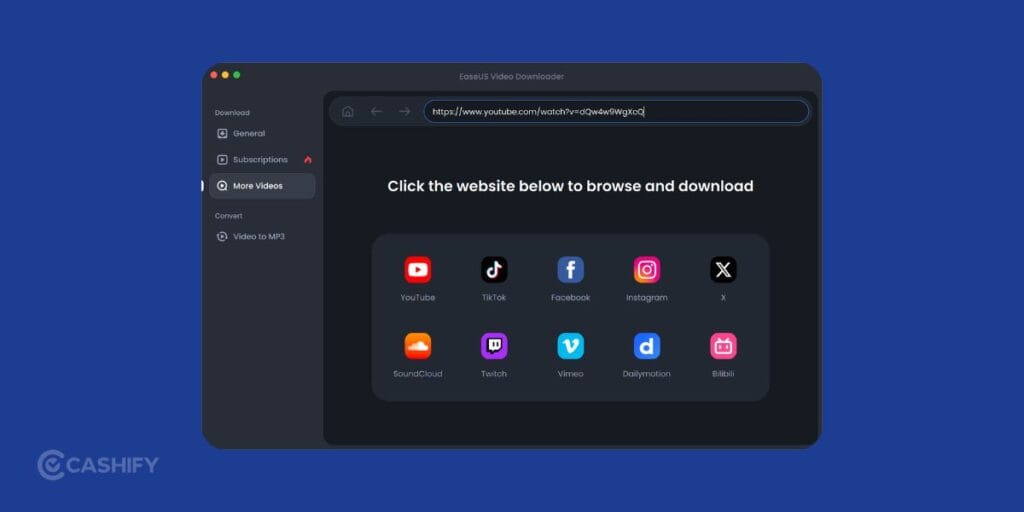
Desktop apps help during large downloads or batch downloads.
Step 1: Install A Downloader Program
Popular choices include 4K Video Downloader plus JDownloader.
Step 2: Copy The Webpage URL
Open the page containing the video and copy the address from the browser bar.
Step 3: Paste The Link
Open the app and press “Paste Link.” The software scans the page and prepares downloadable formats.
Step 4: Choose Quality
Pick resolution, folder location, and file type. Start the process and wait until completion.
Also Read: How To Delete Contact From WhatsApp: Quick & Easy Steps!
Android Methods: How To Download Video From Any Website
Android phones support many direct download tools. Let’s check them out:
Special Browsers
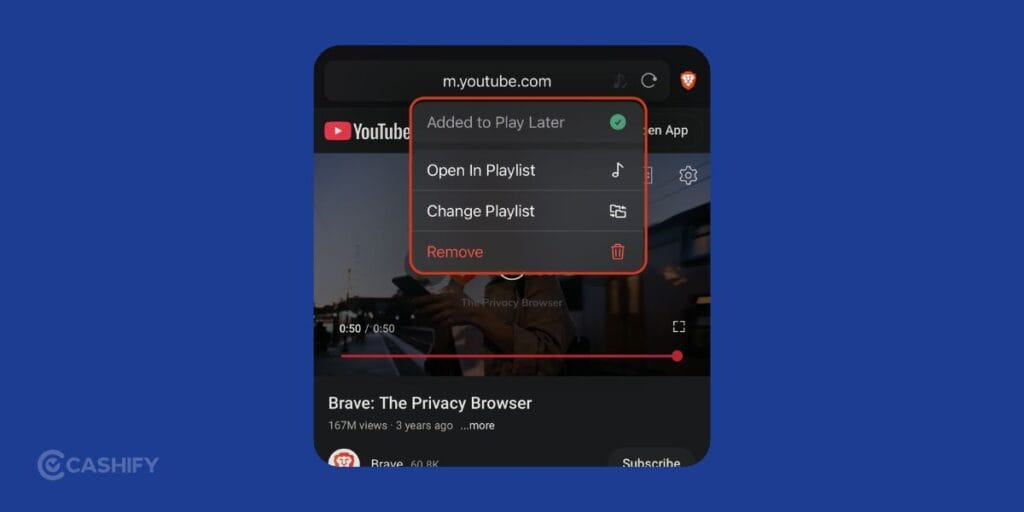
This is the simplest way for a lot of users.
Step 1: Install A Browser
Download 1DM or Brave Browser from Google Play Store.
Step 2: Open The Video Page
Launch the browser and visit the target website.
Step 3: Start Playback
Play the clip normally. A download arrow usually appears after detection.
Step 4: Save The Video
Tap the arrow, select video quality, and begin the download.
Dedicated Downloader Apps
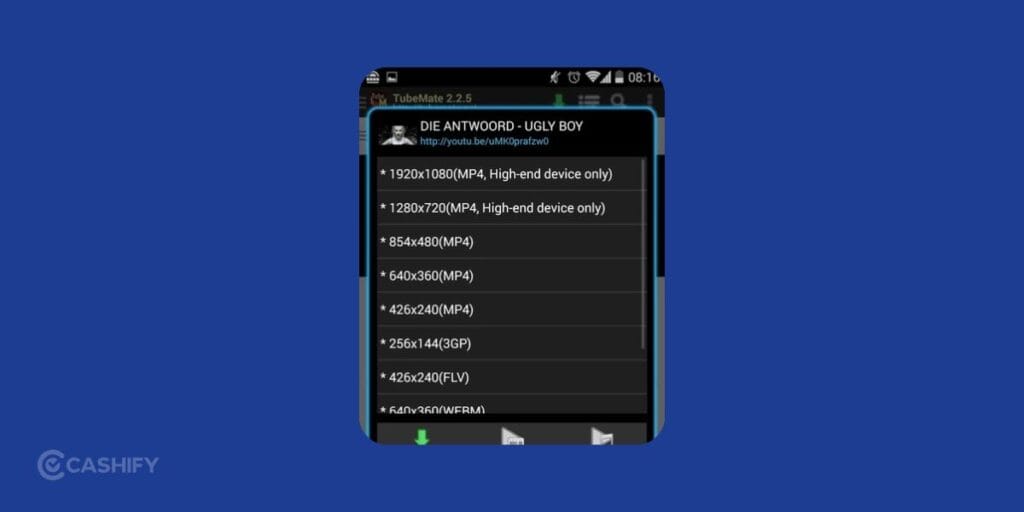
Some Android users prefer standalone downloader apps.
Step 1: Install The App
Popular names include VidMate, Seal, and TubeMate. I personally use Seal as it’s open source and probably the safest out there. These apps normally come through official sites instead of Google Play Store.
Step 2: Paste The Link
Copy the webpage URL and place it into the app search area.
Step 3: Download The File
Tap the red download button and choose resolution plus format.
Also Read: How To Record Screen In Windows 11: Quick Ways!
iOS Methods For iPhone And iPad: How To Download Video From Any Website
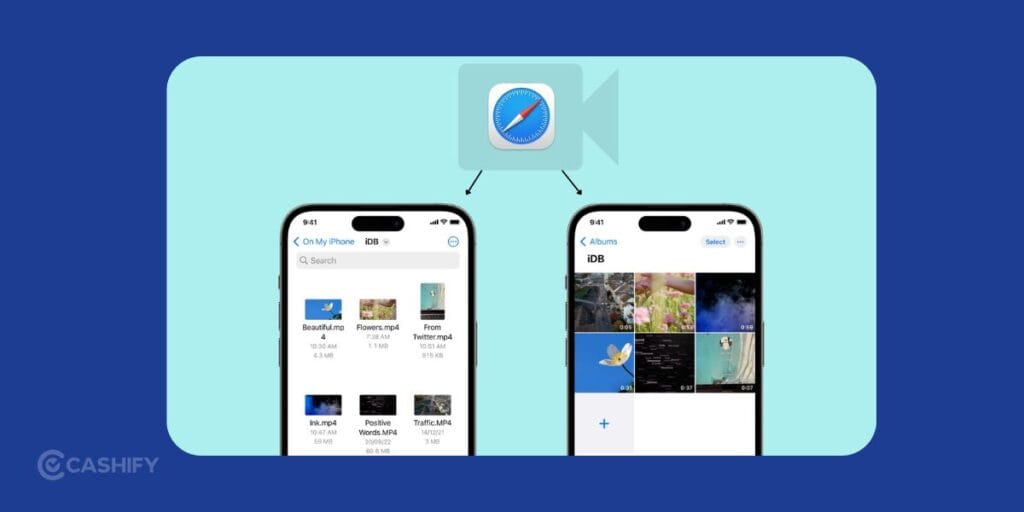
Apple devices need a slightly different process due to App Store restrictions.
File Manager Browser Method
This method works well for beginners.
Step 1: Install Documents By Readdle
Get Documents by Readdle from the App Store.
Step 2: Open The Built In Browser
Inside the app, tap the blue browser icon.
Step 3: Visit A Video Extraction Site
Open a service such as SaveFrom.net and paste the webpage link.
Step 4: Save The Download
After download completion, open the “Downloads” folder. Tap the three dots and move the file into Photos.
Also Read: How To Raise A UPI Complaint: Step By Step Guide
iOS Shortcuts Method
Advanced users often prefer automation shortcuts.
Step 1: Install A Shortcut
Download shortcuts like RDownload on RoutineHub or Yas Download on RoutineHub.
Step 2: Open Safari
Visit the video page inside Safari.
Step 3: Run The Shortcut
Tap Share, scroll downward, and select the shortcut name. The shortcut then saves the video into the camera roll.
Tips For Better Results
Now you know all the methods, you can choose whatever method seems most suitable to you. but there are few things that you should consider.
- Always choose MP4 format because they run really smoothly across phones, tablets, laptops, and smart TVs.
- There are a lot of fake downloader pages as well that contain ads and harmful files. But, you should always stick to trusted tools and avoid suspicious sites.
- Ensure that you use medium resolution for storage savings. This is because the 720p often balances quality plus file size well.
FAQs
Q1. Can I download videos from any website for free?
Yes, many browser extensions, apps, and online tools allow free video downloads. Some websites may restrict downloads due to copyright or platform policies.
Q2. Which browser extension works best for video downloads?
Video DownloadHelper remains one of the most popular choices for Chrome, Edge, and Firefox. It detects playable videos directly from the webpage.
Q3. How can Android users download videos from websites?
Android users can use apps like 1DM, Seal, or TubeMate. Simply copy the video page link, paste it into the app, and start downloading.
Q4. Is it possible to download videos on iPhone?
Yes, iPhone users can use Documents by Readdle or iOS shortcuts like RDownload for saving videos from supported websites.
Q5. Which video format should I choose while downloading?
MP4 format works best for most phones, tablets, laptops, and smart TVs because of broad compatibility and smooth playback.
Q6. Are online video downloader websites safe?
Some websites contain harmful ads or fake download buttons. Trusted apps, verified browser extensions, and reliable platforms remain safer choices.
Q7. What video quality is best for storage and playback?
720p resolution usually balances video clarity and file size properly. It saves storage space while still maintaining good viewing quality.
Final Thoughts
Honestly, life becomes really convenient if you know how to download video from any website. This guide covers all the methods for different devices. Share this article with anyone in your circle who is struggling with downloading videos.
Let me know if you have any queries in the comment section below. I would love to hear you out.
If you’ve just bought a new phone and don’t know what to do with your old phone, then here’s your answer. Sell old mobile to Cashify and get the best price for it. If you are planning to buy a new phone, check out Cashify’s refurbished mobile phones. You can get your favourite phone at almost half price with six-month warranty, 15 days refund and free delivery.