Samsung’s latest OneUI update has made us become a fan of its new minimalist upgrades and enhanced top-tier security. But what it misses out on is the battery part. Recently, many Samsung users have reported battery issues. The most common complaints were about Samsung Galaxy S24 and Galaxy S25 battery drain issues, which were not found earlier but became a visible issue after the latest update. So, let us figure out the latest specifications of this new update, and why people are facing battery drain issues, and also tell you how to resolve them. So without further ado, let us begin.
Also Read: Facing iOS 26 Battery Drain Issue? Here’s How To Fix Draining Battery
Diagnosing The Samsung Galaxy S24 and Galaxy S25 Battery Drain Issue: Did OneUI 8.5 Make A Mistake?
The OneUI 8.5 has come as the most advanced and most encrypted OS upgrade for Samsung fans. After every few weeks, a mini security upgrade comes to our phones, making our phones perform better and a literal safeguard. But what OneUI 8.5 has messed up is the battery department. Thousands of users in India and internationally have complained that they faced battery drain issues due to the OneUI 8.5 upgrade.
So, to resolve them, we bring you all the key measures
The Go-to Methods To Save You From Samsung Galaxy S24 And Galaxy S25 Battery Drain Issue
There are two most significant and the most suitable methods to help you if you are also the one who’s facing Samsung Galaxy S24 and Galaxy S25 battery drain issues. These are both inside your Battery settings, known as the ‘Power Saving Modes’. So, let’s discuss them in detail.
Enable Power Saving Mode
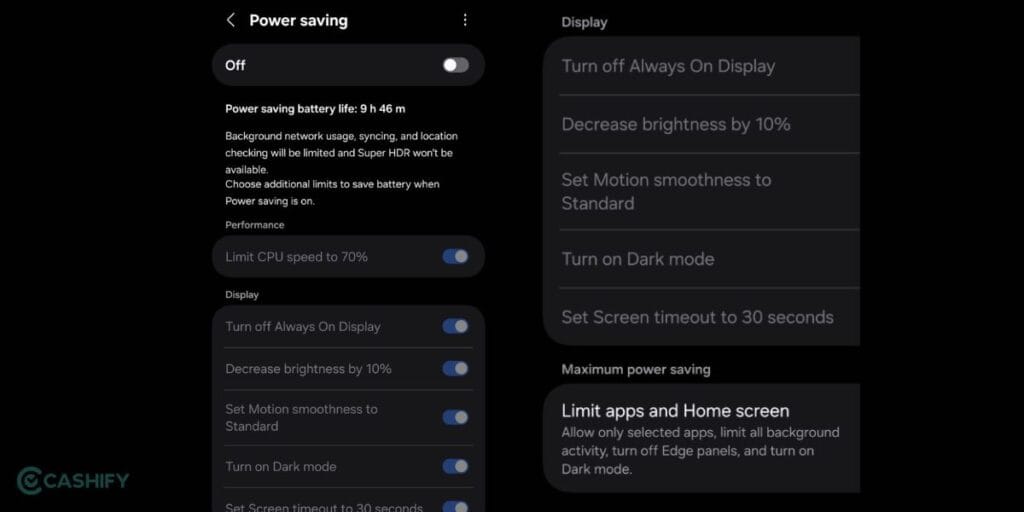
We know that the latest OneUI 8.5 might have damaged your battery health, but the power saving mode has still got you covered. All you need to do is just go to Settings > Battery and toggle on Power Saving. This reduces CPU speed to 70 per cent, lowers brightness, and stops background syncing. For maximum endurance, tap the “Power Saving” text to customise settings, such as turning off Always On Display or limiting the processor speed, allowing you to stretch those final 5-10 per cent changes.
Limit Apps And Home Screen
Inside the Power Saving menu, you will find a ‘Limit Apps and Home Screen’ option. This is the stricter measure to save you from the Samsung Galaxy S24 and Galaxy S25 battery drain issues. It is the “Ultra” version of power saving; it applies a simplified dark theme and restricts usage to only a few essential apps you choose. It drastically reduces GPU load and background activity, making it perfect for long days when you are out without any charger or power banks.
Also Read: Samsung One UI 8.5: Release Date, Features & Eligible Devices
These were the 2 go-to measures which save your phone from showing a black screen. But some underrated, overused, yet trusted steps are also there. Check them here.
Other Cheap Thrills That Sound Underrated, But Might Work For Samsung Galaxy S24 and Galaxy S25 Battery Drain Issue
There are some more ways that you can save your phone if the latest OneUI has damaged its battery.
Restart Your Phone
After a heavy update like OneUI 8.5, system processes often get “stuck” in loops. Hold the Side and Volume Down keys, then select Restart. This clears the system cache and kills rogue background processes, and helps you get a better upgrade next time your phones open up.
Reduce Background Apps
Navigate to Settings>Battery>Background usage limits. Enable Put unused apps to sleep. For even better results, manually move social media or shopping apps to Deep Sleep apps.
Turn On Adaptive Brightness
Samsung’s latest phones have brought higher displays and refresh rates. For example, the Galaxy S24’s peak brightness is incredibly high, which drains battery in well-lit rooms. Go to Settings>Display and toggle Adaptive brightness. The AI learns your preferences over time, but more importantly, uses the light sensor to instantly dim the screen when unnecessary.
Get Your Battery Health Checked
Open the Samsung Members app, tap Support, and select Phone diagnostics. Run the Battery status test. This confirms if the drain is purely software-related (the update) or if the hardware has degraded. If the status shows “Action required” or “Weak,” it might be time to visit a service centre, or maybe you can check out Cashify Repair Services to help you out.
Use Neutral Colour Covers In Summers
Darker cases (black or navy) absorb thermal energy, especially in direct sunlight. High internal temperatures trigger your phone to increase fanless cooling efforts, which increases battery consumption, and you end up being the victim of the Samsung Galaxy S24 and Galaxy S25 battery drain issue. Try switching to a white, silver, or clear neutral cover, which helps reflect heat.
Also Read: One UI 9 Release Date, Features, And Supported Devices!
Ultimate Rescue: One UI 9 Is Coming, And Might Bring Better Results
A wound given by one upgrade can only be resolved by another upgrade. Yes, we are talking about the OneUI 9. When this new upgrade comes, you can expect a cleaner UI, smoother animations, and simplified Settings, plus features like Tap-to-Share and smarter Galaxy AI tools.
Talking of battery and performance, a key upgrade is battery and performance efficiency. OneUI 9 brings better CPU management and smarter background handling, which should reduce power drain, especially during multitasking.
You’ll also see better privacy controls, notification management, and multitasking tweaks. Overall, it’s about smoother, longer-lasting daily usage.
End Note
That’s it from this guide on the Samsung Galaxy S24 and Galaxy S25 battery drain issue. These are the only official ways to get out of this problem, and no other cheap thrill or trick would work. So, we recommend that you maintain sanity, have patience, and use your phone wisely with the above-mentioned measures for a few days, till Samsung brings new bug fixes for your battery. Stay tuned for more such guides.
Also Read: One UI 9 vs One UI 8: What Actually Changed And Should You Care?
If you’ve just bought a new phone and don’t know what to do with your old phone, then here’s your answer. Sell old mobile to Cashify and get the best price for it. If you are planning to buy a new phone, check out Cashify’s refurbished mobile phones. You can get your favourite phone at almost half price with six-month warranty, 15 days refund and free delivery.