If you want more control over your phone, learning how to enable developer options in Motorola can give you access to several advanced Android settings. You can use these options for USB debugging, changing animation speeds, checking system behaviour, and testing certain features without installing another app.
Also Read: How To Get Google Play Redeem Codes For Free In 2026
What Are Developer Options On Motorola?
When you enable developer options in Motorola, you unlock a hidden Android settings menu designed mainly for developers and advanced users. You don’t need to be a developer to access it, but some settings are better left unchanged unless you know what they do.
Some of the options you may find include:
- USB debugging
- Wireless debugging
- Animation scale controls
- Show refresh rate
- Background process settings
- Bluetooth-related settings
- Stay awake while charging
- Graphics and display testing options
You can access these settings directly from your Motorola phone’s Settings app.
How To Enable Developer Options On Motorola?
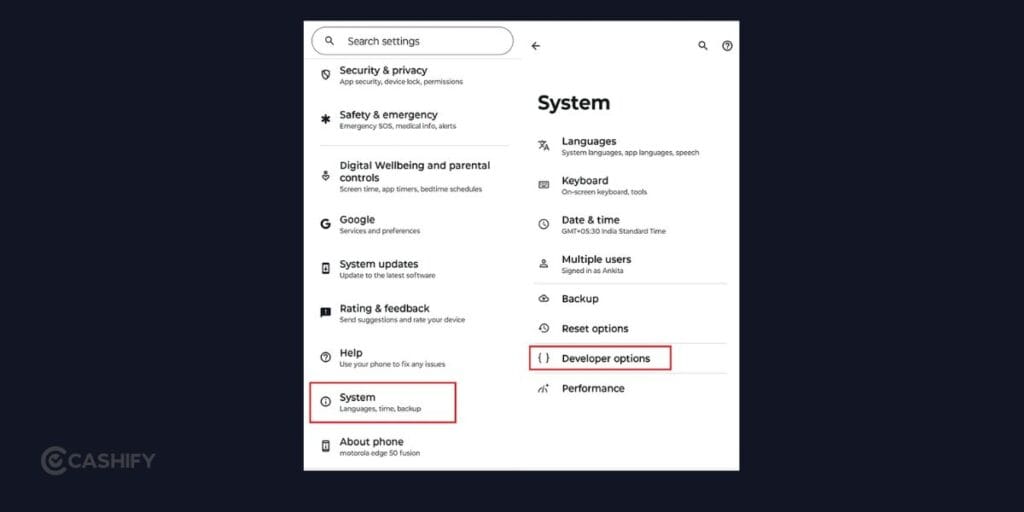
The process to enable developer options in Motorola is straightforward and usually takes less than a minute.
- Open Settings on your Motorola phone.
- Tap About phone.
- Find Build number. If you don’t see it, check Device details or Android version.
- Tap Build number seven times.
- Enter your PIN, password, or pattern if asked.
- You’ll see a message confirming that Developer Options are now enabled.
Where To Find Developer Options On Motorola?
Once you enable developer options in Motorola, you can usually find the menu by going to:
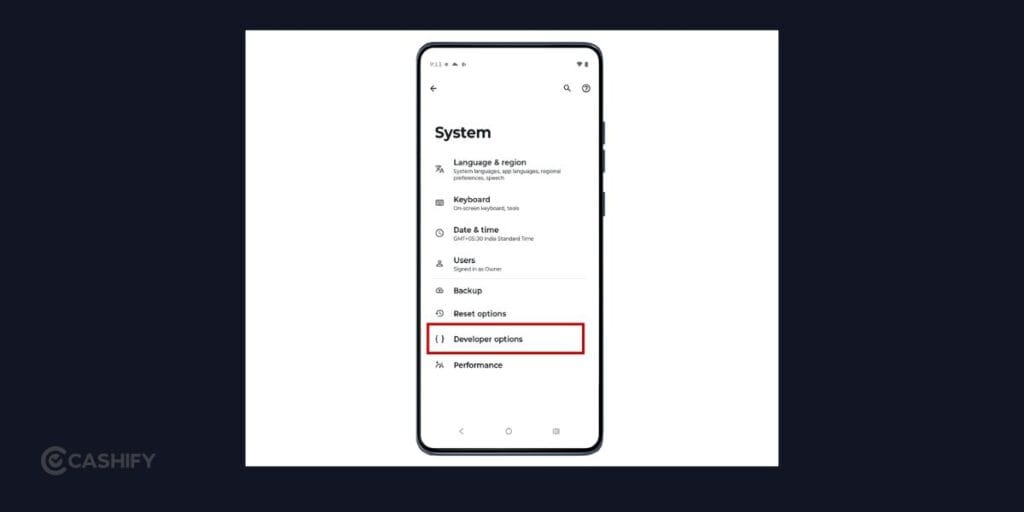
Settings > System > Developer options
The exact location can vary depending on your Motorola phone and Android version. If you can’t find it, open Settings and search for Developer options.
Tap the result to open the complete list of advanced settings.
How To Turn On USB Debugging On Motorola?
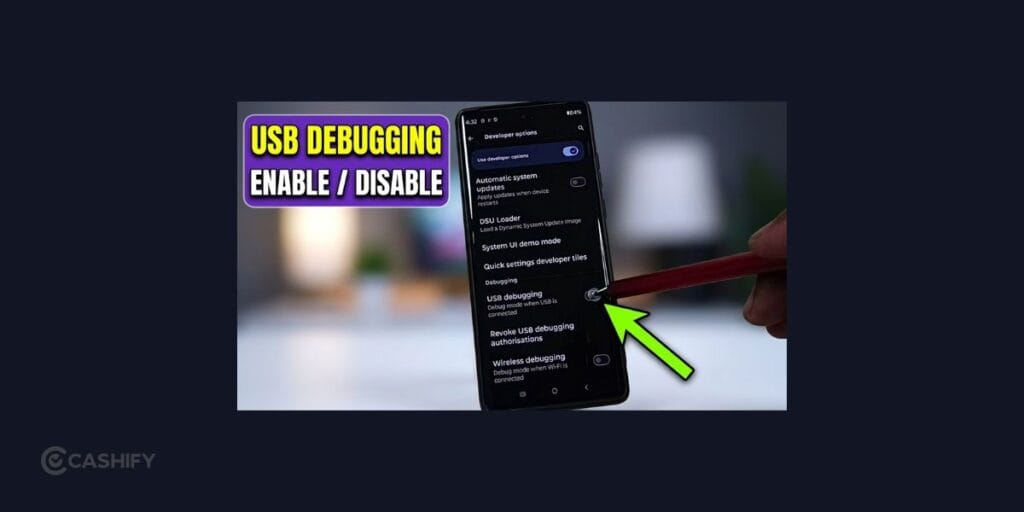
If you enable developer options in Motorola because you need USB debugging, you can turn it on from the newly unlocked menu.
Follow these steps:
- Open Settings.
- Go to System.
- Tap Developer options.
- Find USB debugging.
- Turn on the toggle.
- Read the warning and confirm your choice.
USB debugging allows your Motorola phone to communicate with a computer using Android debugging tools.
When you connect your phone to a computer, you may see a prompt asking whether you want to allow USB debugging. Only authorize computers that you trust.
Also Read: September Android Feature Drop: List of All New Features
How To Change Animation Speed On Motorola?
After you enable developer options in Motorola, you can also adjust how quickly certain animations appear on the screen.
Look for these three settings:
- Window animation scale
- Transition animation scale
- Animator duration scale
They are generally set to 1x by default.
If you change them to 0.5x, animations will complete more quickly. This can make the interface feel faster, although it doesn’t actually increase the processing power of your phone.
If you prefer the original behaviour, set them back to 1x.
Can Developer Options Improve Motorola Performance?
When you enable developer options in Motorola, you may notice settings that appear to promise better performance. However, Developer Options itself doesn’t make your phone’s processor faster.
Changing animation scales can make the interface feel quicker because transitions take less time. Other settings, such as background process limits or graphics options, can have unintended effects if you change them without understanding their purpose.
If your Motorola phone feels slow, start with basic steps such as freeing up storage, updating the software and removing apps you no longer use.
How To Disable Developer Options On Motorola?
If you no longer need the features you accessed after you enable developer options in Motorola, you can turn the main Developer Options switch off.
Go to:
Settings > System > Developer options
Then turn off the main Use developer options toggle.
Keep in mind that disabling the menu doesn’t necessarily mean every individual setting you’ve changed will return to its original value. If you modified several options, check them before turning the menu off.
Is It Safe To Enable Developer Options?
Yes, choosing to enable developer options in Motorola is generally safe. Simply unlocking the menu doesn’t damage your phone or delete your personal information.
The important thing is to be careful with the settings inside it. Some controls are designed for testing and development and can affect how your device behaves.
For example, don’t authorize an unfamiliar computer when using USB debugging. Similarly, avoid changing system settings just because they appear to improve performance.
What If You Can’t Find Build Number?
If you want to enable developer options in Motorola but can’t find Build number, the location may be different on your particular Android version.
Open Settings and use the search bar to look for Build number. You can also search directly for Developer options if you’ve already unlocked the menu.
A Motorola software update can sometimes change the layout or location of individual settings, so using Settings search is often the quickest way to locate them.
Final Thoughts
Knowing how to enable developer options in Motorola gives you access to Android settings that aren’t normally visible. Whether you’re trying to use USB debugging, adjust animations or explore advanced controls, the process itself is simple.
The key is to change only the settings you understand and leave the rest alone. That way, you can use the extra controls without unnecessarily affecting the way your Motorola phone works
Also Read: What Is WhatsApp Scam Alert Feature And How To Enable It?
Frequently Asked Questions
How many times do you tap build number on Motorola?
To enable developer options in Motorola, you generally need to tap Build number seven times. Your phone may ask you to enter your screen-lock PIN, password or pattern.
Does enabling developer options delete your data?
No. When you enable developer options in Motorola, your photos, apps, contacts and other personal files aren’t deleted. Unlocking the menu doesn’t require a factory reset.
Do you need a computer to enable developer options?
No. You can enable developer options in Motorola directly from your phone’s Settings app. A computer is only needed for certain tasks that use features such as USB debugging.
Can you turn developer options off again?
Yes. After you enable developer options in Motorola, you can open Developer Options and switch off the main toggle when you no longer need the menu.
If you’ve just bought a new phone and don’t know what to do with your old phone, then here’s your answer. Sell old mobile to Cashify and get the best price for it. If you are planning to buy a new phone, check out Cashify’s refurbished mobile phones. You can get your favourite phone at almost half price with six-month warranty, 15 days refund and free delivery.