You’ve probably been asked to show your Aadhaar card for KYC, hotel check-ins, or identity verification at some point. But instead of manually checking every detail printed on the card, you can simply scan its QR code to confirm that the information is authentic. It only takes a few seconds and works on both smartphones and Windows computers using UIDAI’s official tools. In this blog, we’ll learn how to scan Aadhaar card QR code, what information it contains, and what to do if the QR code doesn’t scan properly.
Also Read: UIDAI’s New Aadhaar App Is Here: Share & Verify Aadhaar Without Paper
What Is The Aadhaar Card QR Code And What Information Does It Contain?
The QR code on your Aadhaar card is more than just a scannable image. Issued by the Unique Identification Authority of India (UIDAI), it contains encrypted demographic information along with a digital signature that helps confirm the authenticity of the Aadhaar document.
When you scan it using an official UIDAI application, the app validates the digital signature before displaying the cardholder’s details. This helps ensure the information is genuine and hasn’t been altered.
You’ll find the QR code on the Aadhaar letter, Aadhaar PVC card, e-Aadhaar PDF, and the digital Aadhaar available through the mAadhaar app.
After a successfully scan Aadhaar QR code, you can view details such as:
- Masked Aadhaar number
- Full name
- Date of birth
- Gender
- Address
- Photograph
Because the information is encrypted, standard QR scanner apps cannot authenticate or display these details correctly. For reliable verification, use the mAadhaar App, Aadhaar QR Scanner, or UIDAI Secure QR Code Reader.
How To Scan Aadhaar Card QR Code Using A Smartphone?
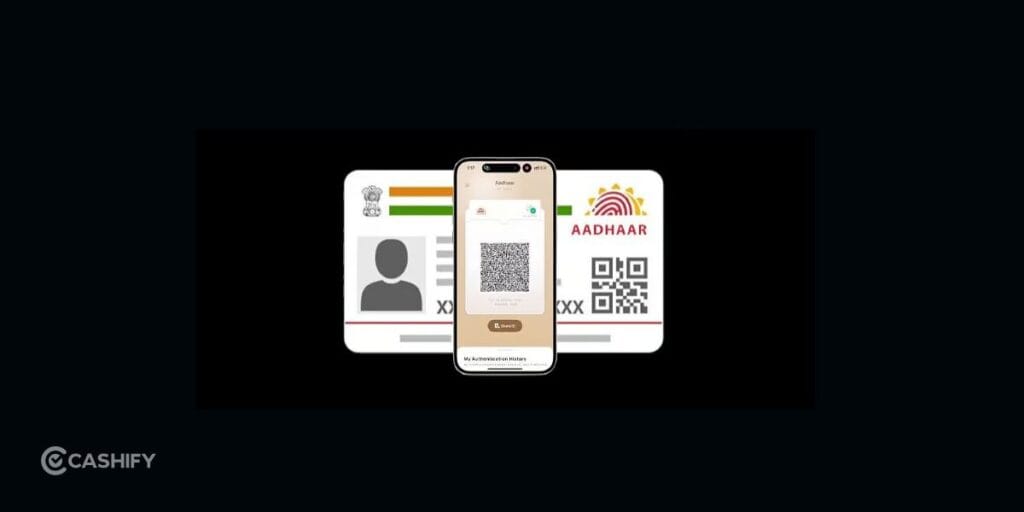
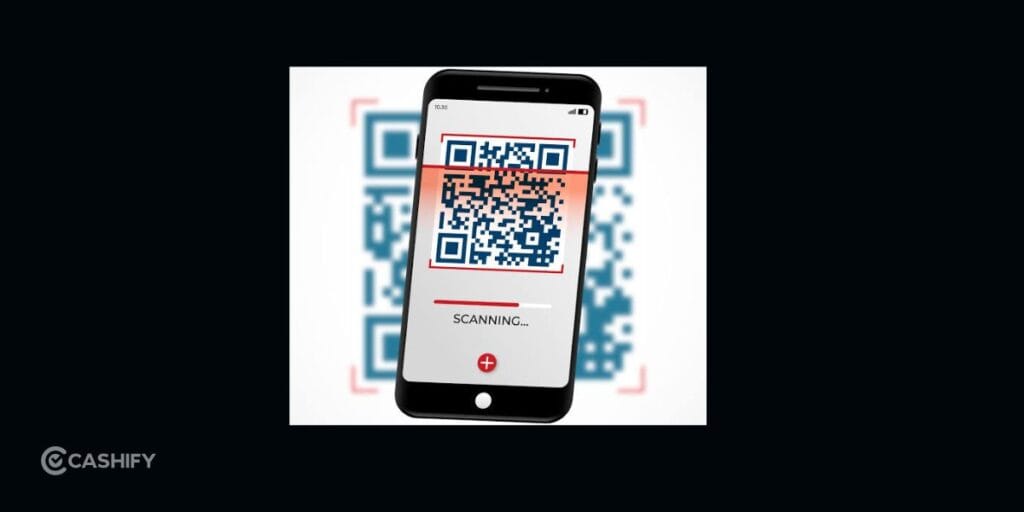
You can scan Aadhaar QR code using the official mAadhaar App or Aadhaar QR Scanner on an Android phone or iPhone.
Follow these steps:
- Download the mAadhaar App or Aadhaar QR Scanner from the Google Play Store or Apple App Store.
- Open the app and allow camera access when prompted.
- Tap the QR Scanner icon.
- Point your phone’s camera at the QR code on the Aadhaar letter, Aadhaar PVC card, or e-Aadhaar PDF.
- Hold your phone steady until the code is scanned.
- The app will automatically validate the QR code and display the Aadhaar holder’s details.
Also Read: How To Change Mobile Number In Aadhaar Card Online?
How To Scan Aadhaar Card QR Code On A Windows Computer?
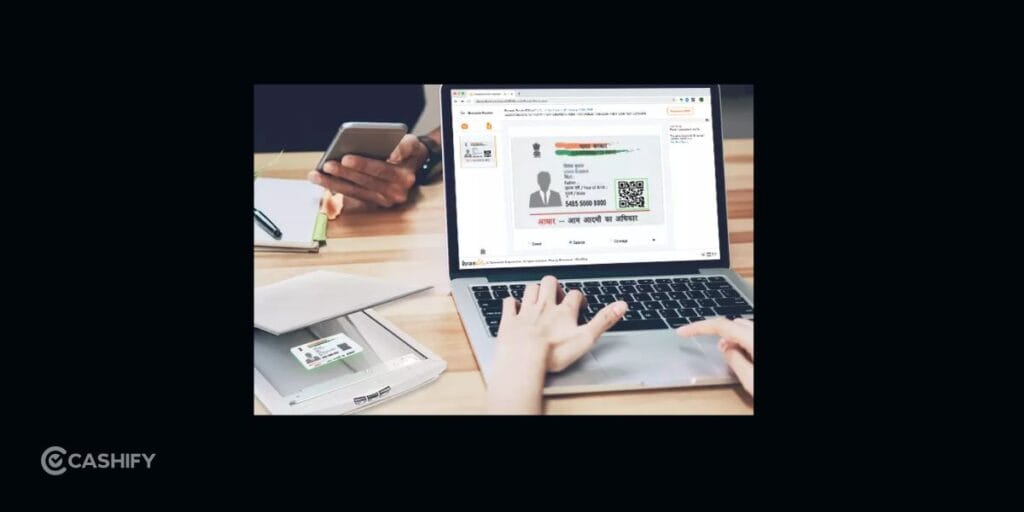
If you’re using a desktop or laptop, UIDAI also provides a dedicated QR code reader for Windows.
Here’s how to use it and scan Aadhaar QR code:
- Visit the official UIDAI QR Code Reader webpage.
- Download the UIDAI Secure QR Code Reader 4.0 for Windows.
- Install the software by following the on-screen instructions.
- Launch the application.
- Connect a webcam or a compatible barcode scanner to your computer.
- Hold the Aadhaar QR code in front of the webcam or scan it using the barcode scanner.
- The application will authenticate the QR code and display the Aadhaar holder’s demographic details.
Why Should You Scan The Aadhaar QR Code?
Scanning the Aadhaar QR code is much quicker than manually checking every printed detail on the card. It helps you confirm that the Aadhaar document is genuine while displaying the cardholder’s verified information in seconds.
Some of the key benefits include:
- Confirms the authenticity of the Aadhaar document.
- Displays verified demographic details within seconds.
- Reduces the chances of manual verification errors.
- Works with both physical and digital Aadhaar copies.
- Supports secure identity verification using UIDAI’s encrypted QR code.
Can You Scan The QR Code On An e-Aadhaar?
Yes. The QR code on an e-Aadhaar works exactly like the one printed on a physical Aadhaar card.
Simply open the e-Aadhaar PDF on another phone, tablet, or computer and scan the Aadhaar card QR code using the mAadhaar App or Aadhaar QR Scanner. The app will read the information and display the verified Aadhaar details within seconds.
Also Read: iPhone 18 Pro And Pro Max Latest Leaks: Price Increase, New Color And More
Can You Use Google Lens Or Another QR Scanner?
No. While Google Lens and other QR scanner apps can detect that a QR code is present, they cannot read or authenticate the encrypted information stored inside an Aadhaar QR code.
For accurate results, always use one of UIDAI’s official applications:
- mAadhaar App
- Aadhaar QR Scanner
- UIDAI Secure QR Code Reader (Windows)
Why Isn’t The Aadhaar QR Code Scanning?
If you’re having trouble scanning the QR code, one of these issues could be the reason:
- The QR code is damaged, faded, or partially covered.
- The camera lens is dirty.
- There isn’t enough lighting.
- You’re using an outdated version of the scanner app.
- You’re trying to scan it with a regular QR scanner instead of the official UIDAI application.
If the QR code on your physical Aadhaar card is damaged, you can download a fresh e-Aadhaar and scan that instead.
Is It Safe To Scan An Aadhaar QR Code?
Yes, as long as you use an official UIDAI application. To keep your Aadhaar information secure:
- Download the scanner app only from official app stores.
- Check that the app is published by UIDAI.
- Avoid uploading your Aadhaar to unknown QR scanner websites.
- Don’t share scanned Aadhaar details unless absolutely necessary.
- Keep the application updated to the latest version.
Final Thoughts
Scanning an Aadhaar QR code is one of the easiest ways to verify an Aadhaar document without manually checking every printed detail. Whether you’re using a smartphone or a Windows computer, the process takes only a few seconds with UIDAI’s official scanning tools.
For secure and accurate verification, always use the mAadhaar App, Aadhaar QR Scanner, or the UIDAI Secure QR Code Reader. These applications are designed to authenticate the encrypted QR code and display verified Aadhaar details, giving you confidence that the information you’re viewing is genuine.
Also Read: Asus Pad Release Date, Expected Price And Specs: Launching Soon
Frequently Asked Questions
Can I scan an Aadhaar QR code without internet?
Yes. Once the official scanner app is installed, Aadhaar QR code verification generally works offline.
Can any QR scanner verify an Aadhaar QR code?
No. Generic QR scanner apps cannot authenticate the encrypted Aadhaar QR code. Use only the official UIDAI applications.
Does scanning the QR code reveal the full Aadhaar number?
No. The scanner typically displays a masked Aadhaar number along with other demographic details.
Can I scan the QR code from an e-Aadhaar PDF?
Yes. The QR code on an e-Aadhaar PDF can be scanned just like the one on a physical Aadhaar card.
Is the QR code available on every Aadhaar card?
Yes. Aadhaar letters, Aadhaar PVC cards, and e-Aadhaar PDFs all include a secure QR code issued by UIDAI.
If you’ve just bought a new phone and don’t know what to do with your old phone, then here’s your answer. Sell old mobile to Cashify and get the best price for it. If you are planning to buy a new phone, check out Cashify’s refurbished mobile phones. You can get your favourite phone at almost half price with six-month warranty, 15 days refund and free delivery.