If you know how to Sign Up for Apple Beta Update, it lets you test upcoming versions of iOS, iPadOS, macOS, watchOS, and HomePod. You can test them even before the final public release.
I usually recommend beta updates only if you’re curious about new changes or need early access for testing. Beta software can be exciting, but it can also be unstable and full of bugs. This guide explains the easiest way to sign up for Apple beta updates, enable them on your devices, and leave the beta program if you decide it’s not for you.
What Are Apple Beta Updates?
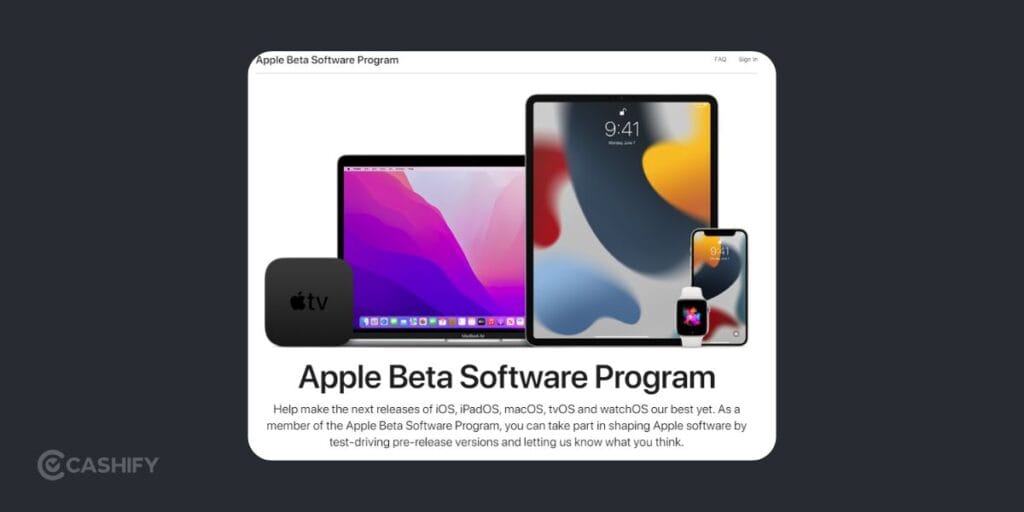
Apple releases beta versions of its software before the official launch. These test versions help identify bugs and improve stability.
There are two beta programs:
- Public Beta: It is available to anyone after registering for an Apple Account. This version is usually more stable.
- Developer Beta: This one releases earlier for app testing. You can access it after signing in through the Apple Developer app.
Also Read: iOS 27 Beta 3 Release Date And Features: Everything You Need To Know!
Step 1: Register Your Apple Account For Beta Updates
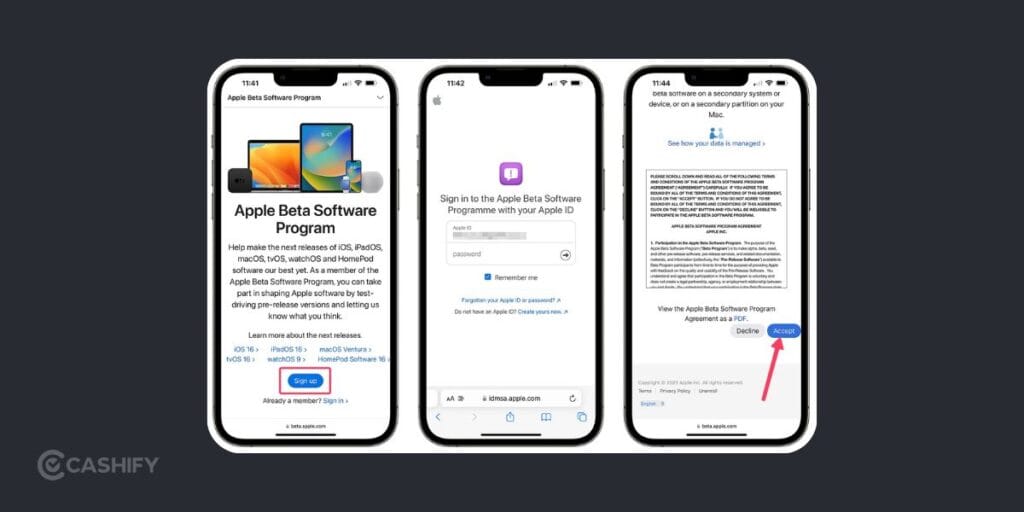
Before the Beta Updates option appears on your device, you need to register your Apple Account.
For Public Beta
- Open Safari.
- Visit the Apple Beta Software Program website.
- Select Sign Up.
- Sign in using your primary Apple Account.
For Developer Beta
- Download the official Apple Developer app from the App Store.
- Open the app.
- Tap Account.
- Select Sign In.
- Log in using your Apple Account.
After registration, your eligible devices can access beta updates.
Step 2: Enable Apple Beta Updates For Different Devices
After registration, turn on beta updates directly from your device settings.
iPhone And iPad
- Open Settings.
- Tap General.
- Select Software Update.
- Wait a few seconds until the page refreshes.
- Tap Beta Updates.
- Choose either iOS Public Beta or iOS Developer Beta.
- Return to Software Update and install the available beta version.
Mac
- Open System Settings.
- Select General.
- Open Software Update.
- Click the Information (i) button next to Beta Updates.
- Select your preferred beta channel.
- Click Done.
- Choose Upgrade Now if a beta update is available.
Apple Watch
- Open the Watch app on your paired iPhone.
- Tap My Watch.
- Go to General > Software Update.
- Select Beta Updates.
- Pick the watchOS beta version.
HomePod
- Open the Home app.
- Tap the More (…) button.
- Select Home Settings.
- Tap Software Update.
- Open HomePod Beta Updates.
- Turn on beta updates for the HomePod speakers you want to update.
Also Read: Android 17 Vs iOS 26: Design, AI, Performance, Customisation, More!
Things To Do Before Installing A Beta
Installing beta software is different from installing a normal software update. You need to keep a few things in mind.
Back Up Your Device
Always create a full backup using iCloud or a computer before installing beta software. If something goes wrong, you can restore your data.
Check Available Storage
Large beta updates usually need around 20 GB to 25 GB of free storage.
Report Bugs
After joining the beta program, the Feedback Assistant app appears on your device. Use it to report bugs directly to Apple.
How To Leave Apple Beta Updates: Quick Guide!
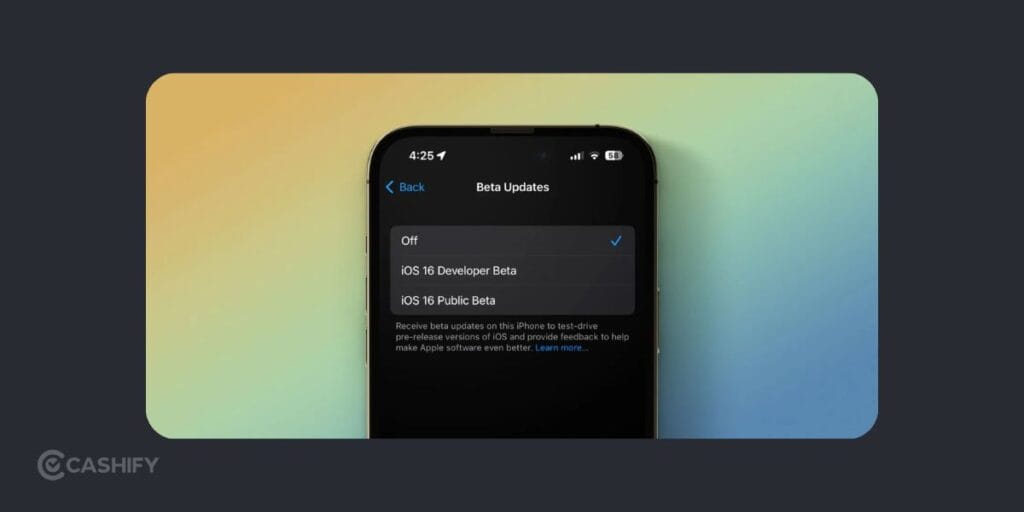
If you decide beta software isn’t for you, turning off beta updates is simple.
iPhone and iPad
Settings > General > Software Update > Beta Updates > Turn Off
Mac
System Settings > General > Software Update > Click the Information button > Select Off
Apple Watch
Watch App > My Watch > General > Software Update > Beta Updates > Turn Off
This stops future beta updates, but your current beta version stays installed.
Also Read: Apple iPhone 18 Pro Series Upgrades Could Be Apple’s Biggest Leap In Years
How To Return To Regular Apple Software?
You have two options.
Option 1: Wait For The Next Public Release
You should keep beta updates turned off. When Apple releases the next official software version, install it like a normal update. Your device automatically returns to the regular update channel without deleting your data.
I usually suggest this method unless the beta has serious issues.
Option 2: Restore Your Device Immediately
If the beta causes major problems, you can erase the device and reinstall the latest public software. This process removes all data. You can restore only a backup created before installing the beta.
iPhone and iPad
- Connect the device to a Mac or PC.
- Enter Recovery Mode.
- Open Finder or iTunes.
- Select Restore.
Mac
- Restart the Mac.
- Enter macOS Recovery.
- Erase the startup drive using Disk Utility.
- Reinstall macOS.
Apple Watch
Apple Watch cannot be downgraded at home. If a beta version causes severe issues, service is required through an Apple Store or an Apple Authorised Service Provider. Otherwise, wait for the next public watchOS release.
Remove Your Apple Account From The Beta Program
Turning off beta updates stops future beta installations, but your account remains enrolled.
If you also want to stop receiving beta program emails, visit the Apple Beta Software Program Unenroll page and sign in. From there, scroll to the bottom and select Leave Apple Beta Software Program.
Also Read: How To Get Liquid Glass On WhatsApp In iPhone: Simplest Guide!
FAQs: How To Sign Up For Apple Beta Updates
1. Is Apple Beta free to join?
Yes. Both the Apple Beta Software Program and access to Apple Developer beta builds are available at no cost.
2. Can I leave the Apple Beta program anytime?
Yes. You can turn off beta updates from your device’s Software Update settings at any time.
3. Will installing Apple Beta erase my data?
No, installing a beta update does not normally erase your data.
4. Which is better: Apple Public Beta or Developer Beta?
The Apple Public Beta is a better choice for most users because it is generally more stable. The Developer Beta receives new builds earlier and is mainly for app testing.
5. Can I go back to the regular Apple software after installing a beta?
Yes. You can turn off beta updates and wait for the next official public release to return to the standard update channel.
Final Thoughts
The Public Beta is the better choice for most people. It is more stable and reliable. The Developer Beta is best suited for testing early software builds. Before installing any beta, create a backup.
If you’ve just bought a new phone and don’t know what to do with your old phone, then here’s your answer. Sell old mobile to Cashify and get the best price for it. If you are planning to buy a new phone, check out Cashify’s refurbished mobile phones. You can get your favourite phone at almost half price with six-month warranty, 15 days refund and free delivery.