If you are trying to fix Play Store won’t download or install apps issue on your Android phone, you are definitely not alone. Many Android users face this frustrating problem where the Google Play Store gets stuck on “Pending,” refuses to install apps, or keeps failing during downloads. The good news is that most Play Store problems are easy to fix, and you usually do not need any technical skills to solve them.
Whether the issue is caused by poor internet, low storage, corrupted cache, or Google account problems, this blog will help you fix Play Store won’t download or install apps errors step by step. So, let’s begin.
Also Read: Best Mobile Phones Under 25000
How To Fix The Play Store Won’t Download or Install Apps Issues?
Take a look at the various troubleshooting methods to fix the Play Store won’t download or install apps issue:
1. Restart Your Phone
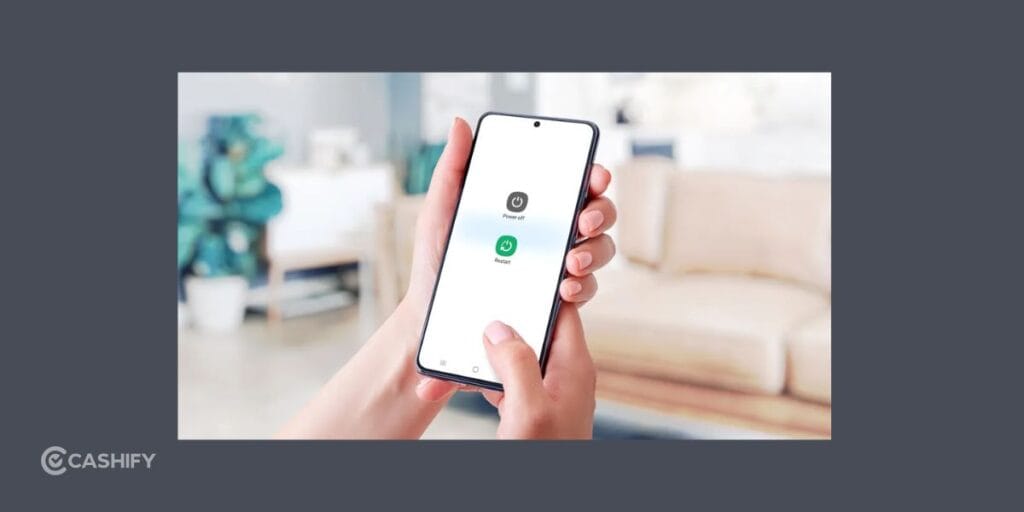
One of the easiest ways to fix Play Store won’t download or install apps issues is simply restarting your device. A restart refreshes Android system services and removes temporary glitches affecting the Play Store.
- Press and hold the power button.
- Tap Restart.
- Wait for the phone to reboot.
- Open the Play Store again.
Now check whether apps are downloading normally.
2. Check Your Internet Connection

A weak or unstable connection is one of the biggest reasons users search for ways to fix Play Store won’t download or install apps. Even if Wi-Fi appears connected, the internet may still be slow or unstable.
Try These Quick Fixes
- Switch between Wi-Fi and mobile data.
- Restart your Wi-Fi router.
- Turn Airplane Mode on and off.
- Move closer to the router.
- Test internet speed using YouTube or Chrome.
If downloads work after switching networks, your internet connection was likely causing the issue.
Also Read: Oppo Find X9 Ultra Best Camera Settings: Shoot Like A Pro
3. Free Up Storage Space
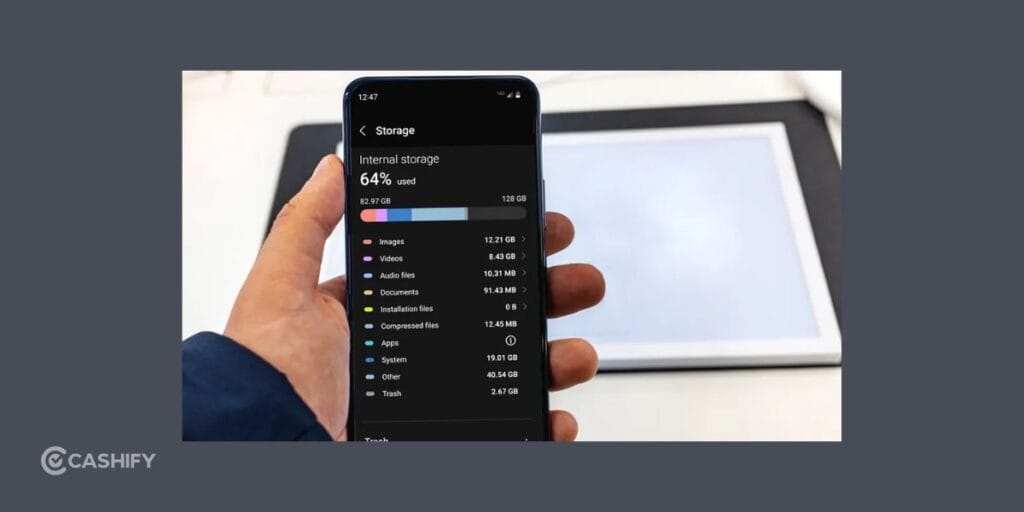
Your phone needs enough storage to install apps properly. If your device storage is nearly full, you may need to fix this problem by deleting unnecessary files.
Check Available Storage
- Open Settings on your phone.
- Tap Storage.
- Review available free space.
Delete Unnecessary Items
- Old videos
- Duplicate photos
- Unused apps
- Large downloads
- Screenshots
Keeping at least 2-3GB free is recommended.
4. Clear Google Play Store Cache
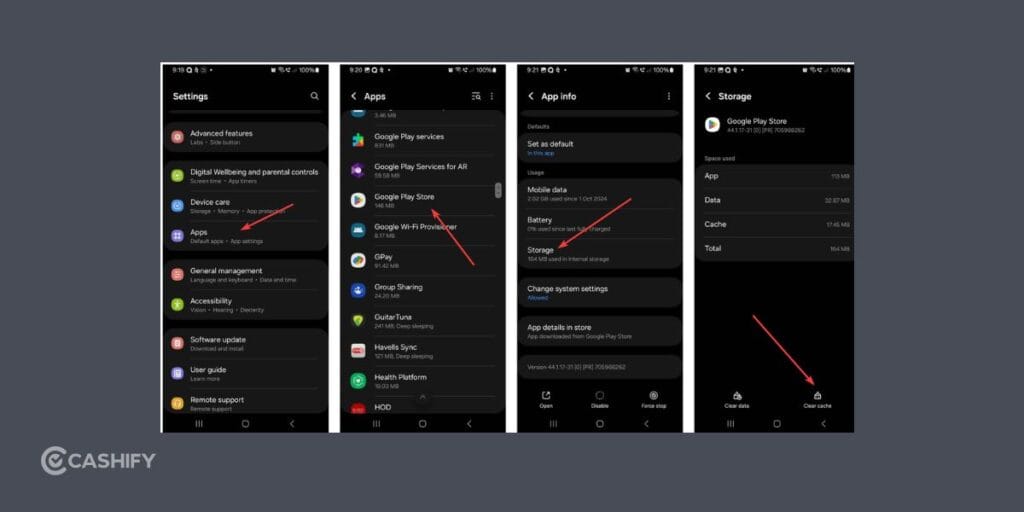
Corrupted cache files are another major reason users need to fix Play Store won’t download or install apps errors. Clearing cache removes temporary files without deleting personal data.
- Open Settings on your phone.
- Tap Apps and select Google Play Store.
- Tap Storage.
- Choose Clear Cache.
After clearing cache, reopen the Play Store.
5. Clear Play Store Data
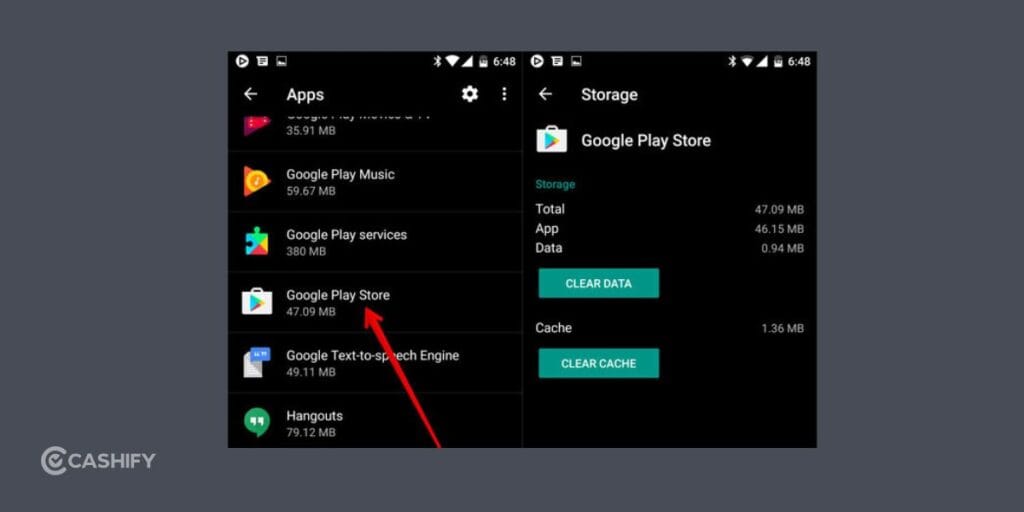
If cache clearing does not help, clearing app data often helps fix Play Store won’t download or install apps problems completely.
- Open Settings on your phone.
- Tap Apps and select Google Play Store
- Open Storage
- Then, tap Clear Data
This resets the Play Store to default settings. But do not worry- your installed apps will remain safe.
Also Read: 5 Best Video Downloader Apps For Android: Fast And Free Picks
6. Clear Google Play Services Cache
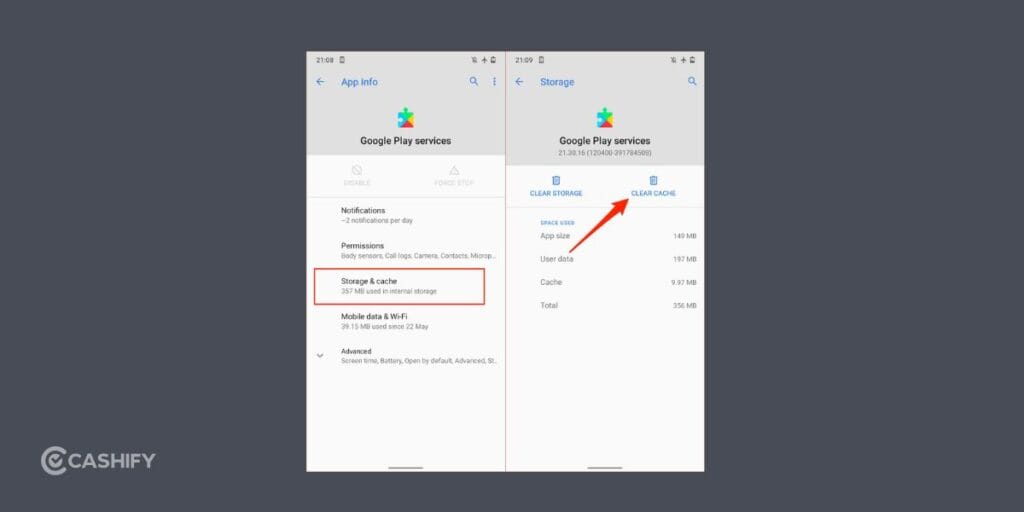
Google Play Services supports many Android functions in the background. When it becomes corrupted, you may need this fix this issue to download or install apps.
- Open Settings> Apps.
- Find Google Play Services.
- Open Storage.
- And tap on Clear Cache.
Then try downloading the app again.
7. Turn On Automatic Date And Time
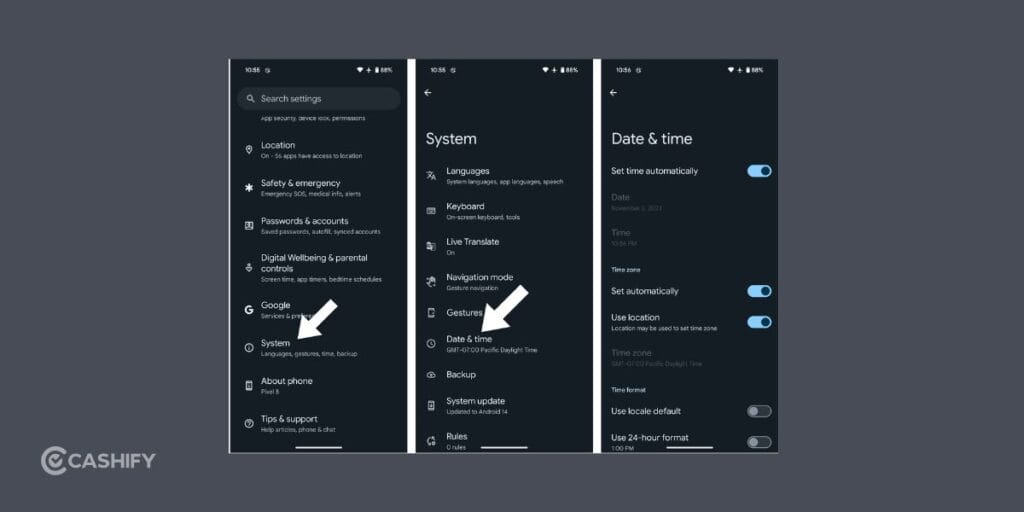
Incorrect time settings can interfere with Google servers and create Play Store download issues. This simple adjustment can often fix Play Store won’t download or install apps problems instantly.
- Open Settings.
- Go to Date & Time.
- Enable:
- Automatic date and time
- Automatic time zone
Restart the Play Store afterward.
8. Update Android Software
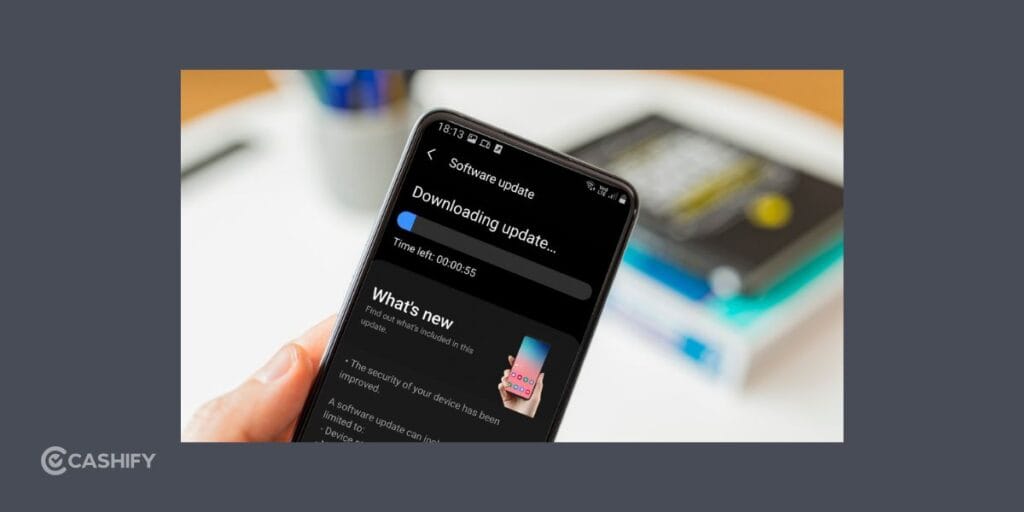
Outdated Android versions sometimes create compatibility issues with newer Play Store updates. Updating your device may help fix Play Store won’t download or install apps errors.
- Open Settings.
- Tap Software Update.
- Select Check for Updates.
- Install available updates.
Restart your phone once the update finishes.
9. Update The Google Play Store
Sometimes the Play Store itself becomes outdated. A quick update may immediately fix Play Store won’t download apps problems.
- Open the Play Store.
- Tap your profile icon.
- Go to Settings.
- Tap About.
- Select Update Play Store,
If an update is available, it will install automatically.
Also Read: Vivo X300 FE Vs Samsung Galaxy S26 Camera: The Better Phone?
10. Remove and Re-Add Your Google Account
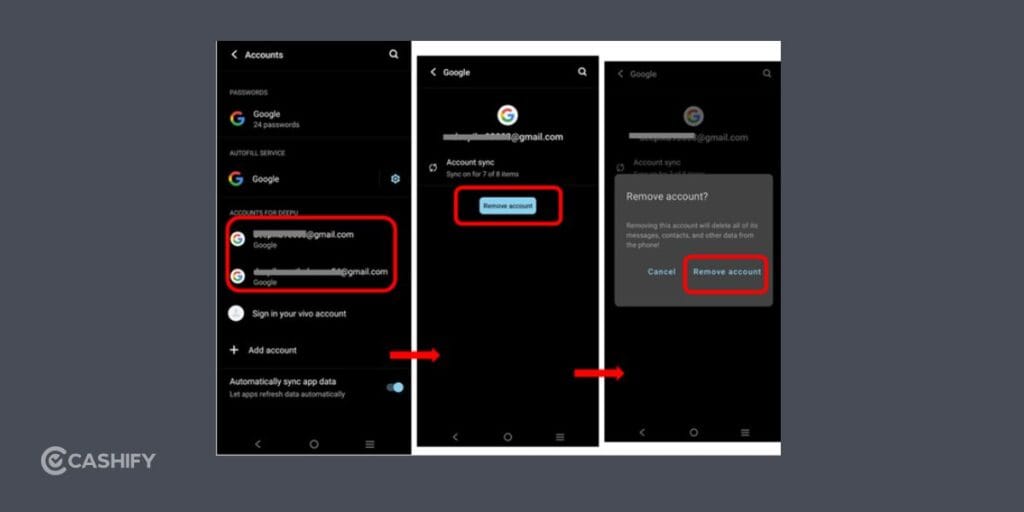
Google account syncing issues can stop app downloads completely. Refreshing your account can help fix Play Store won’t download or install apps issues quickly.
Remove Your Account
- Open Settings.
- Tap Accounts.
- Select your Google account.
- Tap Remove Account.
Add It Again
- Return to Accounts.
- Tap Add Account.
- Select Google.
- Sign in again.
Now test the Play Store again.
11. Disable VPN Services
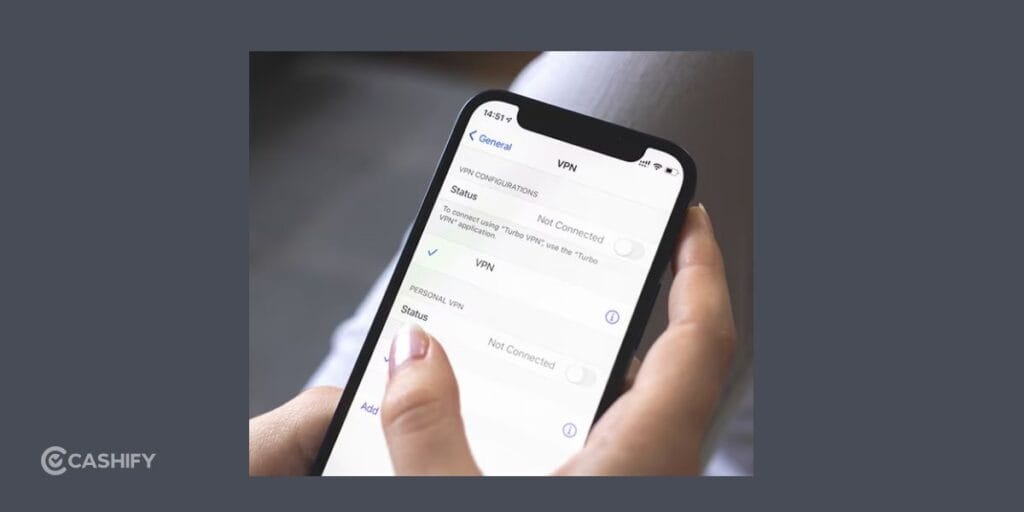
VPN apps can sometimes interfere with Google Play downloads. Disabling the VPN may instantly fix Play Store won’t download apps problems.
- Disconnect the VPN.
- Close the VPN app.
- Restart the Play Store.
Then retry the download.
12. Turn Off Battery Saver Mode
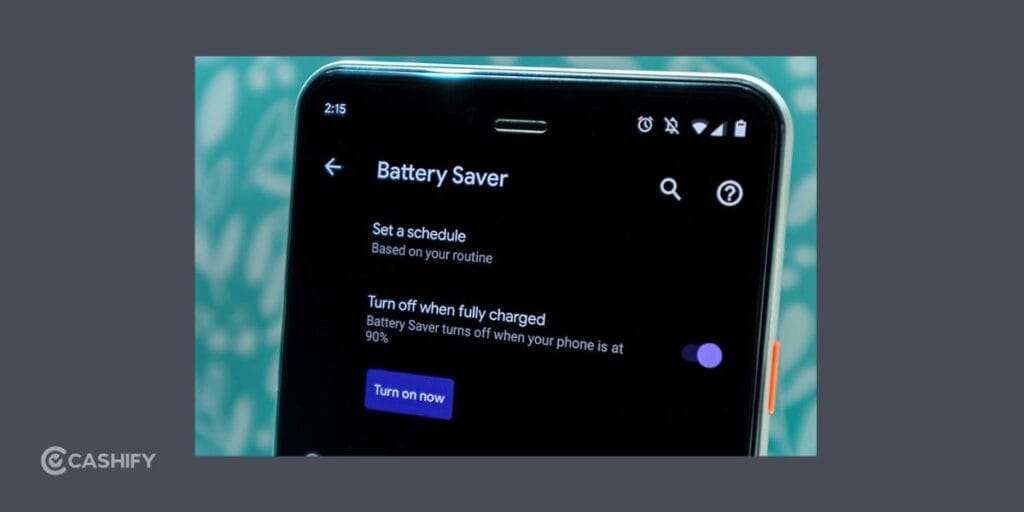
Battery Saver limits background activity and can block Play Store downloads. Turning it off may help fix Play Store won’t download or install apps errors.
- Open Settings.
- Tap Battery.
- Turn off:
- Battery Saver
- Power Saving Mode
Try installing the app again afterward.
13. Force Stop the Play Store
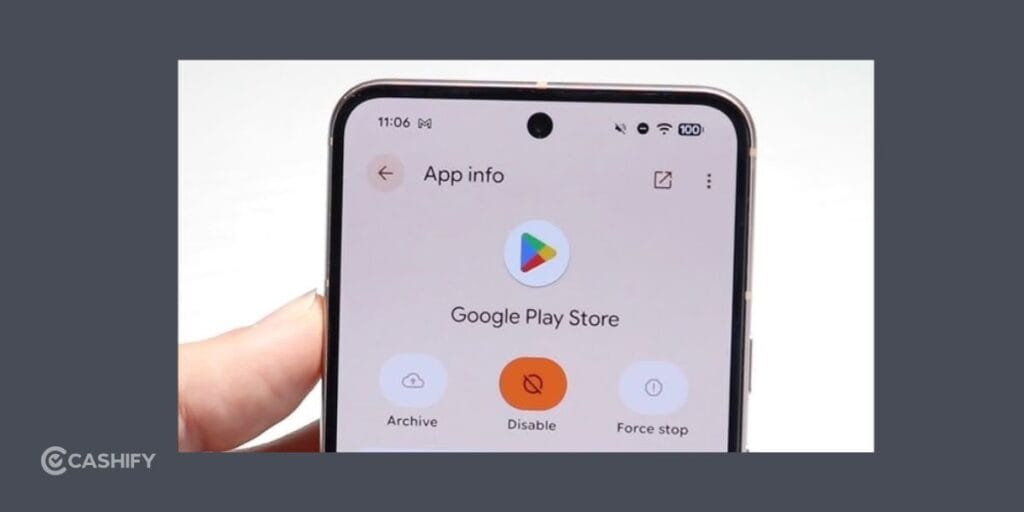
Sometimes the Play Store freezes silently in the background. Force stopping refreshes the app and may fix Play Store won’t install apps issues instantly.
- Open Settings.
- Tap Apps.
- Select Google Play Store.
- Tap Force Stop.
Now reopen the Play Store.
14. Uninstall Play Store Updates
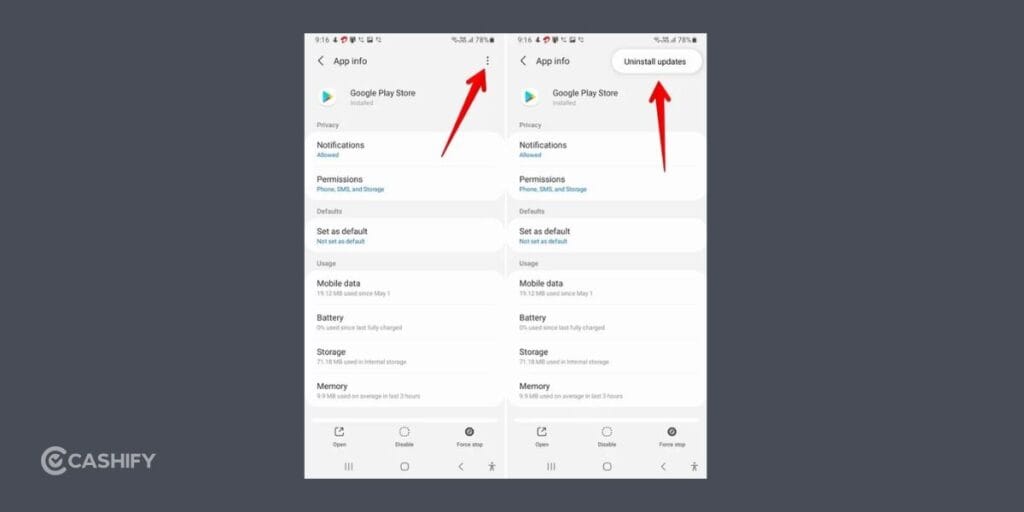
Sometimes a buggy Play Store update causes installation problems. Rolling back updates can help fix Play Store won’t download or install apps errors.
- Open Settings.
- Tap Apps.
- Select the Google Play Store.
- Tap the three-dot menu.
- Choose Uninstall Updates,
Restart your phone afterward.
Also Read: iOS 26.5 Release Date And Supported Devices: Is Your iPhone Getting The Update?
15. Reset App Preferences
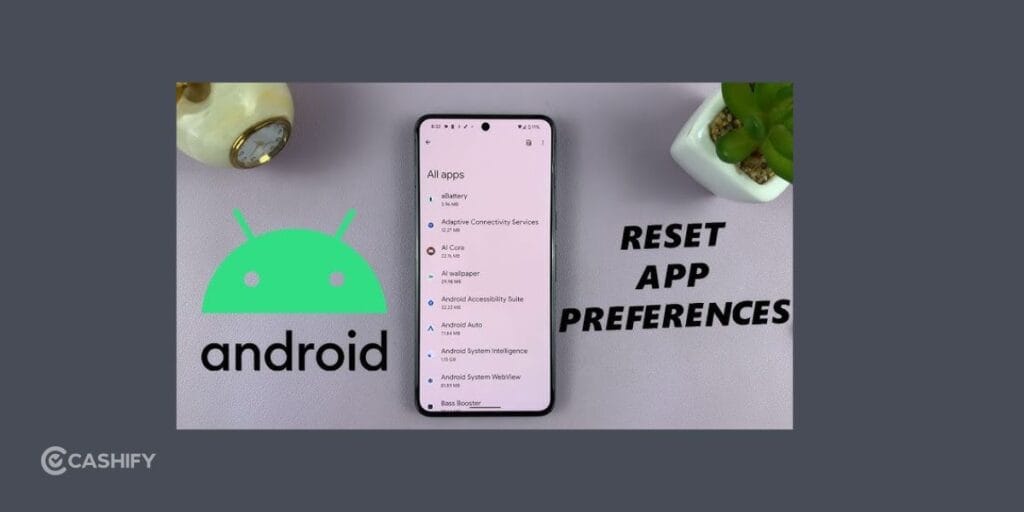
If system apps or permissions were changed accidentally, resetting app preferences may help. This method often helps users fix Play Store won’t install apps issues caused by disabled Android services.
- Open Settings.
- Tap Apps.
- Tap the three-dot menu.
- Select Reset App Preferences.
This does not delete personal files.
16. Check If Google Servers Are Down
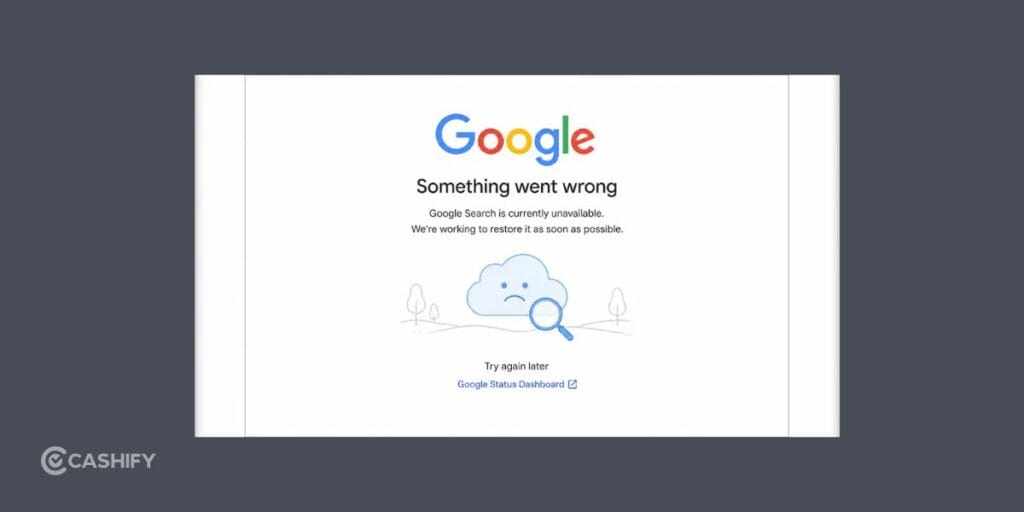
Sometimes the issue is not on your device at all. Google servers occasionally experience outages that affect millions of users worldwide. In such cases, waiting is often the only solution.
17. Factory Reset Your Phone (Last Option)
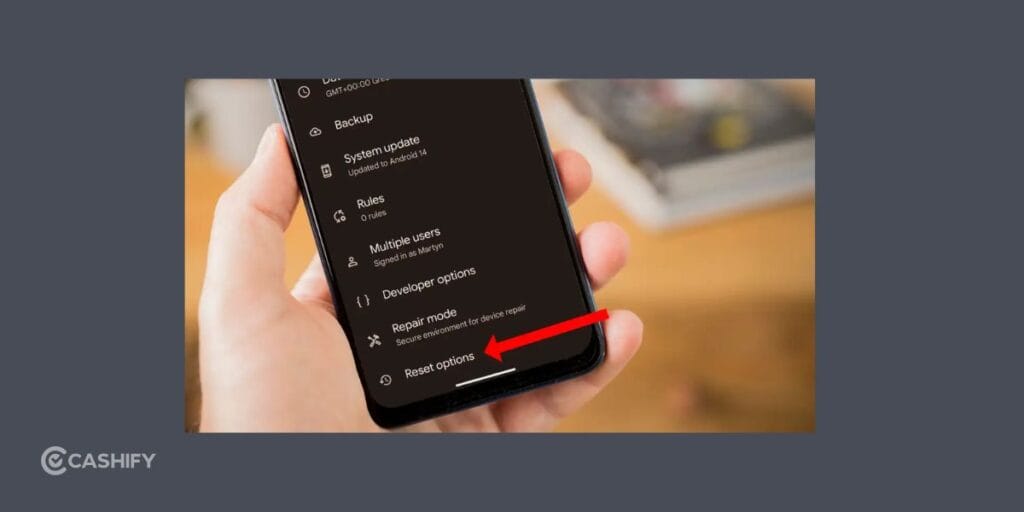
If nothing else works, a factory reset may finally fix Play Store won’t download or install apps issues caused by deeper software corruption.
However, this should only be your last option.
Before resetting the app, make sure to back up your photos, videos, contacts and mportant documents
Factory Reset Steps
- Open Settings
- Tap System
- Select Reset Options
- Tap Erase All Data
After setup, test the Play Store immediately.
Common Play Store Errors
Here are some common Play Store messages you may see:
| Error Message | Meaning |
| Download Pending | Another download is stuck |
| Waiting for Wi-Fi | Download restriction settings |
| App Not Installed | Installation problem |
| Something Went Wrong | Temporary Play Store bug |
| Cannot Download App | Internet or storage issue |
Most of these can be solved using the fixes above.
Final Thoughts
Trying to fix Play Store won’t download or install apps problems can feel frustrating at first, but most issues are actually easy to solve.
In many cases, restarting your phone, clearing cache, checking storage, or refreshing your Google account is enough to get everything working again.
Start with the simple fixes first, then move to advanced solutions only if needed.
One of these methods will almost always help you successfully fix Play Store won’t download or install apps issues on your Android phone.
Also Read: Google Launches Antigravity 2.0: What’s New And How To Install It?
Frequently Asked Questions
How do I fix Play Store not installing apps?
To fix Play Store not installing apps, restart your phone, check internet connection, clear Play Store cache and data, free up storage space, and update Android software. You should also remove and re-add your Google account if downloads still fail afterward.
How to repair a Play Store?
You can repair the Google Play Store by clearing cache, clearing app data, updating the Play Store, and restarting your device. If the issue continues, uninstall Play Store updates and check whether Google Play Services and Download Manager are working properly.
How to fix download failed in Play Store?
To fix the “Download Failed” error in the Play Store, check your internet connection, clear Play Store cache, free up phone storage, and restart your Android device. You should also disable VPN services and make sure automatic date and time settings are enabled.
How to fix app store won’t download apps?
If the app store will not download apps, restart your phone, switch internet networks, clear cache files, and update your device software. Also check storage space and disable battery saver mode because background restrictions can prevent app downloads from completing successfully.
If you’ve just bought a new phone and don’t know what to do with your old phone, then here’s your answer. Sell old mobile to Cashify and get the best price for it. If you are planning to buy a new phone, check out Cashify’s refurbished mobile phones. You can get your favourite phone at almost half price with six-month warranty, 15 days refund and free delivery.