Looking to share your favourite photos from your Android phone to your iPhone? Or did you just buy a new iPhone and want your old phone’s photos on your new Apple phone? For all such chaotic questions, we have brought you the simplest and quickest guide. In this guide article, we bring you all the steps on how to transfer photos from Android to iPhone. We prepare quick methods and help you choose the easiest way out. So, without any further ado, let us begin this article.
Also Read: How to Record a Call On Android Without App: Quick and Simple Methods
Transferring Photos Checklist: What You Need To Share Pictures
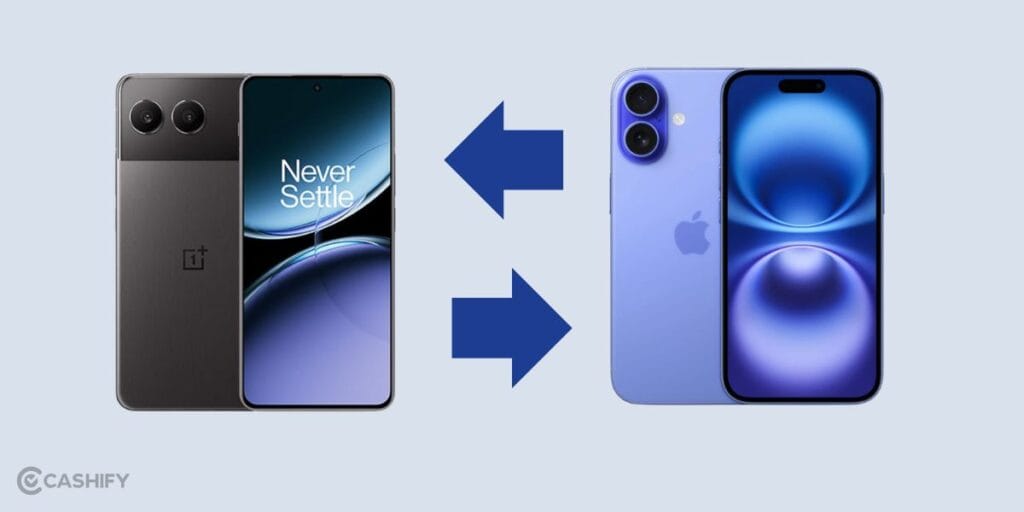
Before we dive in any further and tell you all the ways on how to transfer photos from Android to iPhone, here are some of the important things that you need to know:
- Keep sharing cables ready for both Android and iPhone. Make sure you have type B to C or C to C cables with which you can connect your device to other devices.
- Have enough space in your iPhone. Make sure you have enough space in your Apple phone to transfer smoothly.
- Backup your phone’s gallery. If you use your local gallery, then back up over there. If you use Google Photos or OneDrive, then back up over there.
- Ensure proper internet settings. If you want to transfer over Wi-Fi, then Wi-fi, or else use mobile data.
How To Transfer Photos From Android To iPhone? All Steps
Here are all the quick steps that are one hundred per cent free and super fast for your photo transfers.
Method 1: Google Photos
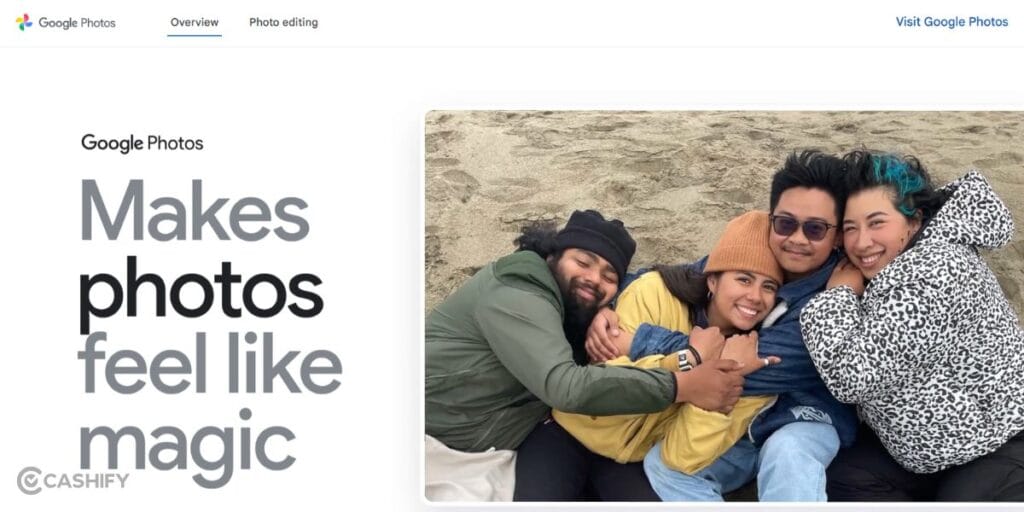
The first method is the go-to solution for all those who have a Google account and use Google Photos as their main gallery. Just backup yur photos on Google Photos, and then here are the steps.
Steps
- Back up photos on your Android phone to Google Photos.
- Install Google Photos on your iPhone.
- Sign in with the same Google account.
- Your photos will appear automatically.
Also Read: How To Save Pictures From Google Photos To Gallery: Simple Steps!
Method 2: Transfer via Computer
If you have your own PC or laptop, you can use the cable method as your answer for how to transfer photos from Android to iPhone. Just connect the Android phone to a PC or laptop, and then follow these steps.
Steps
- Copy photos from the Android device to the computer.
- Then connect the iPhone to your PC or laptop.
- Use Apple Devices (Windows) or iTunes on Windows or Finder on Mac.
- Sync the photos to the iPhone.
Method 3: Move to iOS App
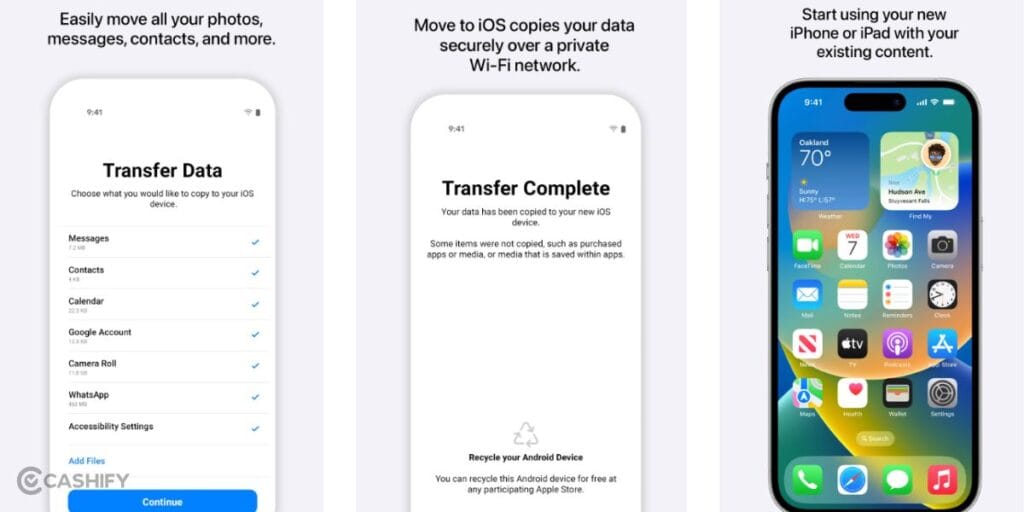
Apple has a dedicated app which is available on the Google Play Store for Android. You can use Apple’s official app to transfer data from your Android phone to your iPhone.
Steps
- Install Move to iOS on your Android phone.
- Start setting up your new iPhone.
- On the “Apps & Data” screen, tap Move Data from Android.
- Enter the code shown on the iPhone into the Android app.
- Select Photos and other content to transfer.
- Wait for the transfer to complete.
Method 4: Cloud Storage
This one is for some top-tier flagship Android phones that use a different source of cloud storage. Like Google Drive, Microsoft OneDrive, or Samsung Photos, or Dropbox, etc. If this is your case, then here is the solution on how to transfer photos from Android to iPhone.
Steps
- Upload photos from Android to your respective cloud storage.
- Back up the cloud storage.
- Download the cloud storage app on your iPhone.
- Then your old photos will appear automatically.
Method 5: Bluetooth Sharing
This method is not very highly recommended and is arnold procedure. Still, you must know this method. Just turn on the Bluetooth connection of both your Android phone and iPhone. After this, transfer your photos easily from Android to iPhone.
Method 6: OTG/Pendrive
This method is similar to the PC and laptop method. If you have a pendrive along with you, but do not have a PC or a laptop, then you can use an OTG cable as your solution for how to transfer photos from Android to iPhone. Here is what you need to do.
Steps
- Buy an OTG cable compatible with your Android and iPhone.
- Connect your pendrive to the OTG cable, and then connect the OTG cable to your Android phone.
- Transfer all photos from the phone to the pendrive.
- Now, again plug in this pendrive to your iPhone.
- Now transfer the photos back from your pendrive to your iPhone.
Also Read: How To Download Video From Any Website: Quick And Easy Steps!
Method 7: Third Party Apps
There are hundreds of third-party applications as well, which help in quick data transfer, especially when it’s about photos and videos. Just make sure that these apps are available on both the Android store and the Apple store so you can easily transfer your photos. And mind you, do not trust or install any APK applications, MOD applications, or any such suspicious apps; they may cause privacy issues.
In A Nutshell: How To Transfer Photos From Android To iPhone
That’s it from this guide on how to transfer photos from Android to iPhone. Choose whichever method you want to. From our end, the quickest methods are Move to iOS and cloud storage transfers like Google Photos or OneDrive. After that, you can use the PC method or the OTG method, as they are safer and give you double storage options, as you can store on pen drives or PCs too. So, go for the method you like, and enjoy using your new iPhone with the same nostalgic photos and share your memories with a new touch! Keep coming back for more such informative guides.
Also Read: How To Use Two WhatsApp Accounts In iPhone: Simple Steps!
If you’ve just bought a new phone and don’t know what to do with your old phone, then here’s your answer. Sell old mobile to Cashify and get the best price for it. If you are planning to buy a new phone, check out Cashify’s refurbished mobile phones. You can get your favourite phone at almost half price with six-month warranty, 15 days refund and free delivery.