One UI 8.5 is already rolling out in the first week of May. There are so many reasons to upgrade to the latest One UI 8.5 over One UI 8, including new customisation features, an improved AI experience, and a better viewing experience. When a new update comes out, many users hesitate to upgrade. It’s because they might be concerned about heating issues, battery drain, or other functional problems after the update, though such problems are rare.
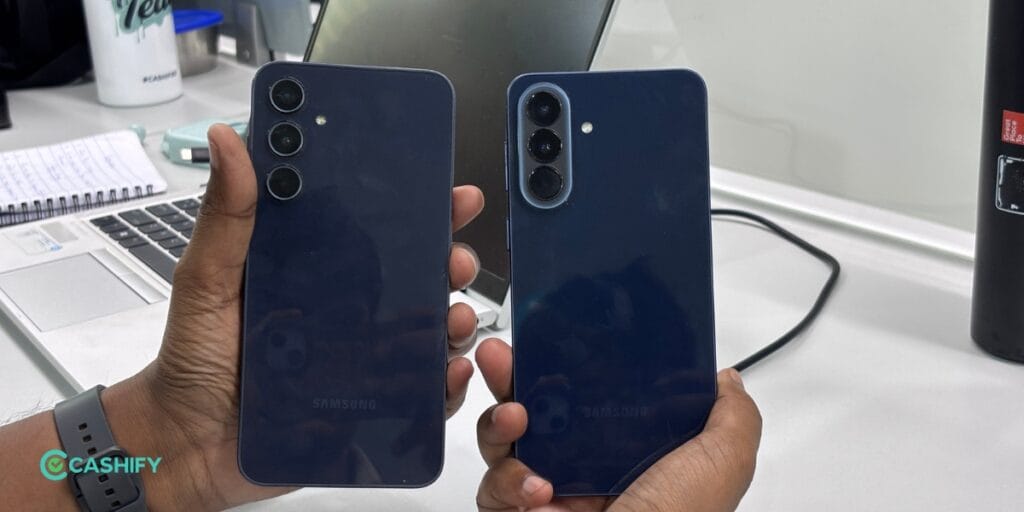
I have two Samsung phones: a Samsung Galaxy A35 with One UI 8, and a Samsung Galaxy A57 with the latest One UI 8.5. I compared One UI 8.5 vs One UI 8 to find out whether the new update is worth it or not.
Also Read: I Spent A Day With The Vivo X300 FE Camera: Here’s How It Sees The World
One UI 8.5 Vs One UI 8: Customisation
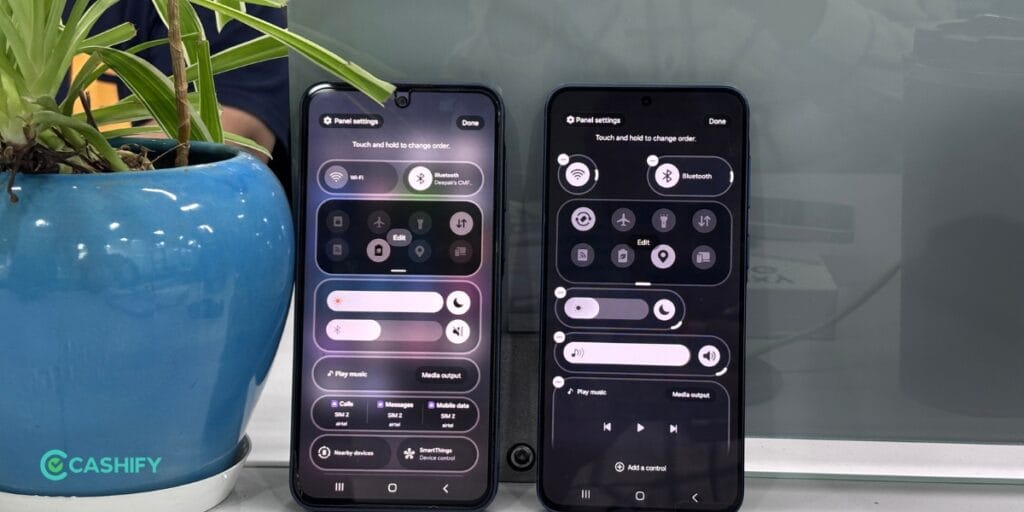
I will start with the quick panel first, where allowed to customise the quick panel icon more freely. In One UI 8, you can only change an icon’s position in certain ways, like up or down. With One UI 8.5, these shackles are broken: you can move the icon at any angle, adjust its size, place it anywhere in the entire panel area, and add another one more effortlessly.
You can customise more with Good Lock (available on the Play Store) using multiple plugins. For example, you can customise the camera bar using the Customise Indicators option in Camera Assistant. In older versions of One UI 8, there is no option to change the camera indicators at the top of the camera.
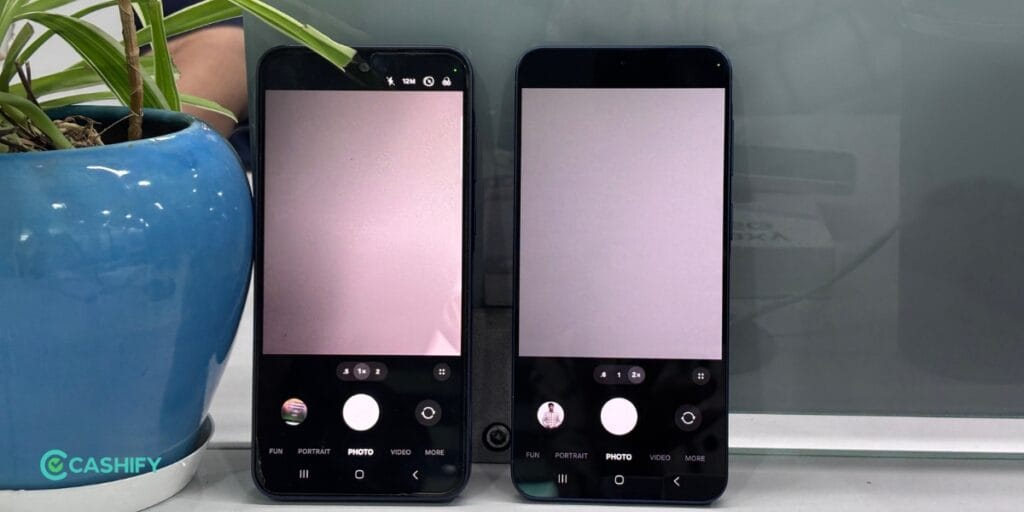
With the new update, you can add all the indicators, a few indicators, or none through the slider. You can see my Samsung Galaxy A37 camera, where most of the indicators are at the top of the camera. On the Galaxy A57, I removed all the camera indicators in settings. Likewise, multiple customisations have been added via One UI 8.5.
Also Read: Vivo X300 Pro Review: The Phone That Changed Camera Standards
One UI 8.5 Vs One UI 8: Better UI Experience
Samsung improved the overall viewing and UI experience through One UI 8.5 over One UI 8. First, I will talk about the setting where you can clearly see a difference between the two UIs. In the older UI, you can see a harsh cut-off where the setting descends, while in the newer UI harsh cut-off has been removed.
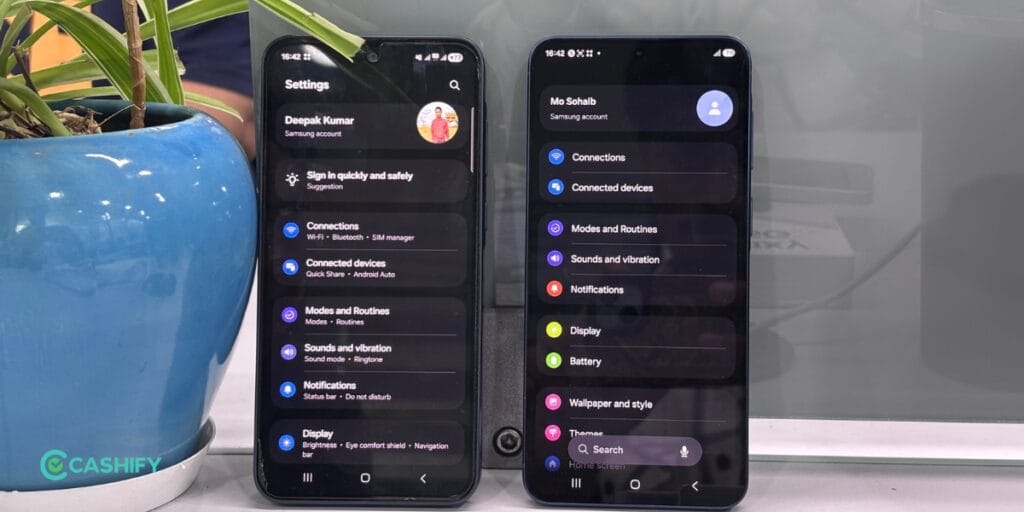
When you’re 8.5, you can see it sort of softly blurs the settings into the top and extends them all the way to the top of the screen, which does the same at the bottom as well. In this way, it gives a much better visual than the older one. Similarly, you can see the quick panel area, which is the same. Again, you can see this harsh drop-off here, where it just cuts sharply in the older UI, while the new one softly blurs at the top and bottom. These minor changes create a better visual and viewing experience.
You can also see the older setting and the new setting function. A major change here is that Samsung removed unnecessary sub-setting text below the main function, which takes up unwanted space. These texts also look weird, whereas in the new UI update, you will only see the main setting function name in this list, creating a better visual experience.
Samsung also considerd single hand usage approach via a new UI. In older UI, you can see tasks placed at the bottom with a with soild background. In the new user interface (UI), a menu floats above everything else on the screen. You can see some content below it, and there is a gentle colour change underneath the menu.
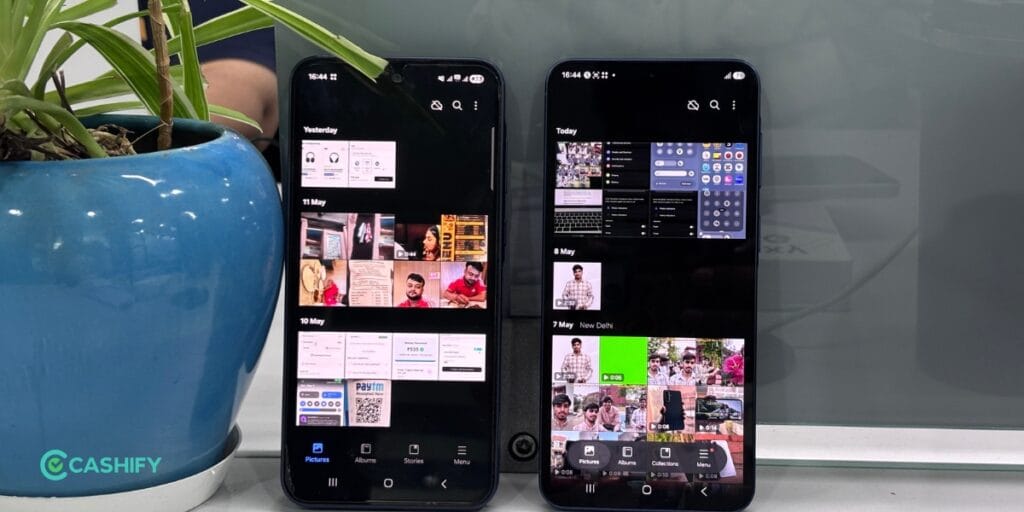
This makes it look like you can almost see through the menu. The way it works at the bottom hasn’t changed much; it just looks different. You can notice a clear edge in the gallery area, but there is a soft colour change, and elements like the search icon appear on top of it. It also allows you to click every option with one hand. So, it has not changed much, but give much better viewing experience.
Also Read: Samsung Galaxy A57 Review: A Balanced Smartphone With Flagship-Like Appeal
One UI 8.5 Vs One UI 8: More Intelligent Galaxy UI
Normal Galaxy AI look almost the same, but when you deep dive into it, you will find some cool upgrades. 1st one is the inclusion of screen recording in the call recording function. In the older UI, this wasn’t a feature, but now you can enable auto screen recording, so when you receive a call, screen recording will start automatically.
One of the major changes in the photo assist features is the ability to track version history. Previously, with the older AI version, you could only edit photos and use the undo option to revert to the original image. But you had no way to view the version history of your edits. With the new update, you can now view the version history and continue editing the same file without saving.
In the older version of Galaxy AI, users could add external objects to a photo by drawing them directly onto the existing image. However, the new version introduces a “Describe What to Change” feature that lets users specify what they want to add to the photo. For example, you can change a daytime image to a nighttime scene simply by describing the modifications you want.
Also Read: Samsung Galaxy A37 5G Review: A Balanced Samsung Mid-Ranger
Verdict
In this One UI 8.5 Vs One UI 8 comparison, the newer update feels more polished, visually refined, and smarter in daily usage. Samsung has not changed the core experience dramatically. But the smaller UI refinements, deeper customisation options, and improved Galaxy AI tools make the software feel cleaner and more modern. If you own a supported Galaxy device, upgrading to One UI 8.5 is worth considering. Especially for the better one-hand usability, smoother visual transitions, and smarter AI-powered editing tools. Battery and heating issues were not noticeable during my usage, making the update feel stable enough for everyday users.
Are you still browsing through your broken screen? Don’t worry! Book an at-home mobile phone screen repair with Cashify—an affordable and one-stop destination for all your mobile phone needs. In case you break your screen within 1 month of repair, we will replace your screen again—for FREE.