Could the most popularly used AI chat system fail? Yes! ChatGPT not working is one of the obvious possibilities simply because of the massive user base. And how does the problem show up?
You open ChatGPT, type your question, and then… nothing.
Maybe the page is stuck loading. Maybe you see a blank screen. Or you get the classic “Something went wrong” message. Sometimes, ChatGPT may work on your phone but refuse to load on your laptop. If you are in the habit of using it, the problem might seem like doomsday. But the good news is that most ChatGPT problems are easy to fix.
Let’s get into more details.
Also read: Top 12 Best Google Gemini Prompts You Should Try Right Now!
Why Is ChatGPT Not Working?
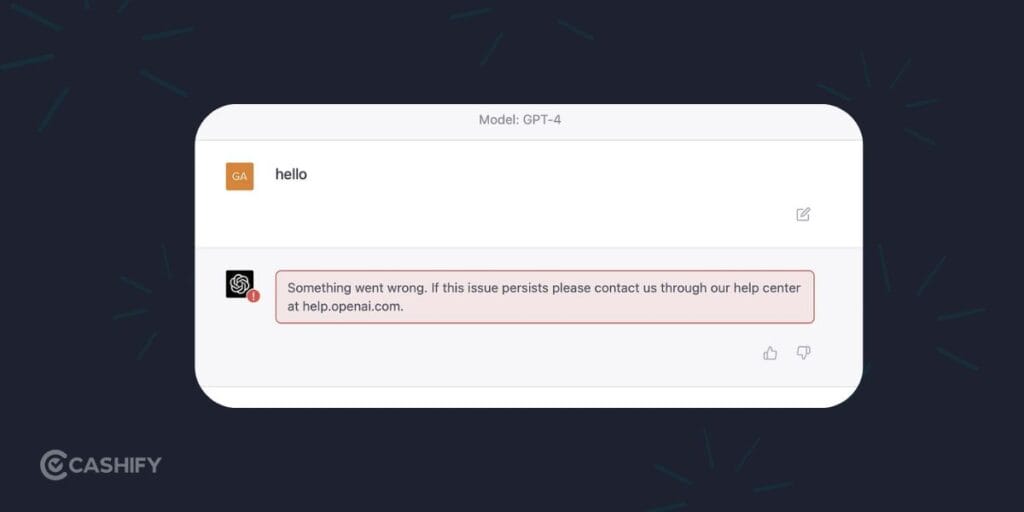
There are several reasons why ChatGPT might not work properly. The problem can be on your side, such as a browser issue, unstable internet connection, VPN interference, or an outdated app.
At times, the problem can also be with OpenAI’s servers.
The most common causes include:
- Temporary OpenAI service outage
- Browser cache or cookie problems
- Conflicting browser extensions
- VPN or proxy interference
- Unstable Wi-Fi or mobile data
- Login or account problems
- Outdated ChatGPT mobile app
- Temporary rate limits
So, don’t assume your device is the problem right away.
If you’re dealing with a similar problem, start with the simple fixes before changing anything complicated.
1. Refresh ChatGPT
This sounds almost too simple, but try it first.
If ChatGPT is stuck, refresh the page using Ctrl + R on Windows or Cmd + R on Mac.
If a normal refresh doesn’t work, try a hard refresh:
- Windows: Ctrl + Shift + R
- Mac: Cmd + Shift + R
A hard refresh forces the browser to load the page again instead of relying on some previously stored files.
If ChatGPT suddenly stopped responding after working normally a few minutes ago, this is one of the first things I’d try.
2. Check If ChatGPT Is Down
Before spending 20 minutes changing browser settings, check if ChatGPT itself is having problems.
Visit OpenAI’s official status page at status.openai.com.
If there’s an ongoing outage, there’s not much you can do from your end. You may simply need to wait until the service is restored.
You can also check DownDetector or search for phrases like “ChatGPT down” on X to see if other users are reporting the same problem.
Also Read: How To Use Google Gemini AI Right Now?
3. Clear Browser Cache and Cookies
Your browser stores cached files and cookies to help websites load faster. Sometimes, old or corrupted data can cause websites to behave strangely.
If ChatGPT keeps loading incorrectly, clearing its stored site data can help.
You don’t necessarily need to wipe the cache for your entire browser. Look for the option to clear cookies and site data for ChatGPT or OpenAI.
After clearing the data:
- Close the ChatGPT tab.
- Open a new browser tab.
- Visit ChatGPT again.
- Log in if required.
This can also help if you’re stuck in a login loop or the website keeps showing an old version of the page.
4. Try Incognito Or Private Mode
Here’s a quick way to figure out if your normal browser setup is causing the problem.
Open an Incognito window in Chrome, Private Browsing in Safari, or the equivalent mode in your browser.
Then open ChatGPT and log in.
If ChatGPT works normally in private mode, there’s a good chance something in your regular browser profile is causing the issue. Browser extensions, cookies, and cached data are the usual suspects.
You can then troubleshoot those individually instead of changing everything at once.
Also Read: How Google’s Generative AI Will Change The Way We Search
5. Disable Browser Extensions
Extensions can sometimes interfere with websites.
Ad blockers, privacy extensions, VPN extensions, grammar tools, and other browser add-ons. All of these have the possibility to affect how ChatGPT loads or communicates with its servers.
If you’re facing a ChatGPT not working problem, temporarily disable your extensions and reload the website.
Pay close attention to extensions such as:
- Ad blockers
- Privacy and security extensions
- VPN extensions
- Grammarly and similar writing tools
- Script-blocking extensions
You don’t have to uninstall anything. Just disable the extensions temporarily and test ChatGPT again.
If it starts working, enable your extensions one at a time to identify the culprit.
6. Try a Different Browser
Still stuck?
Open ChatGPT in another browser.
For example, if you’re using Chrome, try Edge, Firefox or Safari. If ChatGPT works in the second browser, your internet connection is probably not the main issue.
The problem could be related to your original browser’s cache, cookies, extensions or settings.
This is one of my favourite troubleshooting tricks because it takes less than a minute and can quickly narrow down the problem.
7. Check Your Internet Connection
ChatGPT needs a stable internet connection to communicate with its servers. A connection can look fine for browsing websites but still have problems with certain services.
Try switching networks.
If you’re connected to Wi-Fi, switch to mobile data. If you’re using mobile data, try a reliable Wi-Fi connection.
You can also restart your router or modem.
If ChatGPT starts working after switching networks, your original connection may have been the problem.
Also Read: ChatGPT vs Google Gemini: Best Free Version To Use!
8. Turn Off Your VPN or Proxy
Using a VPN or proxy can sometimes interfere with ChatGPT.
If you’re connected through a VPN, turn it off temporarily and reload ChatGPT.
The same applies to proxy settings.
This doesn’t mean VPNs are always a problem. It’s simply a useful troubleshooting step if ChatGPT suddenly stops working while your VPN is active.
If disabling the VPN fixes the issue, you can test another server or check the VPN configuration later.
9. Restart Your Device
Yes, the classic restart still has a place here.
If you’re experiencing a ChatGPT not working issue on your phone or computer, restart the device and try again.
A restart can clear temporary software glitches and background processes that may be interfering with the browser or app.
It’s quick, harmless, and worth trying before you start digging through advanced settings.
10. Check Your ChatGPT Login
Sometimes the website itself loads, but you can’t get into your account.
Try logging out completely and signing in again.
If the problem continues, try another login method if one is available for your account. For example, you can test Google, Microsoft, Apple, or email-based login.
A login loop can also be linked to stored cookies or site data. In that situation, clearing ChatGPT’s site data before logging in again can help.
If you’re on the free plan, you may also run into temporary usage limits. In that case, waiting for the limit to reset may be necessary.
Also Read: ChatGPT Vs Google Bard: Which One Is Superior?
11. ChatGPT Not Working on the Mobile App? Try These Fixes
The ChatGPT app can have its own set of problems.
If the app is frozen, stuck loading or constantly showing an error, force close it first.
Then reopen it.
If that doesn’t work, try these steps:
- Check for an app update in the App Store or Google Play Store.
- Clear the app cache on Android.
- Restart your phone.
- Switch between Wi-Fi and mobile data.
- Turn off your VPN.
- Reinstall the ChatGPT app if the problem continues.
On iPhone, reinstalling the app can be a useful final step if basic troubleshooting doesn’t help.
Before reinstalling, make sure you know your login details so you can sign back in.
What If Nothing Works?
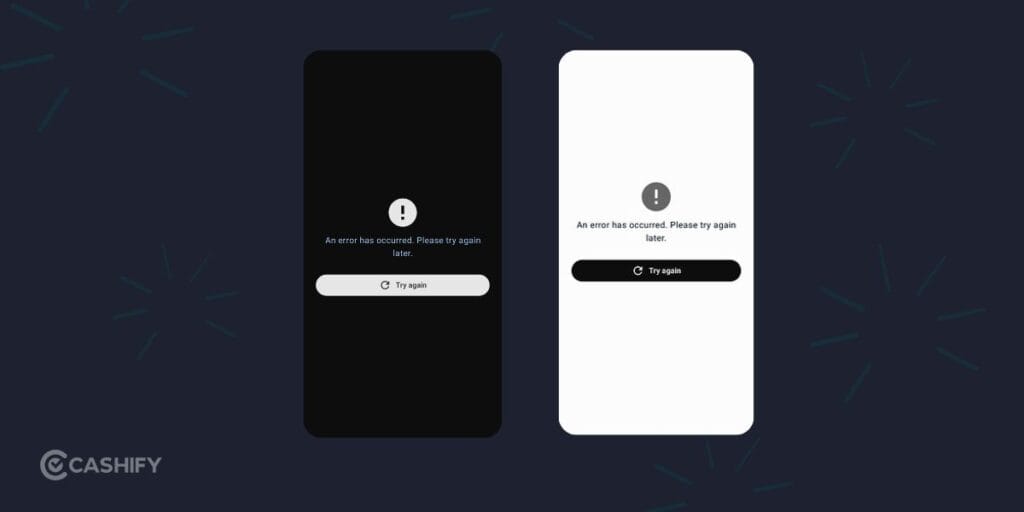
If you’ve tried refreshing, clearing site data, disabling extensions, switching browsers, and changing networks, the problem may not be on your end.
Check OpenAI’s status page again and look for an active incident.
If there is an outage, your best option is usually to wait and try again later.
You can also use another AI chatbot temporarily if you need to get work done immediately.
Alternatives you can try when ChatGPT is not working:
- Claude,
- Gemini,
- Perplexity,
- Grok
- Microsoft Copilot
Also read: HyperOS 4 Features: Everything You Need To Know About Xiaomi’s New Update!
Quick Fix Checklist
If you want the short version, run through this list:
| Problem | Quick Fix |
|---|---|
| ChatGPT page is frozen | Refresh or hard refresh |
| Blank screen | Clear site data and reload |
| Login loop | Log out, clear cookies and log in again |
| Browser issue | Try Incognito or another browser |
| Extension conflict | Disable extensions |
| Internet issue | Switch Wi-Fi/mobile data |
| VPN interference | Turn off VPN/proxy |
| App not responding | Force close and reopen |
| Outdated app | Update ChatGPT |
| Possible outage | Check OpenAI’s status page |
| Free-plan limit | Wait for the limit to reset |
Frequently Asked Questions
Why is ChatGPT not working right now?
ChatGPT may not be working because of a temporary service outage, browser cache problems, conflicting extensions, VPN interference, network issues or account limits.
How do I fix ChatGPT when it is stuck loading?
Try a hard refresh first. If that doesn’t work, open ChatGPT in Incognito mode, disable browser extensions, clear ChatGPT’s site data and try another browser.
Why does ChatGPT work on my phone but not my laptop?
The issue may be related to your laptop’s browser, extensions, cached data, VPN or network settings. Try another browser or Incognito mode on the laptop to narrow down the cause.
Why is ChatGPT showing “Something went wrong”?
The message can appear because of a temporary server issue, network problem, browser conflict or expired session. Refresh the page, check your connection and sign in again.
Can a VPN stop ChatGPT from working?
Yes, a VPN or proxy can sometimes interfere with the connection. Turn it off temporarily and reload ChatGPT to see if the problem disappears.
Should I reinstall ChatGPT if the app isn’t working?
Reinstalling can help if basic troubleshooting doesn’t fix the app. Before doing it, try force-closing the app, checking for updates, clearing the cache on Android, and restarting your phone.
Is ChatGPT down for everyone?
Check OpenAI’s official status page. You can also look at user reports on platforms such as DownDetector or X to see if other people are experiencing similar problems.
Also read: What’s New In ColorOS 17? Fluid Animations And More!
Final Thoughts
If the ChatGPT issue is driving you crazy, don’t jump straight into complicated fixes.
Start with the basics. Those steps cover many common problems without changing anything important on your device.
If that doesn’t solve ChatGPT not working problem, move on to other solutions. Clearing site data, switching browsers, changing networks, and disabling your VPN. For the mobile app, force close it, update it, and clear its cache before thinking about reinstalling.
And if OpenAI is having a major outage, just wait it out. No amount of browser tweaking is going to fix a server-side problem.
Personally, I would start with the status check + Incognito test. Together, they quickly tell you if the problem is likely on OpenAI’s side or something specific to your browser. That’s much faster than randomly changing settings and hoping something works.
Buying refurbished mobile phones was never this easy. Sell your old phone and get exclusive offers & discounts on refurbished mobiles. Every refurbished phone is put through 32-point quality checks to ensure like-new standards and comes with a six-month warranty and 15-day refund. Buy refurbished phone easily on no-cost EMI today!