
If you have been searching for the new features of WhatsApp, WhatsApp has done a great job of introducing the new feature of 'usernames.' But the ‘username’ of your profile is a bit different from your ‘profile name,' and the ways to add them to your profile are also slightly different. So, if your query is how to add my name in a WhatsApp message, then we will tell you the best and quickest way to add your name right inside this blog. So, without further ado, let us begin.
How To Add My Name In A WhatsApp Message? Here Are The Steps
Here are the steps to add your name to your WhatsApp messages:
For Android Users
- Open WhatsApp and tap the three dots in the top-right corner.
- Go to Settings.
- Tap your profile photo or name.
- Tap the pencil icon next to your name.
- Enter your preferred name.
- Tap Save.
For iOS Users
- Open WhatsApp and tap Settings.
- Tap your profile photo or name at the top.
- Tap your current name.
- Enter your new name.
- Tap Done.
Also Read: How To Use Two WhatsApp Accounts In iPhone: Simple Steps!
How To Add My ‘Username’ In A WhatsApp Message? Know Here
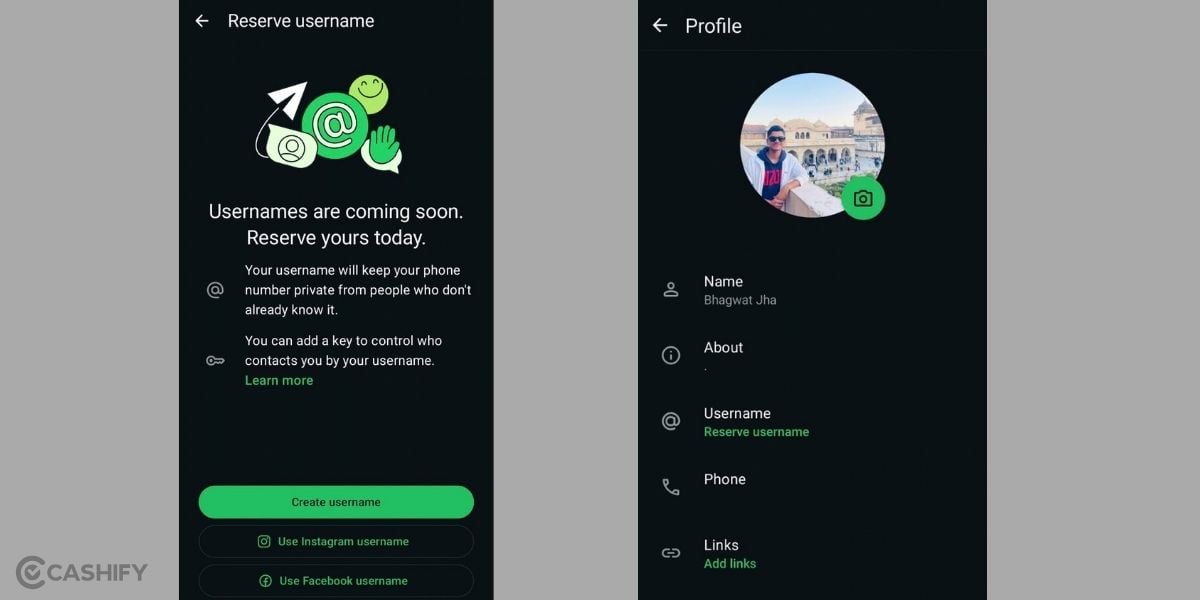
Now, this is something different. WhatsApp recently introduced a new feature for both Android and iOS users, where they can add their usernames. Yes, just like Instagram, X, Threads, Reddit, and more such social media apps, you can now use a ‘@username’ tag with the WhatsApp too!
So, if you were searching for ‘How to add my name in a WhatsApp message?’ for this username feature, then here is the guide.
For Android Users
- Open WhatsApp and tap the three dots > Settings.
- Tap your profile.
- Look for the Username option.
- Tap Create username.
- Enter your preferred username.
- Follow the on-screen instructions to save it.
For iOS Users
- Open WhatsApp and go to Settings.
- Tap your profile.
- Look for Username.
- Tap Create username.
- Enter your preferred username.
- Confirm and save it.
Also Read: How To Activate Call Waiting On An Android Phone: Know The Easiest Way Here
Username vs Name: Know The Difference
Here is the main difference between username and name in WhatsApp:
Feature | WhatsApp Name | WhatsApp Username |
What it represents | Your chosen display name on WhatsApp. | Your unique identity or handle. |
How it appears | Usually shown as your profile name. | Shown as a username, typically with an ‘@’. |
Where it is shown | Your profile and to people who may not have saved your number. | Your profile and when people use your username to find/contact you. |
Uniqueness | Does not need to be unique. | Must be unique. |
Phone number | Does not replace your number. | Can help you connect without sharing your number. |
Can you change it? | Yes. | Yes, subject to WhatsApp’s username rules. |
Main purpose | Tells others who you are. | Helps others identify or find you on WhatsApp. |
FAQs
1. Can I add my name in a WhatsApp message without changing my profile name?
No. WhatsApp shows your profile name in chats, not a custom name inside each message. To change what people see, update your profile name in Settings > Profile.
2. How is a WhatsApp username different from my profile name?
Your profile name is a display name anyone can use. Your username is a unique @handle that helps people find or message you without sharing your phone number.
3. Do I need a username to add my name in WhatsApp messages?
No. Your profile name appears automatically in chats. A username is optional and mainly helps new contacts reach you without seeing your number.
4. Can people search my WhatsApp username to find me?
WhatsApp says usernames are not searchable like phone numbers. People usually need your exact @username or a direct link to start a chat with you.
5. How do I create or change my WhatsApp username?
Open WhatsApp > Settings > Account > Username (or Profile > Username). Tap Create/Reserve Username, type a unique handle (3–35 characters), check availability, then save.
6. Does adding a username hide my phone number from everyone?
A username lets new contacts message you without seeing your number, but existing contacts who saved your number still see it. You control who can reach you via privacy settings.
Also Read: Higher iPhone Prices May Change How Indians Buy Smartphone: Refurbished iPhones Era is Here
Conclusion: For The Guide On How To Add My Name In A WhatsApp Message
That’s it from the guide on your question - ‘how to add my name in a WhatsApp message?’. We have brought the quickest and easiest steps. There’s not much to this new feature. And people still confuse it with security conflicts that usernames or names are not secure; they might be visible to everyone. Yes, they are visible to everyone, but so is your number. So, if you know how to use WhatsApp with awareness, neither your profile name nor your username will be prone to security breaches. Moreover, WhatsApp’s latest security features are safer now.
So, use usernames; use profile names. Give yourself the names or tags that portray your personality, your vibes, and make your WhatsApp accounts more fun and happening!
Also Read: How To Make UPI Payment Without Internet With PhonePe 123Pay
Are you still browsing through your broken screen? Don’t worry! Book at-home mobile phone screen repair with Cashify—an affordable and one-stop destination for all your mobile phone needs. In case you break your screen within 1 month of repair, we will replace your screen again—for FREE.