If you have recently bought a PlayStation 5 or already own one, you don’t need to buy another controller just for PC gaming. The PS5 DualSense controller works well with Windows and supports many modern games. Better yet, setting it up only takes a few minutes. If you are wondering how to connect PS5 controller to PC, this guide explains every method in simple steps.
We will also cover how to use Steam, connect through Bluetooth, and fix common issues if the controller isn’t detected.
Also read: Motorola Edge 70 Max Launch Date Specs And Price Roundup!
How To Connect PS5 Controller To PC?

There are two ways to connect a PS5 controller to your PC:
| Method | Best For |
|---|---|
| USB Cable | Stable connection with no battery worries |
| Bluetooth | Wireless gaming and a cleaner setup |
Let’s go through both methods.
Method 1: Connect PS5 Controller To PC With A USB Cable
This is the quickest and easiest option.
Steps
- Plug a USB-C cable into your PS5 controller.
- Connect the other end to your PC.
- Wait a few seconds for Windows to detect the controller.
- Your controller is now ready to use.
That’s it. No pairing process or additional setup is required for most games.
Why Use A Wired Connection?
- Lowest input lag
- No battery drain concerns
- More stable during long gaming sessions
- Perfect for competitive games
Personally, if I’m playing racing games or shooters, I usually stick with the wired option because it feels more responsive.
Also read: Best Upcoming Phone: From Flagship To Budget!
Method 2: How To Connect PS5 Controller To PC Using Bluetooth
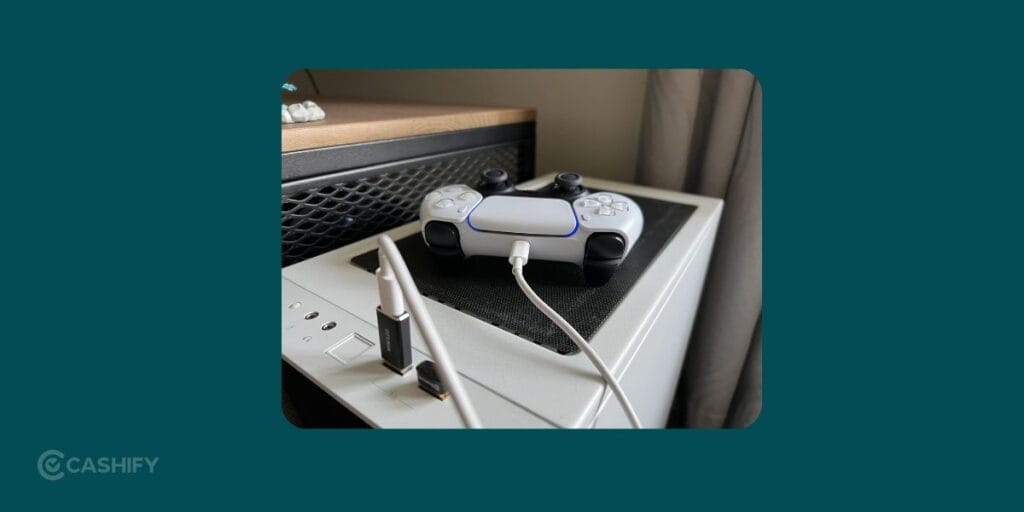
If you prefer gaming without cables, Bluetooth is the better choice.
Before You Begin
Make sure your PC has built-in Bluetooth or use a USB Bluetooth adapter.
Steps To Pair
- Open Settings > Bluetooth & Devices on your Windows PC.
- Click Add Device.
- Select Bluetooth.
- On the PS5 controller, press and hold the PS Button and Create (Share) Button together.
- Keep holding until the light bar starts flashing.
- Select Wireless Controller from the list on your PC.
- Wait for the pairing to complete.
Your DualSense controller is now connected wirelessly.
How To Use The PS5 Controller On Steam?
Steam offers excellent support for the DualSense controller.
Steps
- Open Steam.
- Go to Steam > Settings > Controller.
- Check that Steam detects your controller.
- Enable PlayStation controller support if prompted.
- Launch your game.
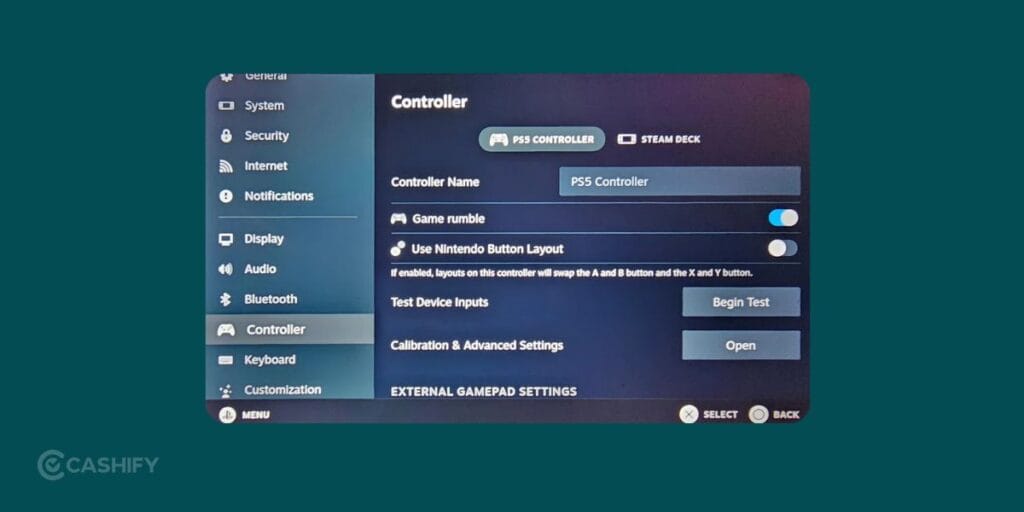
Many Steam games automatically display PlayStation button icons, making the experience feel almost identical to playing on a PS5.
Also read: Claude’s Latest Feature Lets It Work On Your Computer Like A Real Assistant!
What If The Game Doesn’t Detect The Controller?
Some older PC games don’t fully support the PS5 controller.
In that case, you can use DS4Windows. It makes your computer recognize the DualSense as an Xbox controller, which improves compatibility with many games.
DS4Windows is particularly useful for games downloaded outside Steam, including titles from Epic Games Store, Ubisoft Connect, or older PC releases.
Can You Use DualSense Features On PC?
Yes, but support depends on the game.
Some PC games support features like:
- Adaptive triggers
- Haptic feedback
- Motion controls
- Built-in microphone
However, many games only recognise the controller as a standard gamepad, so advanced features may not work.
Common Problems And Quick Fixes
Controller Not Connecting
Try these solutions:
- Restart your PC.
- Use another USB-C cable.
- Charge the controller before pairing.
- Remove the controller from Bluetooth devices and pair it again.
Bluetooth Keeps Disconnecting
You can try the following:
- Stay close to your PC.
- Update your Bluetooth drivers.
- Avoid interference from multiple wireless devices.
Controller Works In Steam But Not Other Games
This usually happens with non-Steam games.
You can:
- Add the game to your Steam Library.
- Use DS4Windows for better compatibility.
Also read: How To Get Google Gemini AI Pro for Free: Step-by-Step Guide!
Frequently Asked Questions
How do I connect PS5 controller to PC?
You can connect the controller using a USB-C cable or through Bluetooth. Both methods are supported by Windows.
Can I use a PS5 controller on Windows 11?
Yes. Windows 11 supports the DualSense controller through both wired and Bluetooth connections.
Do I need Steam to use a PS5 controller on PC?
No. Steam makes setup easier, but you can also use DS4Windows for games outside Steam.
Can I play all PC games with a PS5 controller?
Most modern games support it. Older games may require Steam Input or DS4Windows.
Does the PS5 controller support adaptive triggers on PC?
Yes, but only in games that have implemented DualSense support.
Also read: Google AI Mode vs Perplexity AI: Best AI Search Tool Compared!
Final Thoughts
Learning how to connect PS5 controller to PC is much easier than many people expect. It is not about choosing a USB cable for maximum stability alone. It is also about having Bluetooth for a wireless setup. Windows can get your controller running within minutes.
If most of your games are on Steam, you likely won’t need any extra software. For games outside Steam, DS4Windows is a useful backup that improves compatibility. Once everything is set up, the PS5 DualSense becomes an excellent controller for PC gaming, combining comfortable controls with reliable performance across a wide range of titles.
If you’ve just bought a new phone and don’t know what to do with your old phone, then here’s your answer. Sell your old mobile to Cashify and get the best price for it. If you are planning to buy a new phone, check out Cashify’s refurbished mobile phones. You can get your favourite phone at almost half price with a six-month warranty, 15-day refund and free delivery.