Can You Take Scrolling Screenshot on iPhone? A Complete Guide
I like to screenshot almost everything, and my phone’s gallery is the proof of it. Be it that meme I found funny, a post that I felt relatable, or something important I found on the internet, I love to capture it all. However, there are times when fitting everything in a single screenshot is not enough. For example- instances when I have to keep up with a Twitter thread or an article that I want to save for later. You might have felt this too. Well, here’s the solution- scrolling screenshot on iPhone.
A little different than the regular screenshots, a scrolling screenshot on iPhone is a long screenshot that lets you capture information that won’t fit in the usual dimension of screenshots.
Also Read: How To Turn Off iPhone Without Power Button?
What is Scrolling Screenshot on iPhone?
Scrolling screenshot on iPhone helps you take long screenshots of PDFs, web pages, or apps. Basically, you can capture multiple screens of images and texts in a single frame with scrolling screenshots. As all the images are merged into a single frame, sharing these becomes easier too. So, now you don’t have to worry about selecting images in the right order when sharing, instead, you can share a scrolling screenshot.
How to take a scrolling screenshot on iPhone?
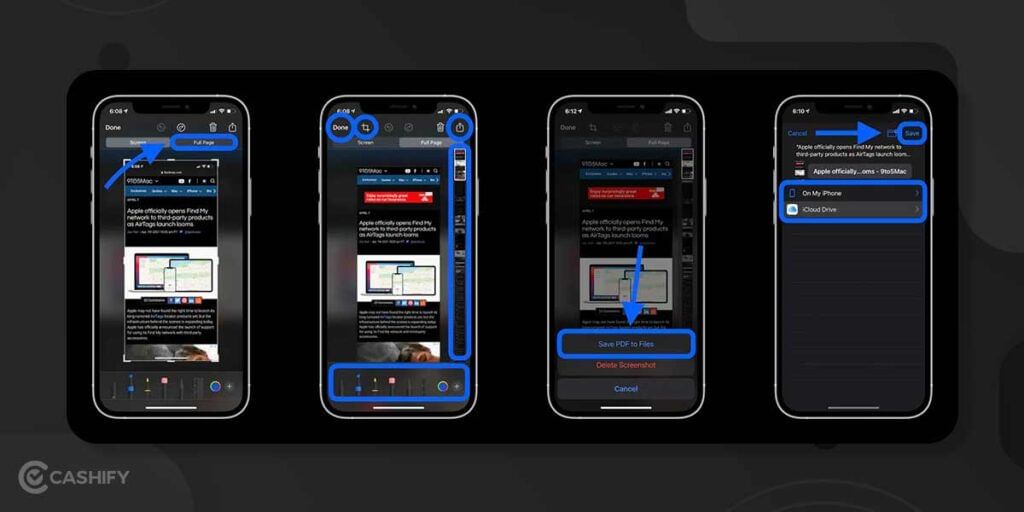
Now that we know what a scrolling screenshot is, let us look at the steps to capture it:
- Press the volume button and side button together on your iPhone to take a screenshot.
- Tap on the screenshot preview option that appears in the bottom left corner. You need to tap on it before it disappears. So, be quick.
- Now, in the screenshot editor, choose the Full Page option that appears next to the Screen tab.
- iPhone will then capture the entire screen and give you a preview of it.
- You can further crop the screenshot to edit the part of the full page you would like to save.
- Finally, tap on done in the top-left corner to save the screenshot. You can also share the screenshot from there.
Note: You can only use this method when you are browsing a PDF, or there is more than one page worth of content to take screenshots.
Also Read: Big News: These iPhones May Not Get iOS 16!
Alternative Method: Screen Recording on iPhone
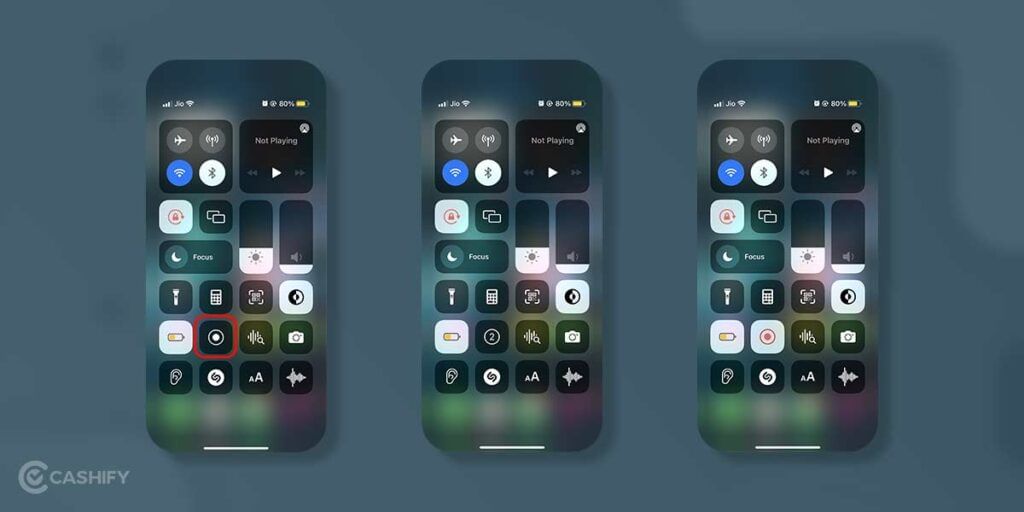
To capture more than one page, you can also take the help of a screen recording. Here’s how to do it:
- Go to Settings and then tap on Control Center.
- Now, on the next screen, tap on the “+” button that appears next to the Screen Recording option.
- Now, again go to the Control Center and tap on the Screen Record Button.
- A three-second countdown will begin, post which your iPhone will start recording the screen.
- After you are done recording the important information, simply tap on the red status bar that appears on the top of the screen and click on Stop.
- The recording will be saved in the Photos by default.
Note: The screen recording also records the internal audio, including notifications and system sounds. However, you can change this option in the settings.
So, that’s it! Scrolling screenshot on iPhone is a great way to capture multiple information on a single page. Happy Screenshotting!
Also Read: What Is Other Storage On Mac And How To Clean It?
You can Sell phone online with Cashify. We also help you Recycle old phone following a hassle-free process from your doorsteps.





Recent Articles





Featured Videos










You May Also Read







New Launches

Apple iPhone 18 Pro Max
Apple iPhone 18 Pro

Vivo T5 5G