If you’re using the Samsung Galaxy S23 Ultra, you already have one of the most powerful smartphone cameras available today. However, if you want to capture the best photos, you need to master the best camera settings for Samsung Galaxy S23 Ultra.
Whether you’re capturing everyday moments, portraits, or cinematic videos, the right setup helps you get consistent, high-quality results without much effort. In this blog, you’ll learn the best camera settings for Samsung Galaxy S23 Ultra in the most easy way. So, let’s begin.
Also Read: Vivo V70 Elite Vs iQOO 15R: Which One Truly Deserves Your Money?
Quick Overview: Best Camera Settings for Samsung Galaxy S23 Ultra
Here, have a look at the best camera settings for Samsung Galaxy S23 Ultra:
| Setting | Recommended Option | Why It Matters |
| Resolution | 12MP (default), 50MP/200MP (daylight) | Best balance of quality and speed |
| Gridlines | On | Improves composition |
| Tracking Autofocus | On | Keeps moving subjects sharp |
| Auto Lens Switching | Off (for control) / On (for ease) | Better lens control |
| HEIF (High Efficiency) | Off | Better compatibility |
| Video Resolution | 4K at 60fps | Smooth, high-quality video |
| High Bitrate Video | On | Better video detail |
| Zoom-in Mic | On | Improves audio direction |
| Super Steady | Use in daylight | Stabilized footage |
| Picture Softening | Medium/High | Reduces over-sharpening |
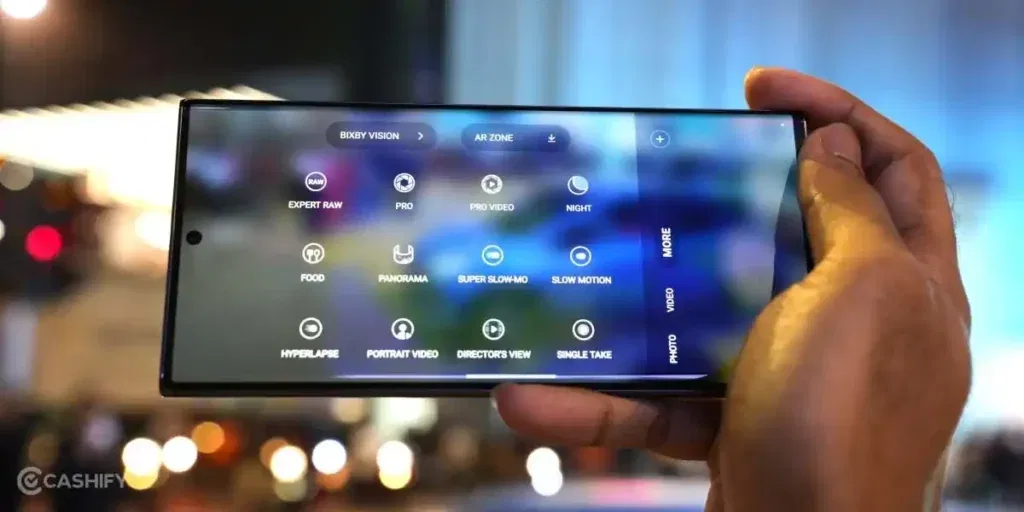
Start With the Right Resolution
When setting up the best camera settings for Samsung Galaxy S23 Ultra, resolution is the first thing you should adjust.
For everyday photography, stick with 12MP. It delivers sharp images, processes quickly, and saves storage space. This is the ideal setting for most users.
Switch to 50MP or 200MP when shooting in bright outdoor conditions where you want extra detail, like landscapes or architecture. These modes are powerful but should be used selectively.
Turn On Gridlines for Better Composition
One of the simplest yet most effective camera settings for Samsung Galaxy S23 Ultra is enabling gridlines.
Gridlines help you apply the rule of thirds, making your photos look more balanced and visually appealing. Instead of placing your subject in the center, you can align it along the grid for a more professional composition.
Enable Tracking Autofocus
If you often capture moving subjects, this is one of the best camera settings for Samsung Galaxy S23 Ultra you shouldn’t skip.
With Tracking Autofocus turned on, your camera will lock onto a subject and keep it sharp even when it moves. This is perfect for kids, pets, sports, or candid shots.
Also Read: 5 Best iQOO 15R Alternatives That Offer More Value For Your Money
Control Your Lens Switching
The S23 Ultra comes with multiple lenses, and managing them properly is key to taking good photos.
- Turn Auto Lens Switching ON if you prefer ease of use
- Turn it OFF if you want manual control over lenses like 3x or 10x zoom
Manual control helps you maintain consistency, especially in portrait or zoom photography.
Adjust Advanced Picture Options
Another important step in setting up the best camera settings for Samsung Galaxy S23 Ultra is handling image formats.
Turn off High Efficiency Pictures (HEIF) if you face compatibility issues. While HEIF saves space, JPEG is more widely supported across devices and apps.
Use Camera Assistant for Better Results
To further enhance your captures, download the Camera Assistant app from the Galaxy Store.
Here’s what you should adjust:
- Set Picture Softening to Medium or High for more natural photos
- Enable faster shutter options for capturing motion
This helps reduce the overly sharp look that Samsung cameras sometimes produce.
Best Video Settings for Everyday Use
When it comes to video, optimizing the camera settings is just as important.
Set your video resolution to 4K at 60fps. This gives you smooth motion and excellent clarity, making it ideal for most situations.
You can use 8K for maximum detail, but it’s not always practical due to large file sizes.
Improve Video Quality With Advanced Options
To get even more out of the best camera settings for Samsung Galaxy S23 Ultra, enable these features:
- High Bitrate Video for better detail
- Zoom-in Mic to match audio with zoom
- Super Steady Mode for stable footage (best in daylight)
These small tweaks can significantly improve your video quality.
Also Read: Samsung Galaxy S26 Ultra Vs Vivo X300 Pro: Best Flagship 2026?
Explore Pro Mode and Expert RAW
If you want full control, these are essential parts of the best camera settings for Samsung Galaxy S23 Ultra.
Pro Mode
You can manually adjust:
- ISO
- Shutter speed
- White balance
This is great for creative photography and challenging lighting.
Expert RAW
Shoot in 16-bit RAW for better editing flexibility. Your photos will have more dynamic range and less noise, making them perfect for post-processing.
Tips for Real-Life Scenarios
To truly master the best camera settings for Samsung Galaxy S23 Ultra, you need to apply them in real situations.
For Fast Action
Set Capture Speed to “Prioritize Speed” in Camera Assistant. This reduces motion blur and improves sharpness.
For Portraits
Use the 3x lens for natural-looking portraits and better background blur. This is one of the most effective tricks for good shots.
For Low Light
Use Night Mode and stick to the main 1x lens for the cleanest results. Avoid zoom lenses in dark conditions
Keep Experimenting
Even with the best camera settings for Samsung Galaxy S23 Ultra, experimentation is key.
Try different resolutions, test Pro Mode, and explore lighting conditions. Over time, you’ll develop your own style and understand how to get the best results
Final Thoughts
Mastering the best camera settings for Samsung Galaxy S23 Ultra doesn’t have to be complicated. With just a few adjustments, like using 12MP for daily shots, enabling helpful features, and optimizing video settings, you can significantly improve your photos and videos.
The Samsung Galaxy S23 Ultra is built to deliver exceptional results. Once you fine-tune the settings and start experimenting, you’ll be able to capture stunning content effortlessly.
Also Read: Samsung Galaxy S26 Vs OnePlus 15: Which Phone Should You Pick?
If you’ve just bought a new phone and don’t know what to do with your old phone, then here’s your answer. Sell old mobile to Cashify and get the best price for it. If you are planning to buy a new phone, check out Cashify’s refurbished mobile phones. You can get your favourite phone at almost half price with six-month warranty, 15 days refund and free delivery.