If you have got the Google Pixel 10 Pro, you are already holding one of the smartest cameras ever put in a phone. But here’s the thing. While it clicks great photos straight out of the box, knowing the Google Pixel 10 Pro best camera settings gives you an edge over casual photographers. Ready to take your shots from “nice” to “damn, that’s DSLR-level!”? Let’s go!
Also read: OnePlus 15: Best Camera Settings for Night Mode, Portrait & Zoom!
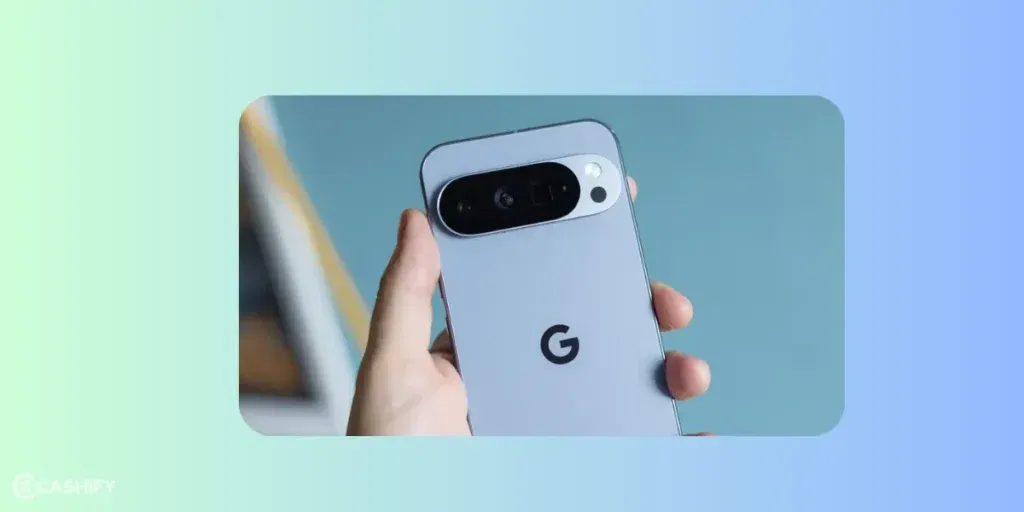
Why Google Pixel 10 Pro Camera Is So Powerful?
The camera prowess in Google Pixel 10 Pro makes this device one of the most celebrated ones.
The Pixel 10 Pro packs:
- 50-megapixel main sensor
- 48-megapixel ultrawide (with macro)
- 48-megapixel 5x telephoto
- AI features like Camera Coach, Best Take & Real Tone
Basically, Google does half the work for you! You just need to unlock its full potential.
Where Are The Camera Settings?
Camera settings are accessible quickly when you open the camera app. You will find the icon of camera settings in the bottom left corner of the screen. Open it and see the Photo settings in two categories.
One is ‘General’ for basic tweaks, and the other one is ‘Pro’ for advanced settings.
Try exploring all the settings that are possible. Get a hang of them, as in what each of them does. That will lead you to finding the Google Pixel 10 Pro’s best camera settings out of them.
Also read: Change These Camera Settings On Your iPhone 16 Pro Today!
First, Set Your Camera the Right Way
Before diving into features, let’s quickly fix your base setup because this decides 80 percent of your results.
Aspect Ratio
Start with the aspect ratio. Always keep it at 4:3. This uses the full sensor instead of cropping the image like 16:9 does. You will get more detail, better dynamic range, and more flexibility when editing later. The difference becomes obvious when you crop or zoom into photos.
Resolution
Now, resolution. The Pixel gives you a choice between 50-megapixel and 12-megapixel (pixel-binned). Think of 50-megapixel as your “high-detail mode.” Use it when you are shooting landscapes, portraits, or anything you might want to edit later. But don’t leave it on all the time. It slows things down slightly and fills up storage fast. For everyday photos, especially in low light, the 12-megapixel actually performs better because it reduces noise.
Colour settings
Colour settings also matter more than people think. Turn on Rich Color (P3). It gives you deeper and more vibrant colours without making things look fake. Pair it with Ultra HDR.
However, it doesn’t always work perfectly, so keep an eye on your shots. If you ever notice strange glowing edges around bright objects, just turn HDR off for that scene. Pixel processing is smart, but not perfect.
Other settings
And here’s something most people miss! Use the on-screen sliders (Quick Controls). Tap on your subject and adjust brightness or shadows before clicking. This one habit alone can eliminate the need for editing later.
Also read: Master The OnePlus 13 Camera: 5 Pro Tips for Stunning Photos!
Google Pixel 10 Pro Best Camera Settings To Try!
Here we will discuss the features that actually make Google Pixel Pro camera stand out. These features offer the Google Pixel 10 Pro best camera settings.
Top Shot: Never Miss the Perfect Moments
Top Shot is one of those features you don’t realize you need… until you start using it.
Here’s how it works in real life: when you take a photo, the Pixel actually captures multiple frames before and after you press the shutter. Then it suggests the best one. Like, where eyes are open, smiles look natural, and motion is clean.
To use it, just keep Top Shot (or Auto Best Take) turned ON in settings. You don’t need to do anything else while shooting. After clicking a photo, open it in Google Photos and swipe up. You will see alternate frames. Pick the one that looks best.
This is insanely useful for:
- Group photos (no more “someone blinked”)
- Kids and pets (they never stay still)
- Candid moments
Honestly, once you get used to it, you will stop stressing about timing your shots perfectly.
Also read: Samsung Galaxy S26 Ultra Vs iPhone 17 Pro Max Camera: Getting Killer Shots!
Macro Focus: Turn Small Details Into Art
Macro Focus on the Pixel 10 Pro uses the ultrawide lens to capture insanely detailed close-ups. The best thing is, it works automatically.
When you bring your camera close to a subject (like a leaf, flower, or texture), the phone switches to macro mode on its own. You will see a small flower icon indicating it’s active.
You don’t need to manually toggle it in most cases. Just:
- Move closer slowly
- Keep your hand steady
- Let the camera lock focus
If there’s a toggle available, keep it on Auto so it activates when needed.
Where Macro focus feature really does its job:
- Texture shots (fabric, wood, food)
- Nature (plants, insects)
- Product photography
Pro tip: lighting matters a lot here. Macro shots look best in natural light. Otherwise, they can look a bit flat.
Also read: 5 Mobile Phones With The Same Camera As iPhone 15!
Pro Res Zoom: Zero struggles for stabalising image
Zoom on the Pixel 10 Pro is not just zoom- it’s computational magic. This one actually reminds me of the Samsung Galaxy S25 Zoom. Yes, it’s that good!
You get optical-quality zoom at 0.5x, 1x, 2x, and 5x, and beyond that, Pro Res Zoom kicks in using AI. It can go up to 100x.
Coming to the interesting part. You can actually stabalise the shot at a moment you want to capture.
There’s a hand icon when you zoom in.
Tap that icon, and the phone locks the frame and stabilises the shot, even at extreme zoom levels.
Here’s how to actually use it:
- Zoom in (anything beyond 5x)
- Tap the hand icon
- Hold your phone steady for a second
- Let the camera stabilise and sharpen the image
Pro Res Zoom is especially useful for:
- Moon shots
- Faraway subjects (buildings, wildlife)
- Concerts or events
But keep it real! The best quality is still at optical levels (0.5x–5x). Use extreme zoom only when needed.
Also Read: Google Pixel 7 Pro: All You Need To Know About The Latest Android Flagship
Video Boost: Make Your Videos Look Cinematic
Video Boost is where Pixel goes full AI mode. When you enable it, your video is uploaded to Google’s cloud, where it gets processed with advanced algorithms. It improves:
- Stabilisation
- Lighting
- Noise reduction
- Colours
To use it:
- Go to Video mode
- Turn ON Video Boost
- Shoot your clip
- Wait for processing (it takes some time)
This is perfect for:
- Night videos
- Travel vlogs
- Important moments you want to look polished.
Just remember that it’s not instant. You will get the enhanced version after processing.
Also read: 11 Best Camera Phones In The World!
Takeaway
The Google Pixel 10 Pro best camera settings are right here. Now it all depends on how often you use them to create amazing shots. It would initially take some time to adjust or figure out what settings to use for certain moments or surroundings. To summarise it, remember these things:
- Use Top Shot when timing matters.
- Use Macro when details matter.
- Use ProRes Zoom when distance matters.
- Use Video Boost when quality matters.
Once you get them, you are going to rock the photography game.
If you’ve just bought a new phone and don’t know what to do with your old phone, then here’s your answer. Sell old mobile to Cashify and get the best price for it. If you are planning to buy a new phone, check out Cashify’s refurbished mobile phones. You can get your favourite phone at almost half price with six-month warranty, 15 days refund and free delivery.