If you want to find call recording in Samsung smartphone, it’s a relatively straightforward process. However, it seems more complicated than it really is, thanks to the Google API update for Accessibility Settings. This update has ensured that no third-party app can be used for recording calls in Android smartphones. This update was part of a bid to improve the security features in all smartphones running Android, including those of Samsung.
However, plenty of developers had found a loophole in this system, especially on smartphones running Android 10 or above. So once again, Google launched another update to fix the issue. Since then, smartphone manufacturers have had to use Google’s in-house Phone app to add recording features to their smartphones. Now that you’re aware of the reason behind this change in steps for call recording in Samsung smartphones, let’s check out all that you need to know about this process!
Also read: How To Disable Call Recording Announcement On Realme Smartphones?
How to record calls in Samsung smartphone?
The call recording function in Samsung smartphones will only appear when you’re actually talking over a call. To find out more about how to use this feature, follow the steps given below:
- Make a call to a recipient of your choice and check the Phone app.
- Once your conversation is active, find the three vertical dots at the top right corner of the screen. Tap on this to bring up a menu.
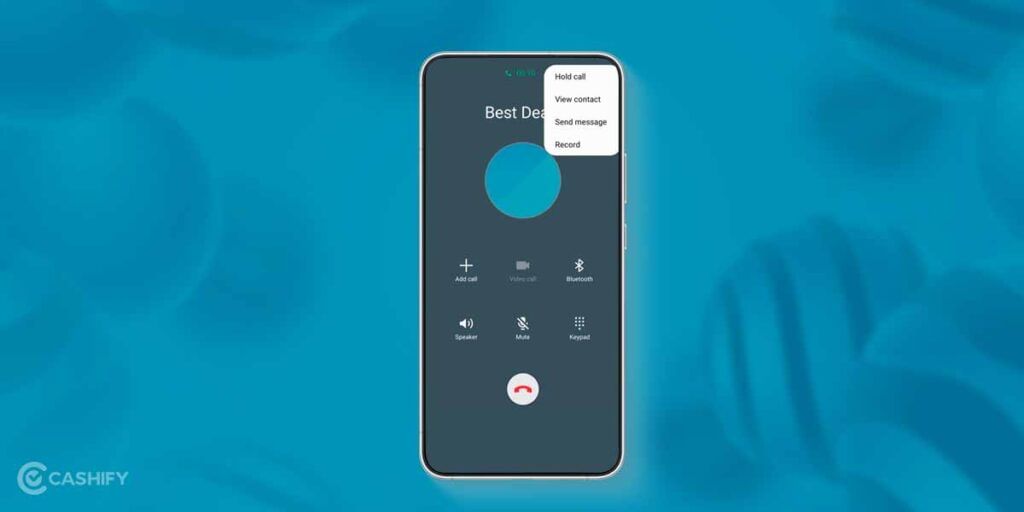
- Navigate to the Record call option and select it. This will be followed by a red dot on the screen, indicating that the call recording is now in process. It will also show you the length of the recording.
- Once your call recording in Samsung smartphone is done, you can disconnect the call to stop the recording as well.
Note: Samsung must also follow the law for call recording in various countries. Some nations prohibit recording calls. So, while the call recording feature is available on Samsung phones by default, the manufacturer disables the feature due to legal obligations. However, in India, Samsung’s One UI allows you to record calls without the need for the recipient’s consent as well.
Also read: How To Find Call Recording In Realme Smartphone?
How to find saved call recording in Samsung smartphone?
As you can see from the steps shown above, recording calls in a Samsung smartphone is quite easy. However, what if you had to find and share the call recording with someone else in your contact list? In Samsung smartphones, the call recordings are saved in a slightly different place when compared to other competitor products like Realme. For Realme smartphones, you can check the smartphone’s Phone app and find the call recording next to the recently dialled contact’s name. With Samsung smartphones, the steps are slightly different.
Of course, after your call recording is done, Samsung sends a notification stating that the recording has been saved in the phone’s internal storage. You can click on the notification and head directly to the phone’s internal storage. However, if you want to check out your other recorded calls as well, you’ll have to follow the steps below:
- Open the Call settings option on your Samsung smartphone, through the three-dot option on the Phone app.
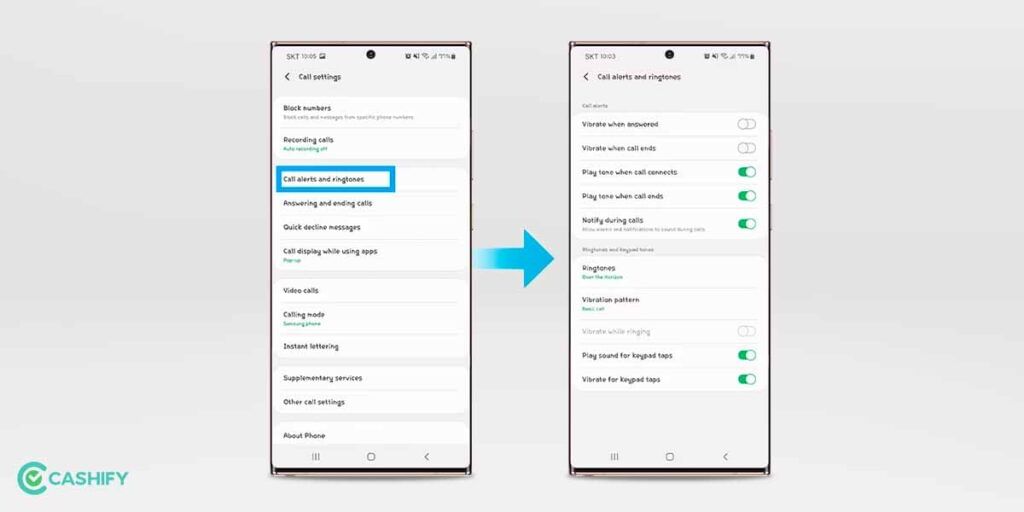
- Under Call settings, navigate to the Record calls segment and tap on it.
- After selecting the Record calls tab, find the Recorded calls option.
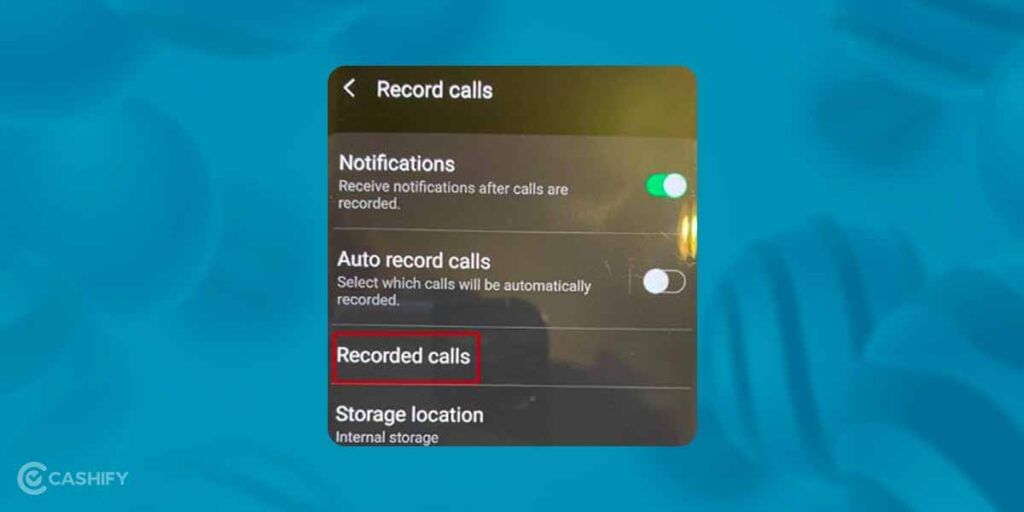
- The Recorded calls option will then provide you with a list of all the calls that you’ve recorded. These entries will have the names of the contacts provided as well.
- For easier use, you can also filter the call recordings based on size and time.
Also Read: How To Take Screenshot On Samsung Tablet And Phones?
Benefits of call recording in Samsung devices
There are a few benefits of call recording in Samsung smartphones. Whether you’re concerned about your personal privacy and security or your business enterprise, recording calls can be an essential feature for you.
- You can keep proper documentation of records and ideas to curtail any breaches in privacy.
- Recording a call when talking with your business partner can help you listen to the recordings later to come up with solutions to various issues you’re facing.
- If you’re running a business enterprise, recording calls can be an important way to understand the quality of the service you’re providing. Any lapses in quality can then be fixed immediately.
- In your personal life, you’ll be able to understand situations more clearly by listening to recorded conversations. This will enable you to make better and more informed decisions.
Also read: Where Is Call Recording Saved In OnePlus Smartphone?
Call recording in Samsung devices FAQs
While we’ve tried to answer most of your queries regarding call recording in Samsung smartphones, we’ve also compiled a list of a few important and frequently asked questions. Check them out below:
How to record phone calls on your Samsung Galaxy phone?
To record calls on your Samsung Galaxy phone, you will have to use the smartphone’s in-house Phone app. We’ve provided the steps for the same in this blog.
Where are my call recordings saved?
In Samsung smartphones, your call recordings will be saved in your phone’s internal storage. To access this, you can use the Phone app, tap on the three-dot menu, head to the Record calls segment, and then navigate to the Recorded calls option. You will find the list of your saved call recordings here.
How can I recover deleted call recordings?
To recover your deleted call recordings, you’ll have to head to your phone’s local or cloud backup drive. After this, select and download the deleted call recordings onto your phone. If you don’t have a backup, then you will have to contact Samsung’s customer support for help.
Also read: 5 Best Call Recording App That You Cannot Miss
Summing up
Call recording apps were all the rage back in the early 2010s. The Google Play Store would be flooded with multiple apps that claimed to provide the best quality call recordings. However, plenty of these apps also invaded your privacy, leading to people downloading malware or ransomware. This is the reason why Google decided to provide the call recording feature for all Android smartphones. Hopefully, now you know all that you need to know about call recording in Samsung smartphones as well. If you have further questions, let us know in the comment section below!
If you’d like to sell your old phone or recycle your old phone, try Cashify’s services for excellent buyback deals!