How to increase volume on laptop or computer? Is this the question that pops up in your mind while watching a documentary on Netflix feels too quiet? What does watching mean when you cannot hear half of the documentary? It’s annoying, right? If you are like me and wish the sound was a little louder, you have come to the right place. This blog will explain how to increase the volume on a laptop or computer.
So, let’s read more details on it.
Also read: How To Use Copilot On Microsoft Windows 10?
Windows 10 or 11
If you are using Windows 10 or 11 on a laptop or computer, here are some ways you can use to increase volume.
Make Use of Laptop or Computer’s Volume Buttons.

By using the computer/laptop’s speaker volume buttons, you can increase the volume.
- If you are using a laptop, you will see volume control buttons on keyboard keys. All you need to do is press the volume up button, and it will increase the Windows volume.
- For desktop users, your external keyboards also have volume buttons. Check the function row to increase the volume button. It will increase the Windows volume.
- Most of the time, desktop computers use external speakers. So, you need to use their volume-up button to increase the volume.
Keyboard shortcuts

You can increase the volume of your laptop or computer using the volume icon on one of the function keys. All you need to do is press that key to increase the volume. You need to hold down the Fn key in some computers while doing this.
Volume Slider
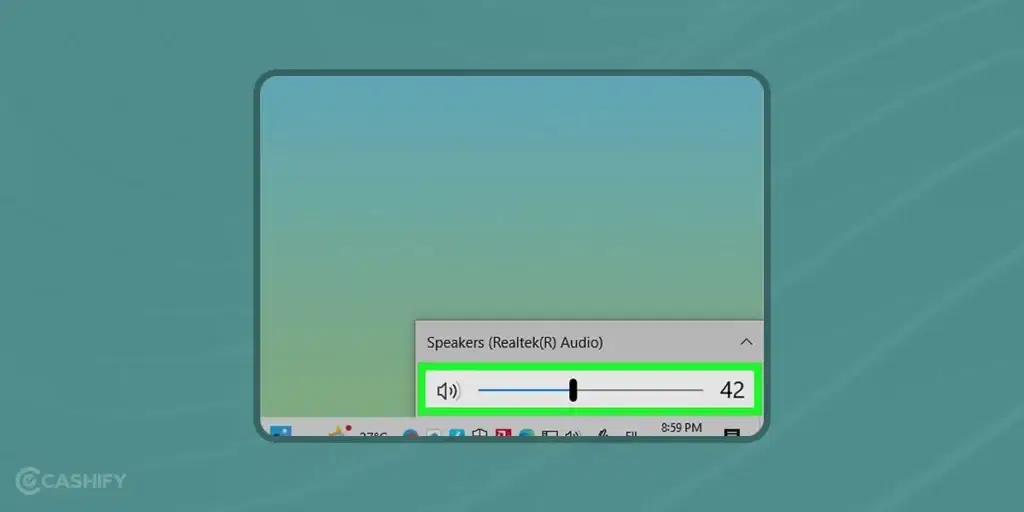
Another effective way to do this is to use the volume slider. You can see that in the taskbar. To use that, you need to follow the below steps.
- Click on the volume icon present in the lower-right corner of your laptop/computer screen.
- After that, you need to click or drag the slider to the right to increase the volume.
- If you are using Windows 11, when you click on the volume icon, it will open the Quick Settings menu. Here, you can use the volume slider to increase the volume.
Also read: Attention Windows Users! Here’s How To Update Windows 10 The Easiest Way
Using Loudness Equalization
If you are using the latest version of Windows 10 or Windows 11, you cannot access Loudness Equalization. The reason for this is that Microsoft has removed it from the audio settings. However, if you are using the older version of Windows 10, you can try this option. Here are the steps for it.
- Press the Windows key. You will see the search box here. Type Sound Settings in it and press enter.
- It will open the Sound Settings menu.
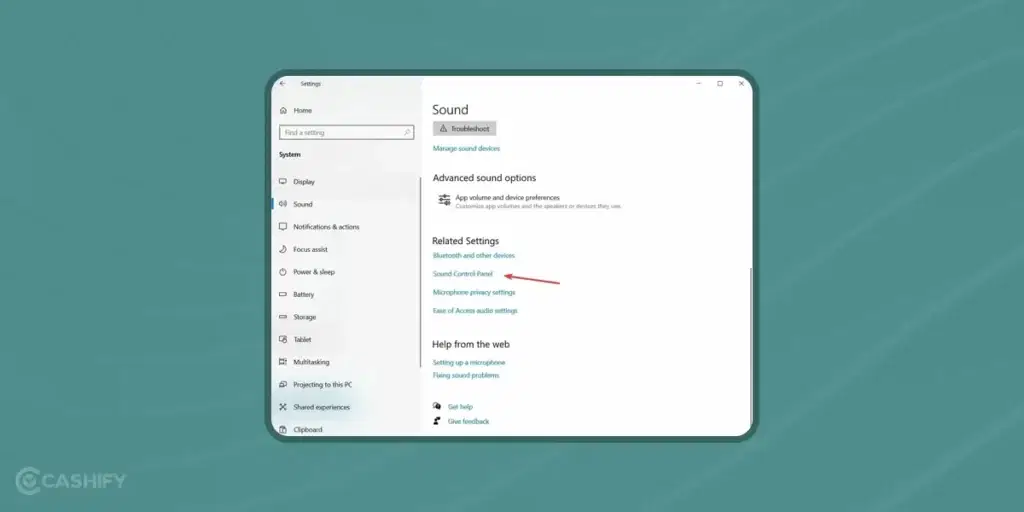
- Now, scroll down to the Related Settings and select the Sound Control Panel option.
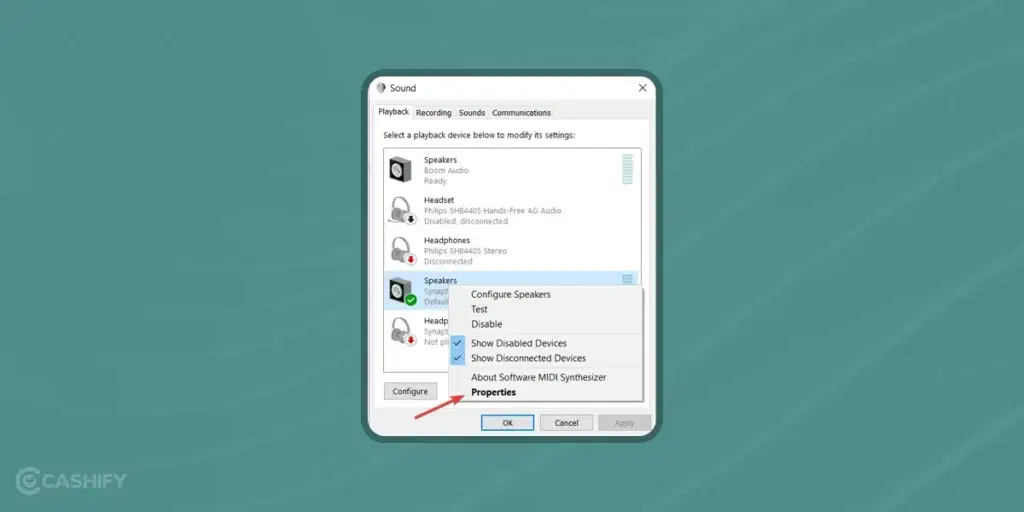
- Select Speakers and Right-click on it -> select Properties.
- From it, choose the Enhancement tab, and from it, choose Loudness Equalizer.
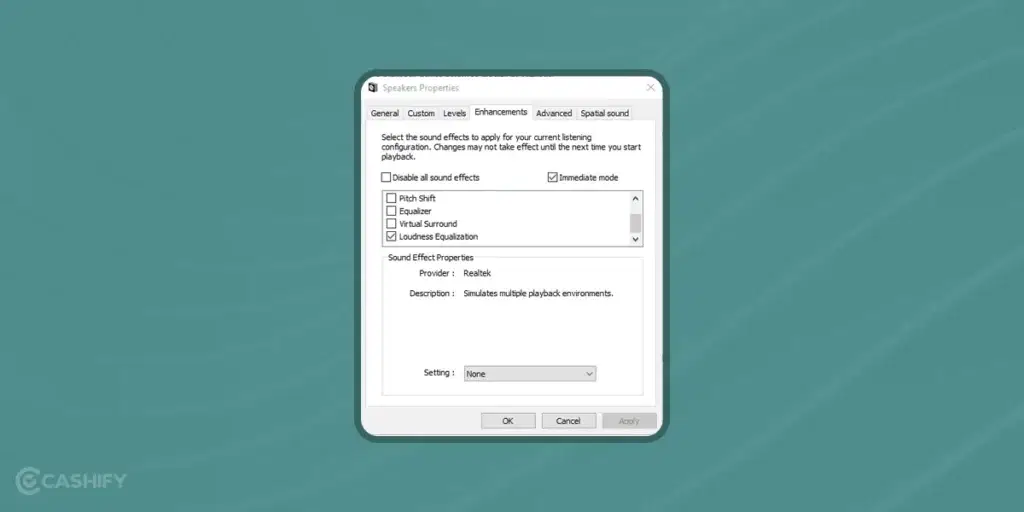
- Now click on Apply and OK.
Also read: How To Troubleshoot No Audio On Your Laptop?
Automatic Adjustments
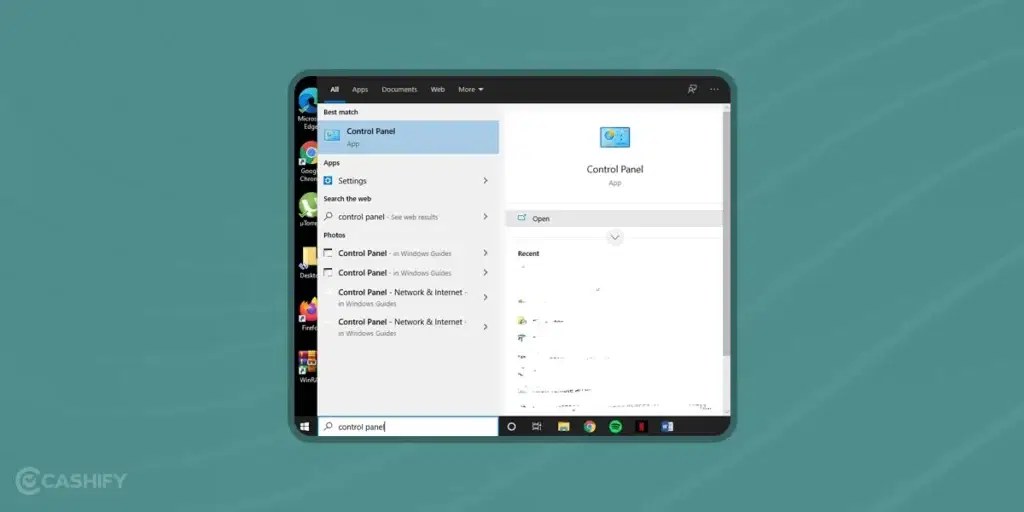
Sometimes, communication occurs from a PC/laptop, and it will automatically adjust the volume. You can disable these adjustments and make sure that the sound levels do not get affected. Follow these steps for it.
- First, navigate to the Start menu -> type Control Panel -> press Enter.
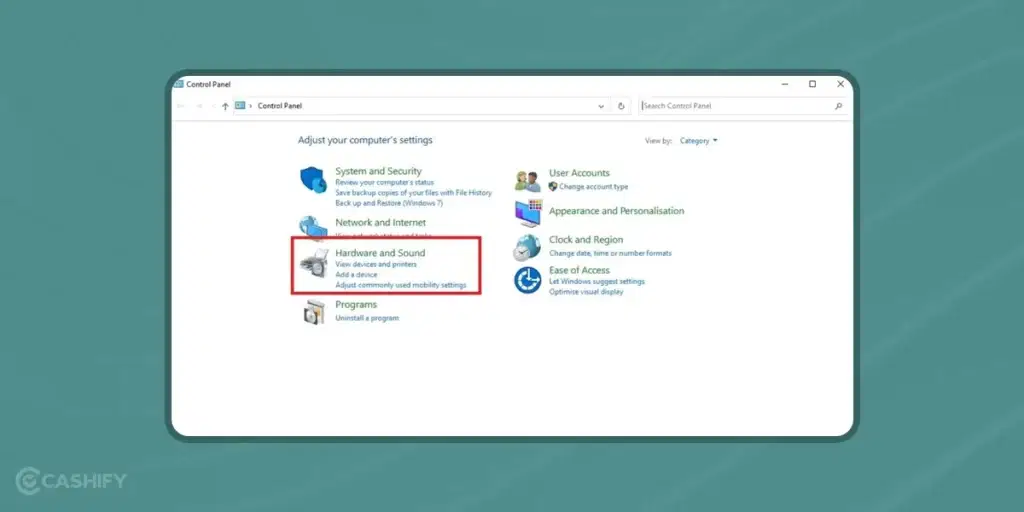
- After that, select Hardware and Sound.
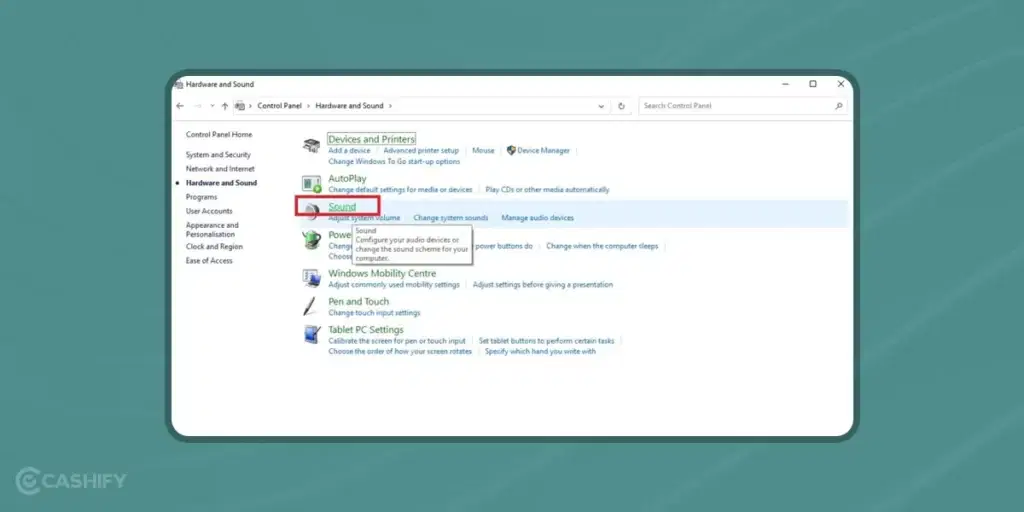
- Select Sound.
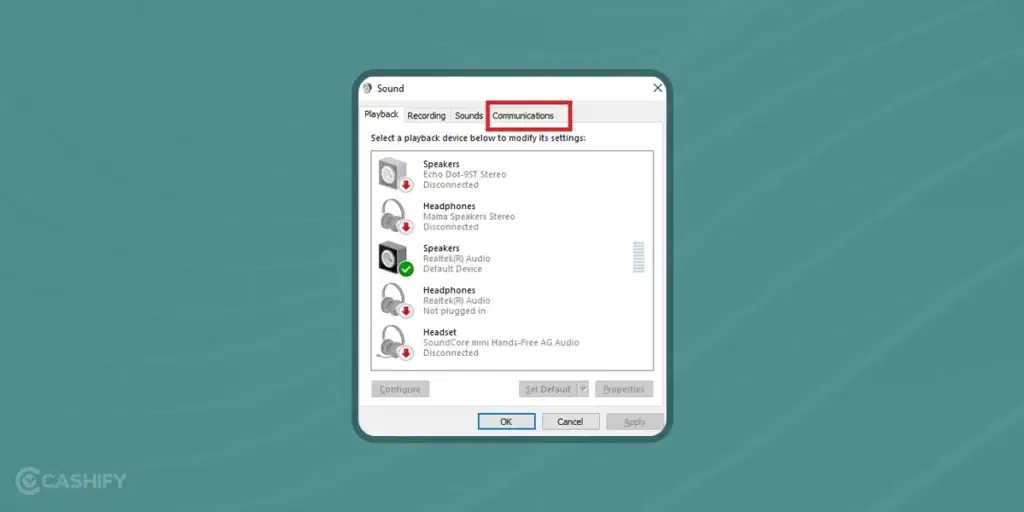
- Now, choose the Communications tab.
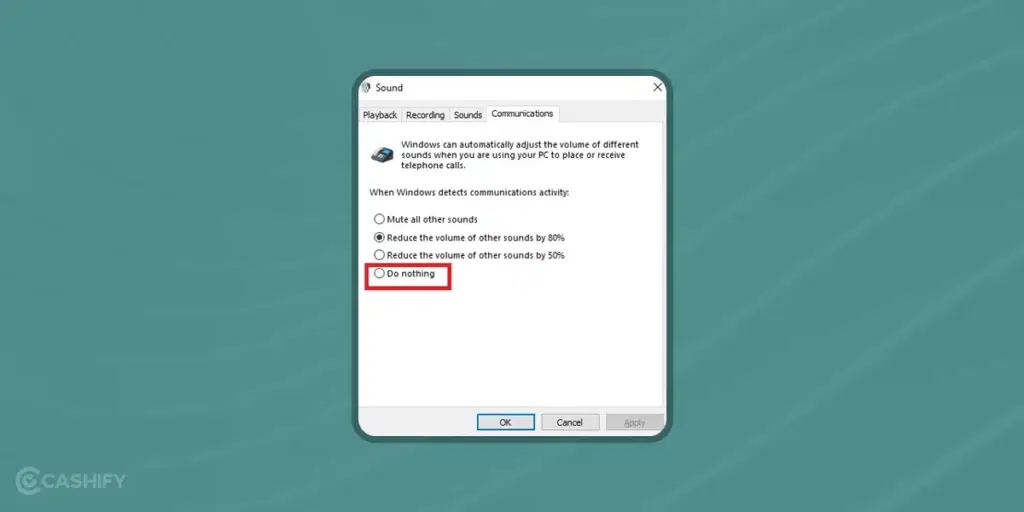
- Click on the option Do nothing.
- Select Apply -> OK
Also read: How To Use Android Phone As Laptop Speaker?
Mac
If you are a Mac user, here are the following ways you can try to increase volume on a laptop or computer.
Keyboard shortcuts
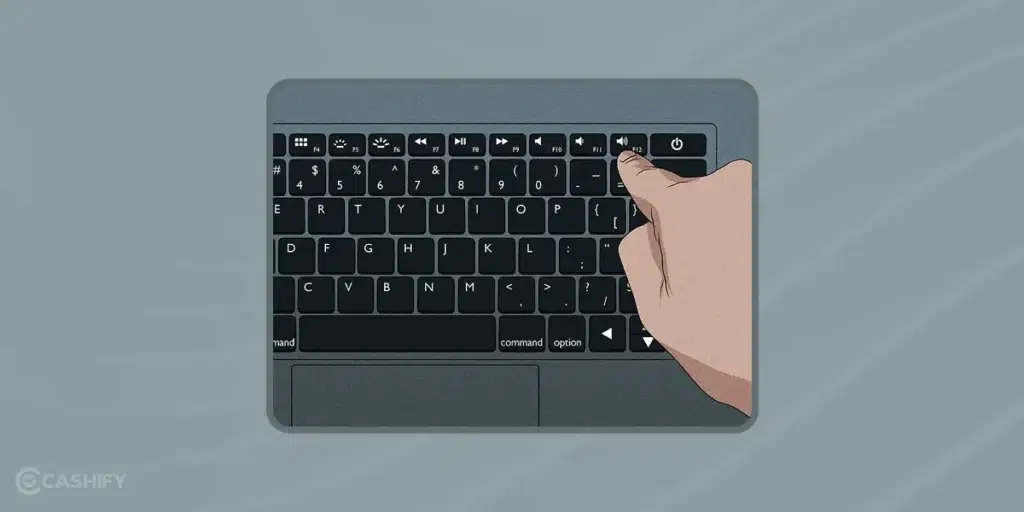
You can increase the volume of the Mac by pressing the function key – F12. You can see that on the top of your Mac keyboard. Pressing it will increase the volume instantly. If you have a Mac with a touch bar, open Finder. Here, click on the Volume Up icon on the right side, and it’s done.
Also read: 5 Best Laptops in the World 2024
Sound menu
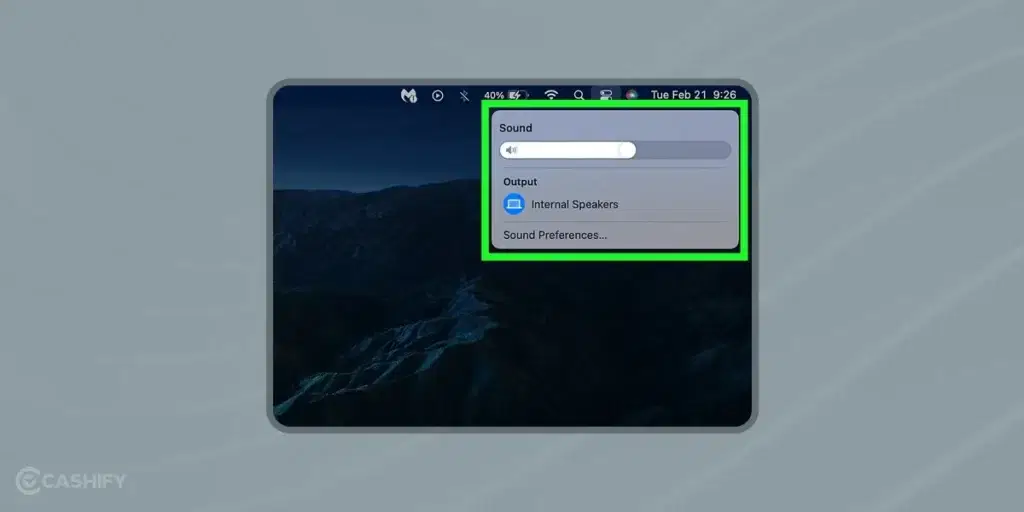
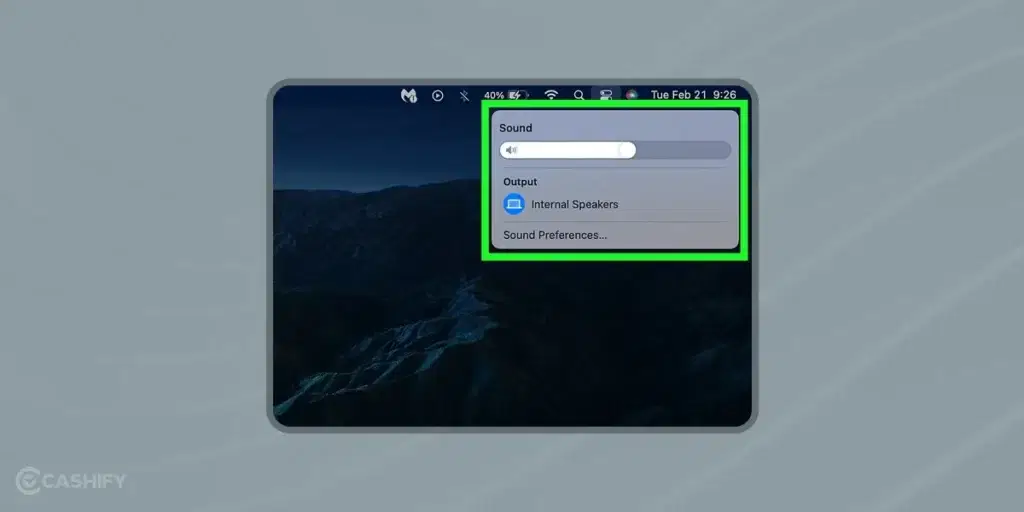
- Tap on the Sound icon that is present at the top-right corner of the Mac screen.
- After that, drag the slider to increase the volume.
Via System Preferences
- First, open the Apple logo that is present in the left-top corner of the screen. When you click on it, a drop-down menu will appear.
- Now, click on System Preferences. If you use macOS Ventura or later, it is called System Settings.
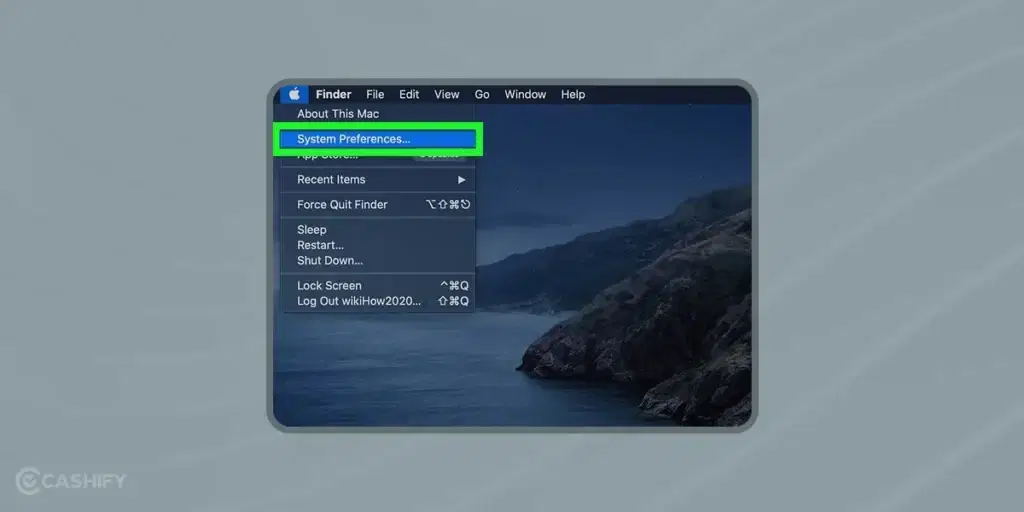
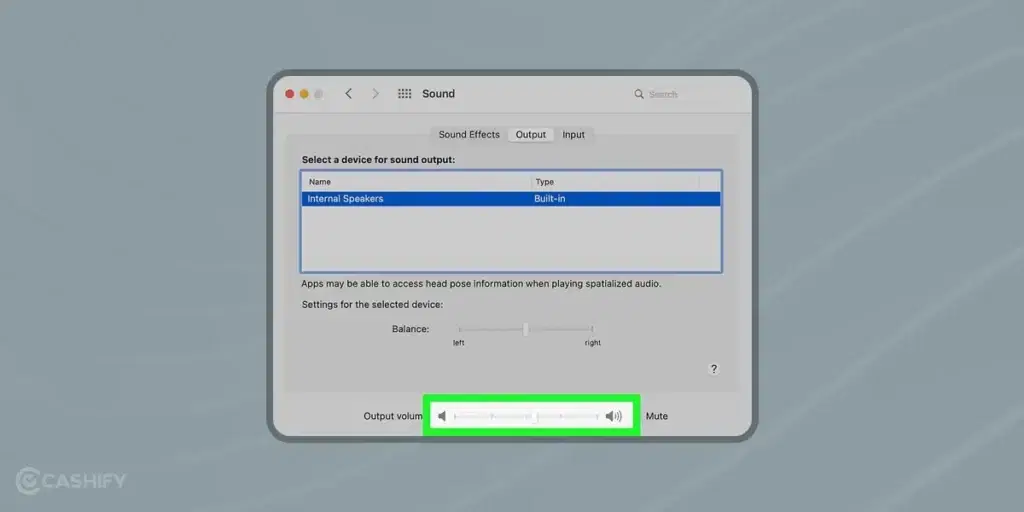
- After that, click on Sound.
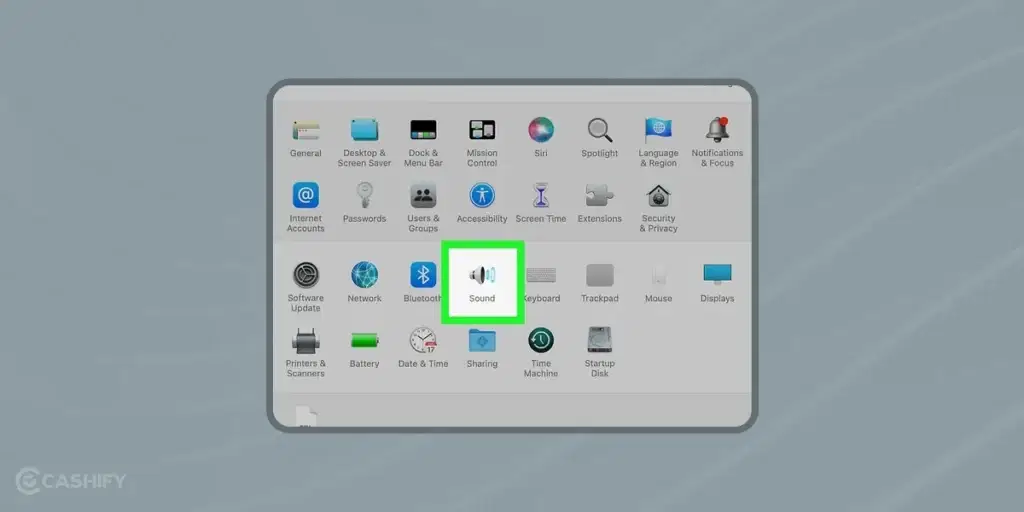
- One pop-up window will appear -> click on the Output tab.
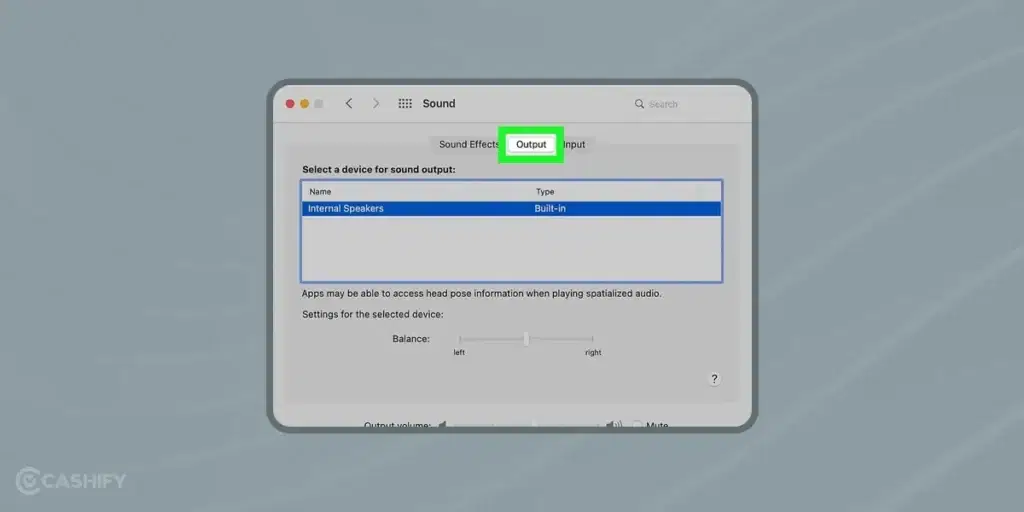
- Select internal speakers.
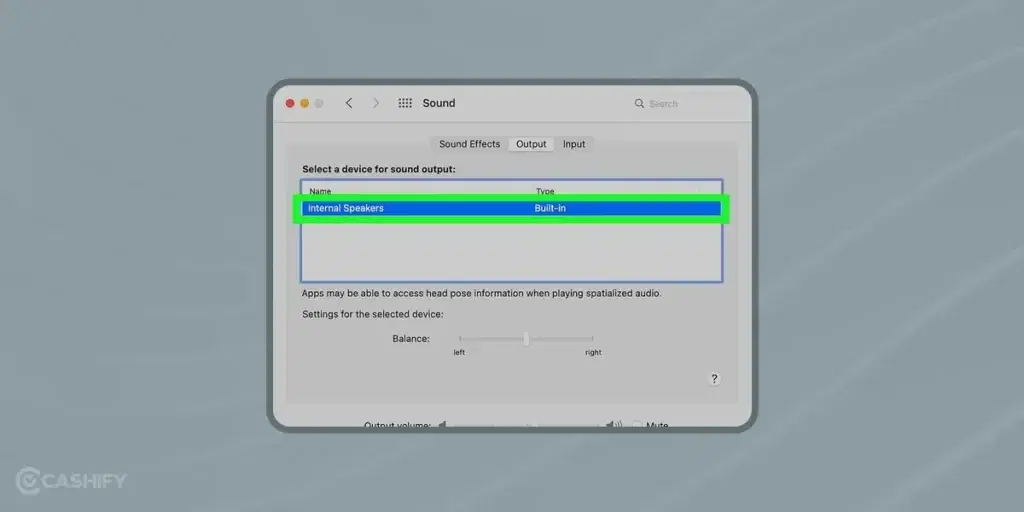
- At the bottom of the pop-up window, you will see the Output Volume slider. Drag it to the right to increase the volume.
Also read: Best Tricks To Make Your Phone’s Speaker Sound Louder
Using Third-Party Tools
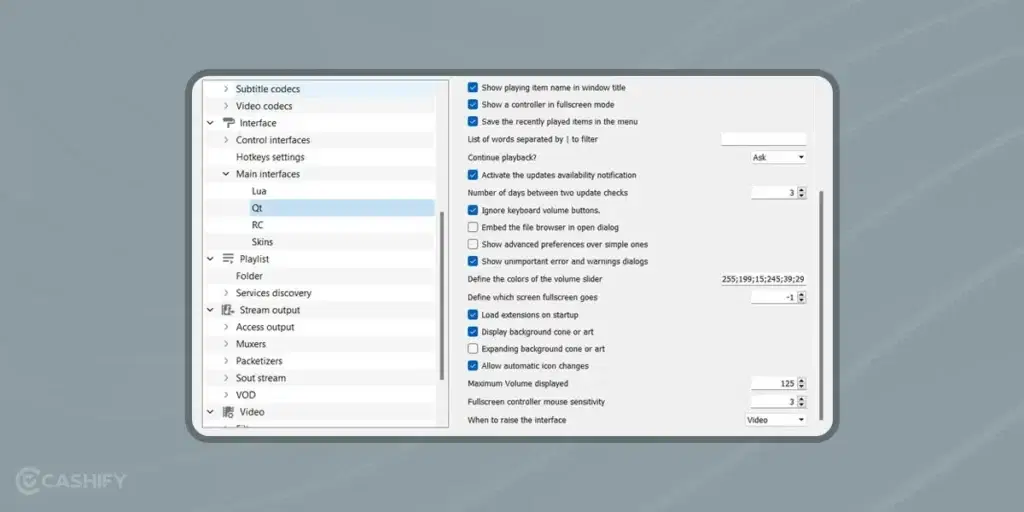
There are various third-party applications available to increase the volume of your laptop/computer, such as Audio Hijack, Boom 3D, VLC Media Player, and eqMac. Here, we will see how to increase the volume of a laptop or computer using VLC Media Player.
- Download and install VLC Media Player.
- Launch it and navigate to the Tools -> choose Preferences.
- Tap on the Show Settings checkbox so you can view all settings options.
- Now, from the left sidebar of the main interface, select Qt.
- Find the Maximum Volume option and increase its volume.
- Tap on Save.
Via Third-party browser Extensions
If you are tired of constant low volume while watching online content, then you can use a third-party browser extension. These extensions help increase volume directly within the browser and are specifically useful while watching videos or listening to your favourite music.
Also read: Increase Productivity with The Best Must-Have Accessories For Laptop!
Fixing Common Volume Issues on Your Computer
If you’re having trouble with your computer’s sound, here’s a simple guide to help you fix common volume issues. We’ll walk you through several steps to troubleshoot and hopefully resolve any sound problems you might be experiencing.
Step 1: Check the Speaker Connection
- Reconnect the Speaker: Sometimes the speaker cord can come loose or get damaged, especially if you move the speaker often. First, try unplugging the speaker cord from your computer and plugging it back in securely. Do the same at the speaker end if the cord is detachable.
- Try a Different Port: If reconnecting doesn’t help, plug the speaker into a different USB port on your computer. You can also try using the speaker with another computer to see if the issue is with the USB ports.
- Replace the Cord: If the cord looks damaged and doesn’t work with any device, consider buying a new cord.
Step 2: Adjust Application Settings
- Check Volume in Apps: Different applications have their own volume controls. Make sure the volume is turned up in the application you are using. For instance, if you’re watching YouTube, make sure the video’s volume slider is set to the highest. Similarly, adjust the volume settings within any video games you are playing.
Step 3: Use the Volume Mixer (Windows only)
- Access Volume Mixer: The Volume Mixer in Windows lets you control the volume for individual applications.
- For Windows 10, right-click the volume icon in the taskbar and select “Open Volume Mixer.”
- For Windows 11, go to Settings, search for “volume mixer,” and then click on “Sound mixer options” in the search results.
Step 4: Turn Off Automatic Volume Reduction (Windows only)
- Disable Volume Reduction: Windows might automatically lower your volume during phone calls.
- Press the Windows key, type “control panel,” and open it.
- Search for “sound” in the Control Panel, click on “Sound,” then click the “Communications” tab.
- Choose “Do nothing” to stop Windows from lowering your volume during calls and click “OK.”
Step 5: Consider External Speakers
- Upgrade Your Speakers: If your computer’s built-in speakers are too quiet even at full volume, think about getting external speakers. They are usually much louder.
- Fix Existing Speakers: If possible, try to repair your current speakers before deciding to buy new ones.
By following these steps, you should be able to diagnose and fix most common volume issues with your computer’s sound system.
Signing off
In summary, learning the art of sound control on your laptop or computer will let you enjoy a seamless and pleasurable auditory experience. Hopefully, this guide has helped you learn how to increase volume on laptop or computer. Try the ways discussed in the blog, and let us know in the comment box whether or not you found the perfect pitch in today’s ever-expanding world of sound!
Also read: How To Upgrade To Windows 11 For Free!
Turn your dream of buying an iPhone into a reality. Buy Refurbished Apple iPhone from Cashify at almost half price. It is like-new, can be bought on no-cost EMI and comes with 6 months of warranty, which can be availed at any of Cashify 200+ stores.