If your laptop screen keeps turning off, it’s not for nothing. So, you wouldn’t want to ignore this. It can be annoying, especially when you’re in the middle of work, watching something, or attending a meeting. The problem is often caused by altered settings, overheating, outdated drivers, or a loose display connection.
However, before assuming there’s a serious hardware issue, try practical fixes one by one. Most of them take only a few minutes.
Why Does My Laptop Screen Keep Turning Off?
There can be several reasons why your laptop display keeps going black or turning off. The most common ones include:
- Incorrect screen timeout or sleep settings
- Battery-saving settings
- Outdated or faulty graphics drivers
- Overheating
- Loose display cable
- Display or GPU-related hardware issues
- Windows or system glitches
- A faulty charger or battery
The key is to figure out whether the entire laptop is shutting down or only the screen is going off.
If you can still hear the fan, notification sounds, or music while the display is black, the laptop itself may still be running. That usually points towards a display, driver, power setting, or hardware issue.
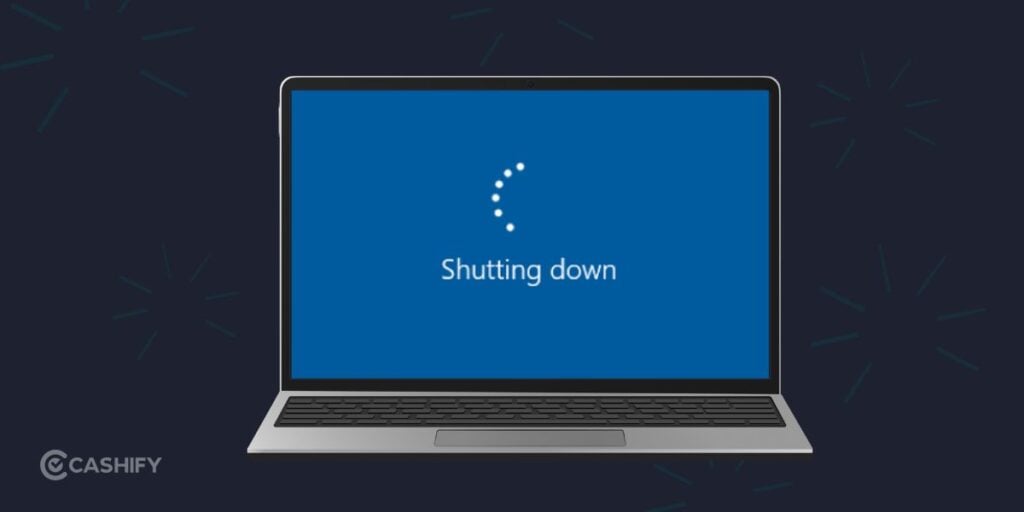
Fix 1: Check Your Screen and Sleep Settings
Windows can automatically turn off the display after a certain period of inactivity. If the timing is set too aggressively, it can look like something is wrong with the laptop.
On Windows 11
- Open Settings.
- Go to System > Power & battery.
- Select Screen, sleep & hibernate timeouts.
- Check when the screen is set to turn off.
- Increase the time or select Never temporarily to test the issue.
Use a longer screen timeout if you frequently read, download files, or leave your laptop idle.
If the screen stops turning off after changing these settings, you have likely found the cause.
Fix 2: Check Your Battery Saver Settings
Your laptop may turn off the display sooner when running on battery to save power.
Go to:
Settings > System > Power & battery
Check the current power mode and battery-saving settings.
You can also connect the charger and see if the problem continues. If the screen works normally while plugged in but keeps turning off on battery, the issue could be related to power management or the battery.
Fix 3: Restart Your Graphics Driver
Sometimes Windows or the graphics driver can temporarily stop responding, causing the display to go black.
There’s a quick keyboard shortcut you can try:
Windows + Ctrl + Shift + B
Your screen may briefly go black and you might hear a small beep. This restarts the graphics driver without restarting the entire laptop.
If the display comes back, continue using the laptop and check whether the issue happens again.
Fix 4: Update Your Graphics Driver
An outdated or corrupted graphics driver can cause random black screens, flickering, or display interruptions.
To check for an update:
- Right-click the Start button.
- Open Device Manager.
- Expand Display adapters.
- Right-click your graphics device.
- Select Update driver.
- Choose Search automatically for drivers.
Restart the laptop after installing an available update.
If the problem started immediately after a driver update, you can also check whether rolling back the driver resolves it.
Fix 5: Check If Your Laptop Is Overheating
Does the screen turn off after you’ve been using the laptop for a while?
If yes, overheating could be worth checking.
A laptop may become unusually hot when you’re gaming, editing videos, running multiple demanding applications, or using it on a bed or soft surface.
Try these simple steps:
- Place the laptop on a hard, flat surface.
- Make sure the air vents aren’t blocked.
- Close unnecessary applications.
- Give the laptop some time to cool down.
- Avoid using it on blankets or cushions.
- Check whether the problem happens during demanding tasks.
If the screen consistently goes black when the laptop gets hot, don’t ignore it. Repeated overheating can affect other components too.
Fix 6: Check the Charger and Power Connection
A faulty or unstable power connection can sometimes cause display-related problems.
Try using the laptop with the charger connected and observe what happens.
Also check whether:
- The charging icon keeps switching between charging and not charging.
- The screen turns off when you move the charging cable.
- The laptop behaves differently on battery power.
- The charger or charging port becomes unusually hot.
If the screen goes off whenever the charger or cable moves, avoid repeatedly bending or adjusting the cable. It may indicate a problem with the power connection.
Fix 7: Check the Lid and Sleep Behaviour
Your laptop may be configured to sleep when the lid is closed or even when the lid sensor gets triggered accidentally.
To check the setting:
- Search for Control Panel.
- Open Power Options.
- Select Choose what closing the lid does.
- Check the options under When I close the lid.
- Make sure the selected behaviour matches what you want.
This is especially worth checking if the screen turns off when you slightly move the laptop lid.
Fix 8: Restart The Laptop
It sounds basic, but don’t skip it.
Temporary Windows or driver glitches can sometimes cause the display to behave strangely. Save your work and perform a proper restart.
If the issue disappears after restarting but keeps returning later, pay attention to what you’re doing when it happens. For example, does it happen after waking the laptop from sleep, while gaming, or when running on battery?
That pattern can help identify the actual cause.
What If the Laptop Screen Turns Off When You Move It?
This is an important clue.
If the display works normally when the laptop is stationary but turns off when you adjust the screen angle, the display cable or another component around the hinge area could be involved.
In this case, avoid repeatedly opening and closing the lid to test it. A loose or damaged connection can get worse with continued movement.
This is one situation where a hardware inspection makes more sense than repeatedly changing Windows settings.
What If The Screen Turns Off But The Laptop Is Still Running?
Try looking for these signs:
- Keyboard lights are still on.
- Fans are still spinning.
- Music or videos continue playing.
- You can hear Windows notifications.
- The laptop responds to keyboard input.
If these things continue while the display is black, the laptop may not actually be shutting down.
Try Windows + Ctrl + Shift + B first. If that doesn’t help, check the graphics driver and display settings.
If the problem keeps happening, it may be time to get the laptop hardware checked.
Why Choose Cashify for Laptop Repair?
If DIY fixes don’t solve the problem, Cashify makes laptop repair fairly straightforward. You can check the repair cost and book a service based on your laptop’s issue.
- Convenient repair: Choose doorstep service where available, or visit a nearby Cashify store.
- Quality parts: Get quality-tested replacement parts handled by trained technicians.
- Warranty coverage: Screen replacements come with a 6-month warranty, while other replaced spare parts get a 3-month warranty.
- Multiple repair options: Cashify supports issues involving screens, batteries, motherboards, keypads, and more, depending on availability.
- Data-focused service: Your device and data security are considered during the repair process.
So, if your laptop screen keeps turning off despite trying the usual fixes, Cashify laptop repair shop near me can help you get the issue checked and repaired without making the process complicated.
Final Thoughts
A laptop screen keeps turning off issue doesn’t always mean your display is damaged. Start with the simple fixes mentioned here. Check power settings, restart the graphics driver, update drivers, and rule out overheating.
If the screen still goes black or the problem is clearly linked to movement, heat, or physical damage, it’s better to have the laptop properly inspected rather than continuing to troubleshoot blindly.
Buying refurbished mobile phones was never this easy. Sell your old phone and get exclusive offers & discounts on refurbished mobiles. Every refurbished phone is put through 32-point quality checks to ensure like-new standards and comes with a six-month warranty and 15-day refund. Buy refurbished phone easily on no-cost EMI today!