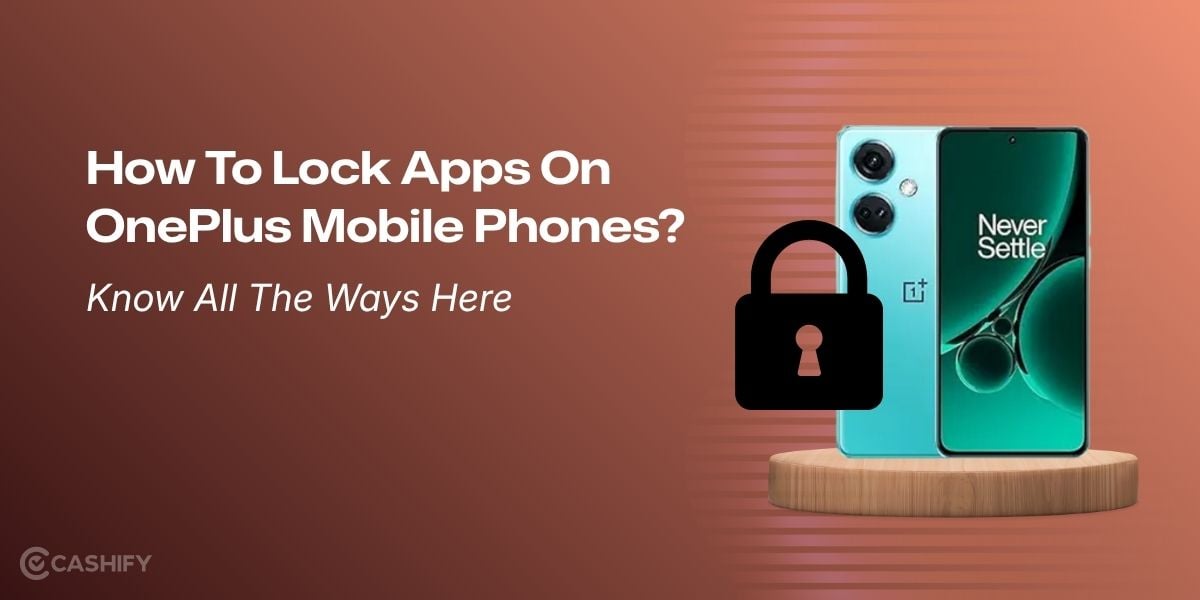
Has OnePlus launched any new app lock feature? Will the new ColorOS variant for OnePlus phones bring a new app lock system? Well, such questions have been trending on Google and even on social media. The OnePlus user community across the globe has been curious and excited to know about the app lock and the security system of their phones and wants to know if there is any change. Hence, in this blog, we bring you the details on how to lock apps on OnePlus mobile phones and also tell you the new security upgrades that your phones will receive.
How To Lock Apps On OnePlus Mobile Phones? The Two Main Steps Are Here
OnePlus offers two primary methods to lock applications: the traditional system settings menu and a quick home screen shortcut introduced in newer versions of OxygenOS.
Method 1: Via Settings (Standard Method)
The first and foremost step to knowing how to lock apps on OnePlus mobile phones is the standard settings pathway. This is the standard approach to configure privacy credentials and manage multiple apps at once:
- Open Settings on your OnePlus device.
- Scroll down and select Security & privacy (or Privacy, depending on your OxygenOS version).
- Tap on App Lock.
- Set up or enter your Privacy Password. You can also link fingerprint or face unlock for quicker daily access.
- Toggle on App Lock, then toggle the switch next to each app you wish to protect.
Once enabled, selected apps will require your privacy password, fingerprint, or facial recognition each time they are opened.
Also Read: How To Use Two WhatsApp In One iPhone
Method 2: Via Home Screen Shortcut (OxygenOS 16 Quick Access)
In OxygenOS 16, locking or hiding individual apps can be done directly from the launcher without navigating deep into menus:
- Go to your Home screen or App Drawer.
- Touch and hold (long-press) the app icon you want to secure.
- Select the lock or hide option directly from the contextual pop-up menu.
- Authenticate using your privacy password or biometric data to confirm.
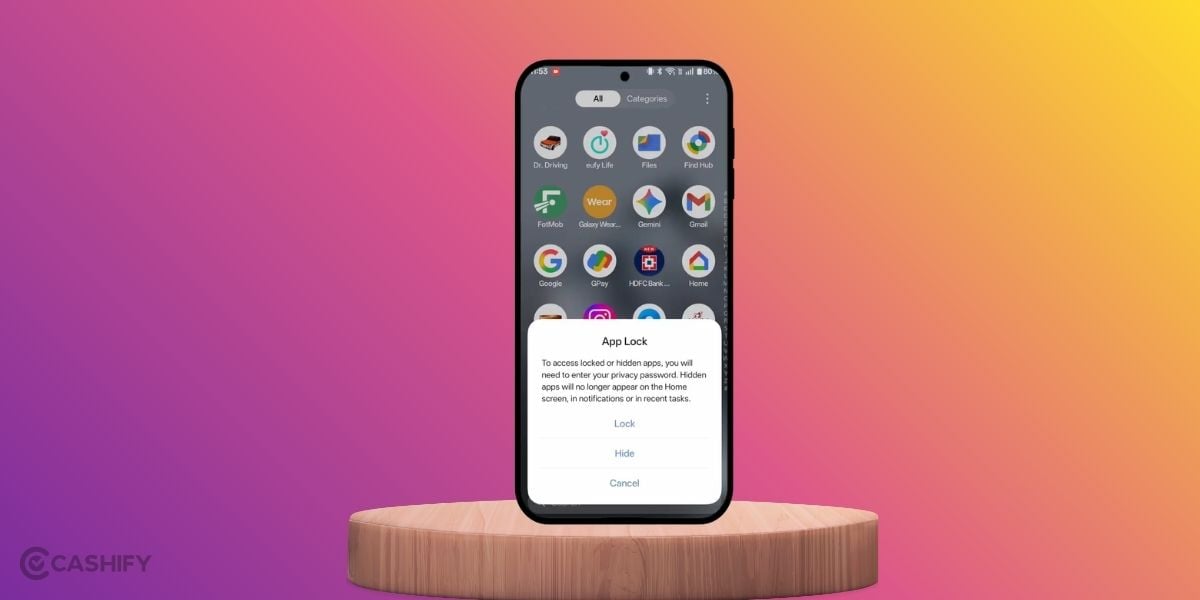
Apart from these methods on how to lock apps on OnePlus mobile phones, you must also get the knowledge of the latest security and privacy features that OnePlus has introduced.
Yes, as per the latest OxygenOS updates, alongside the September 2026 rollout, OnePlus users are going to get some advanced security features. So, let us give you a glimpse of those privacy enhancements right here.
Latest OxygenOS 16 Privacy Features
- Quick-Action App Management: Direct home screen integration allows users to toggle locks or conceal apps with a simple long press.
- Risk Detection via Phone Manager: The updated Phone Manager utility monitors running processes and alerts users when potentially malicious or risky applications are launched.
- Automated Private Safe Organisation: Private Safe now supports multi-file selection across diverse formats, automatically sorting imported files into structured categories by type (images, videos, audio, and documents).
- September 2026 Android Security Patch: Rolled out across eligible models (such as the OnePlus 11R), addressing critical zero-day vulnerabilities and system-level bugs identified in the broader Android framework.
Also Read: Motorola Signature 27 Leaks And Reports: Camera, Chipset, Price And More
FAQs
How To Lock Apps On OnePlus Mobile Phone?
To learn how to lock apps on OnePlus mobile phone, go to Settings > Security & privacy > App Lock, set your privacy password, and select apps.
How To Lock Apps On OnePlus Mobile If I Don’t Have OxygenOS 16?
Older OxygenOS versions also support app lock. Go to Settings > Privacy > App Lock, enter your privacy password, and choose the apps. However, it is recommended that you use the latest OS update version available on your OnePlus phone.
What Are The Latest Security Features In OxygenOS That OnePlus Users Will Get?
OxygenOS 16 adds quicker app locking, risky-app alerts, stronger data protection through Private Computing Cloud, and hardware-level encryption.
What Benefits Will I Get From Locking Apps On My OnePlus Phone?
App Lock prevents unauthorised access to selected apps, adding an extra privacy layer for sensitive messages, photos, files, banking apps, and personal information.
End Note
That’s it. That’s all from this guide on how to lock apps on OnePlus mobile phones. You have got the two most solid ways to protect your data and Apps from unauthorised access. There are apps and modded sites that help you lock apps as well. But we recommend that you do not go for those apps or websites, as they are not trustworthy or safe. So, stick to these measures and safeguard your apps wisely.
Also Read: How To Add My Name In A WhatsApp Message? Know The Quick Guide Here
Are you still browsing through your broken screen? Don’t worry! Book at-home mobile phone screen repair with Cashify—an affordable and one-stop destination for all your mobile phone needs. In case you break your screen within 1 month of repair, we will replace your screen again—for FREE.