The iPhone 17 Pro and iPhone 17 Pro Max, released in September 2025, gave lots of hope to users who wanted to elevate their photography skills. It features one of the most advanced smartphone camera systems ever. With a triple 48-megapixel Fusion camera setup, an upgraded telephoto for longer zoom, these phones set new bars. Then there are new tools like the Center Stage front camera, making things a little more professional-level. However, if you are still struggling with getting the hang of the iPhone 17 Pro Camera Settings, don’t worry. This is exactly what we are discussing today.
Before all that, let’s be acquainted with the system first.

Also read: Unlock Stunning Shots! Best Vivo V50 Camera Settings Revealed!
Apple iPhone 17 Pro Camera Specifications
The iPhone 17 Pro boasts a powerful 48-megapixel Pro Fusion camera system across all three rear lenses:
- Main (Wide) Camera: 48 megapixels, 24mm equivalent focal length. Excellent for everyday shots with great detail and low-light performance.
- Ultra Wide Camera: 48 megapixels, 13mm equivalent. Perfect for landscapes, architecture, or wide group photos. It also supports macro photography for close-up details.
- Telephoto Camera: 48 megapixels with tetraprism design, 4x optical zoom (100mm equivalent). It extends to 8x optical-quality zoom (200mm equivalent) via sensor crop. This is the longest telephoto zoom ever on an iPhone, offering a total 16x optical zoom range across the system.
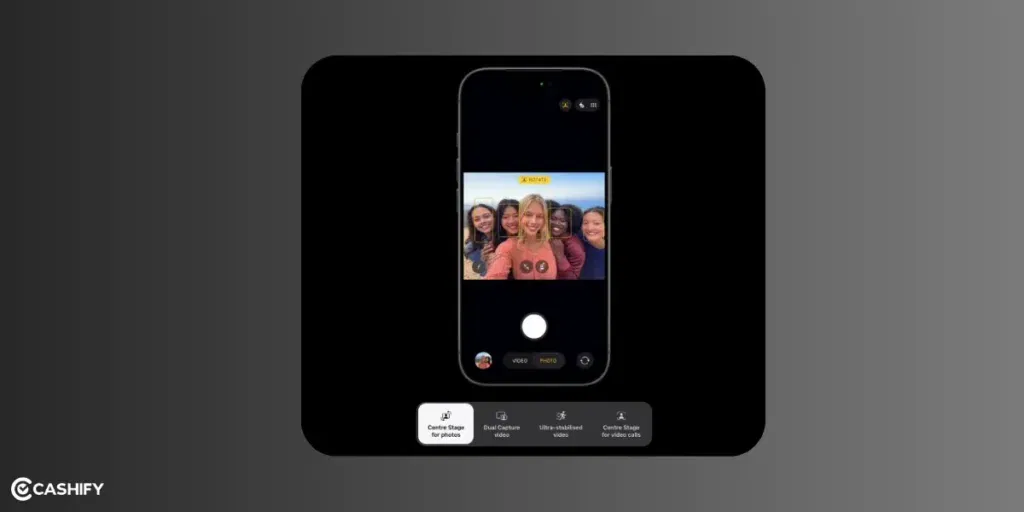
- The front camera: It is an 18-megapixel Center Stage selfie camera with a square sensor. It automatically keeps everyone in frame during group selfies or video calls and supports flexible orientation without rotating the phone.
Other highlights:
- Supports Apple ProRAW for photos and ProRes/ProRes RAW for video.
- Advanced features like Night mode, Portrait mode with depth control, and Photographic Styles.
- Dual Capture video (front and rear simultaneously) and high-frame-rate options up to 4K 120fps.
- These specs make the iPhone 17 Pro a true “pro” tool, rivaling dedicated cameras for detail, dynamic range, and versatility.
Also read: Master The OnePlus 13 Camera: 5 Pro Tips for Stunning Photos!
Mastering Key iPhone 17 Camera Settings For More Control!

Open the Camera app or go to Settings > Camera to manage these options:
Formats and Resolution (Quality vs. File Size)
The format in which your shots are saved in the device also governs how much space it’s using. If storage saving matters, fix this:
- Go to Settings > Camera > Formats.
- Enable ProRAW & Resolution Control for photos. This lets you shoot in Apple ProRAW (raw files with more editing flexibility) at 48-megapixel or 12-megapixel.
ProRAW keeps maximum data for editing exposure, colours, and white balance later. Files are large (up to 75MB per photo), so use for important shots.
- Default is HEIF/JPEG for smaller files with good quality.
- For video: Enable ProRes for professional-grade footage (huge files, great for editing).
My Tip: To reduce file size while keeping quality, shoot in 24-megapixel HEIF (default on newer models) instead of full 48-megapixel ProRAW. This saves storage without much visible loss for most photos.
Also Read: 5 Phones That Deliver DSLR-Like Photography!
Preserve Settings
To keep the shots consistent, preserve settings once you figure out the best arrangement.
- In Settings > Camera > Preserve Settings, turn on options like Camera Mode, Exposure Adjustment, Night Mode, and Portrait Zoom.
- This keeps your preferred lens, filters, or adjustments when you reopen the app.
Grid and Level for Better Composition
If you are not so pro at photography, having grid really helps. Keeping perfect angle matters a lot in basic photography. So, do this:
- Turn on Grid in Settings > Camera. It overlays a rule-of-thirds grid to help align horizons and subjects.
How to use? let me give you an example: If you are clicking a person standing with sea atteh back, have the middle horizental line be parallel with the horizon. Keep. the person in middle box of the grids. Likewise, place a person’s eyes on the top-third line for more engaging portraits. For landscapes, align the horizon on a grid line to avoid crooked shots.
Also read: Change These Camera Settings On Your iPhone 16 Pro Today!
Lens Correction and Other Changes
- Keep Lens Correction on to fix distortion in ultra-wide shots.
- Turn off Live Photos if you want smaller files (it records a short video clip with each photo).
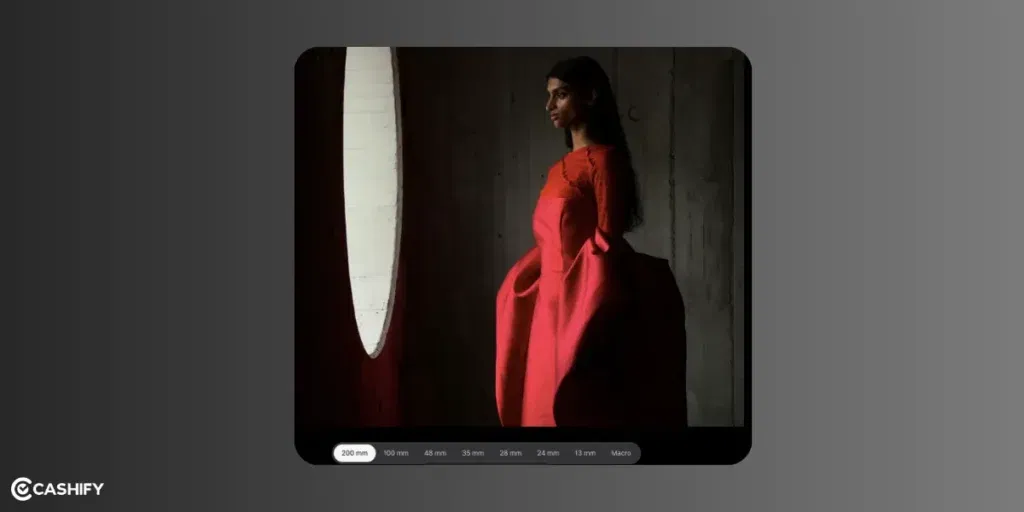
Photo and Video Capture Options
Photos
- ProRAW: Tap the RAW icon in the Camera app for unprocessed files with max detail. This is ideal for editing in apps like Lightroom.
- Photographic Styles: Swipe up in the Camera app to choose various styles. Select from Vibrant, Natural, or the new Bright. These apply non-destructive adjustments to colours and tones in real-time. Like you can use “Natural” for realistic skin tones in portraits.
- Portrait Mode: Blurs the background for professional-looking shots. Adjust depth after capturing.
- Night Mode: Auto-activates in low light. If you need brighter, clearer photos without flash, this one works the best.
Video
You can try to record video in up to 4K 120fps for slow-motion or cinematic looks.
- Use ProRes/ProRes RAW: For pro editing (colour grading, exposure fixes). Make sure to use with external storage as files are massive.
- Dual Capture: Record front and rear cameras at once – perfect for vlogs or reactions.
Also read: 5 Mobile Phones With The Same Camera As iPhone 15!
Making Best Use Of Camera Control Button In iPhone 17 Pro Camera Settings
You may already know one or two ways to use the camera control button in iPhone 17 Pro. There are more camera settings to customise the button function. Below is the list of all the uses.
| Action | What it does |
|---|---|
| Single click | Opens the Camera app quickly. |
| Double click | Accesses quick controls such as zoom or exposure. |
| Light press | Brings up adjustment sliders (for example, swipe to change zoom, exposure, or styles). |
| Press and hold | Starts video recording; release to stop. |
| Lock focus/exposure | Light press and hold on a subject to lock focus and exposure. |
| Customisation | Go to Settings > Camera > Camera Control to change pressure sensitivity or what the control launches. |
Also read: Best Camera Settings For Samsung Galaxy S25 Edge: Pro-Level Photography!
Recommendations for iPhone 17 Pro Camera Settings for Optimal Quality!
As someone who is passionate about phone photography, here are my top recommendations. I’ll tell you about the best balance of quality, control, and storage:
1. For Everyday Photography:
- Formats: High Efficiency (HEIF) at 24-megapixels.
- Preserve Settings: On for your favourite lens (e.g., 35mm default for natural perspective).
- Grid: On.
- Photographic Style: Natural or Bright for vibrant yet realistic colours.
2. For Pro-Level Photos:
- Enable ProRAW at 48-megapixels for important shots.
- Use manual exposure adjustment via Camera Control.
- Shoot in good light to maximise detail. Also, avoid over-relying on Night Mode for the cleanest results.
3. For Video Creators:
- Enable ProRes or ProRes RAW.
- Record at 4K 24fps for a cinematic feel or 60fps for smooth action.
- Use an external SSD for long recordings.
4. Storage-Saving Tip:
- Turn off ProRAW when not needed. Switch in the app per shot.
Example Scenario: Photographing a sunset portrait.
- Set to Portrait Mode, 1x main lens.
- Use Camera Control to light-press and adjust exposure down slightly (to keep sky colours rich).
- Shoot in ProRAW for later edits. Boost shadows on the face without blowing out the sky.
Final Verdict
With the above mentioned iPhone 17 Pro camera settings, your photos will look clean. Colours would depend on the filters you choose. Like, how you adjust brightness, shadows, whites, constrasts etc. Experiment in different lighting like the 48-megapixel sensors shine in bright conditions, while computational features handle low light brilliantly.
The iPhone 17 Pro’s camera is incredibly powerful right out of the box. Make the best use of it to create something amazing!
If you’ve just bought a new phone and don’t know what to do with your old phone, then here’s your answer. Sell old mobile to Cashify and get the best price for it. If you are planning to buy a new phone, check out Cashify’s refurbished mobile phones. You can get your favourite phone at almost half price with six-month warranty, 15 days refund and free delivery.