If you have ever wished your home screen could do a little more, the Google widget is a great place to start. It puts a search bar right where you need it, and knowing how to add the Google widget on your home screen takes only a few taps on both Android and iPhone. But this widget is not just about typing queries. Tap it and you also get instant access to voice search, Google Lens, and Incognito mode. Here is a quick look at what it does before we walk through the setup.
Also Read: Best Android Widgets To Use
How To Add Google Widget On Home Screen On Android
Adding the Google widget on your home screen on Android takes a few seconds. Most phones ship with it pre-installed, so you are usually just placing it back.
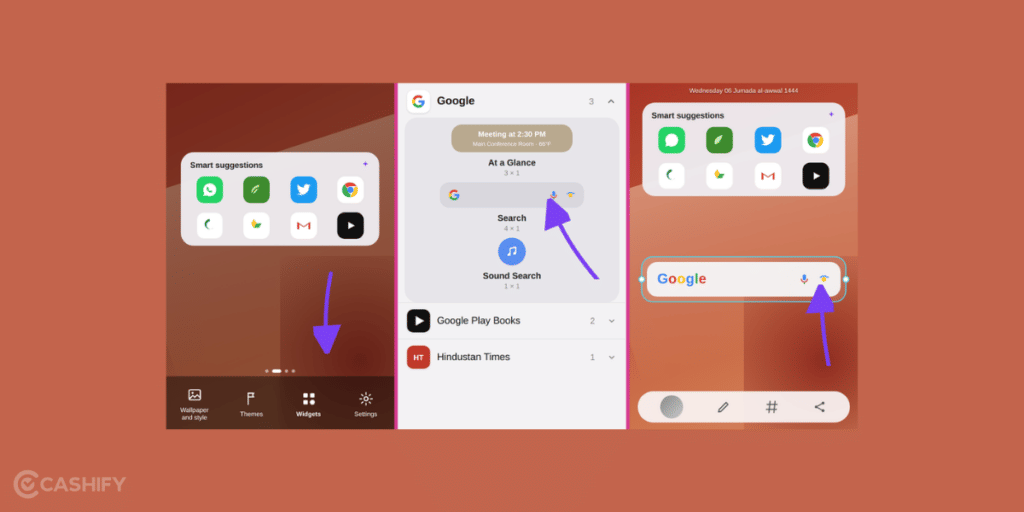
- Long-press an empty space on your home screen until the menu appears at the bottom.
- Tap Widgets.
- Scroll down or search for Google, then tap to expand the section.
- Touch and hold the Search widget.
- Drag it to your preferred spot on the home screen and lift your finger.
How To Add Google Widget On Home Screen On iPhone
Adding the Google widget on your home screen on iPhone needs the Google search app installed first, so grab it from the App Store if you do not have it.
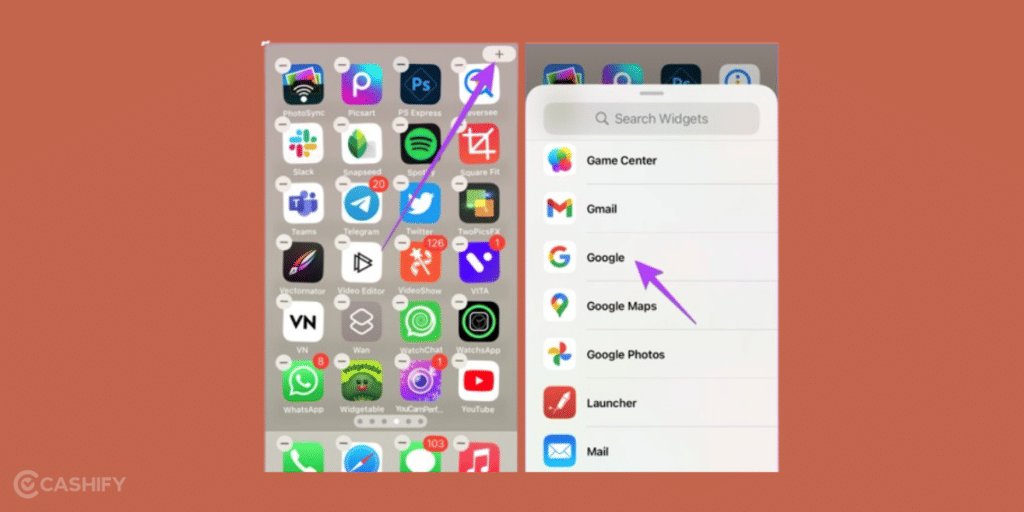
- Long-press an empty area of the home screen until the app icons start to jiggle.
- Tap Edit in the top-left corner, then choose Add Widget.
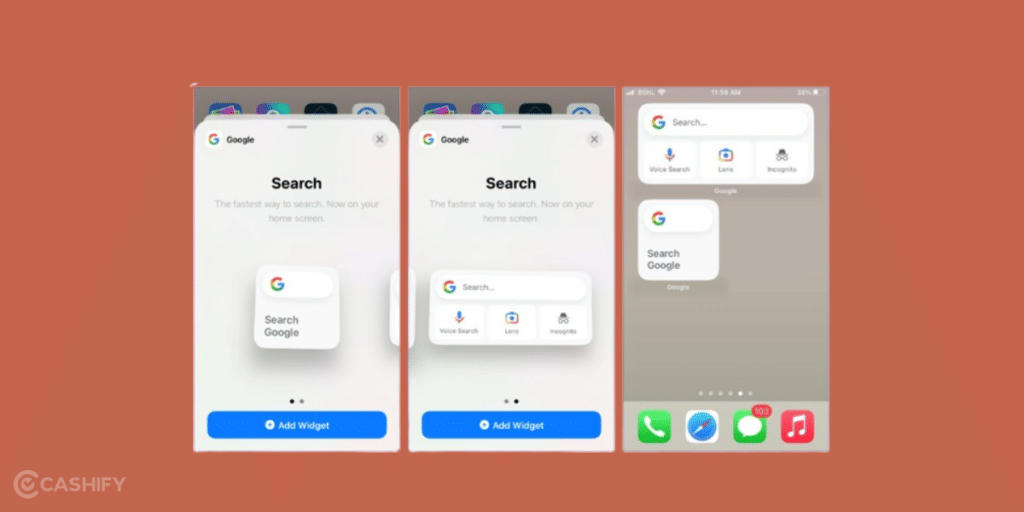
- Find and tap Google in the widget list.
- Swipe through the Google widget options and pick the one you want. The second search widget is the customisable one, with a shortcut for Incognito mode.
- Tap Add Widget, then tap Done.
Also Read: How To Enable Developer Options In Motorola Phones
How To Customise The Google Search Widget
After adding the Google widget on your home screen, you can style it to match your wallpaper and add handy shortcuts.
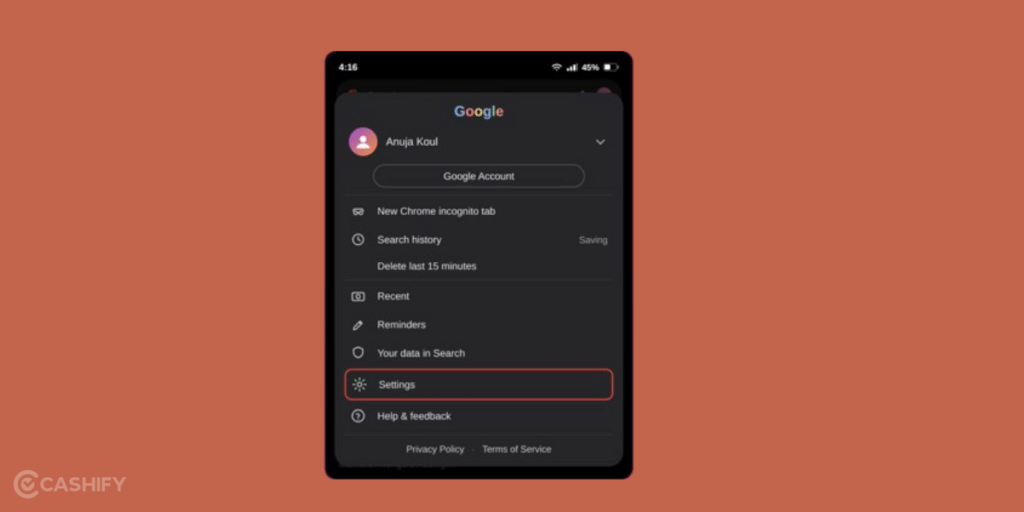
- Open the Google app.
- Tap your profile picture in the top-right corner and choose Settings.
3. Go to Customise Search widget.
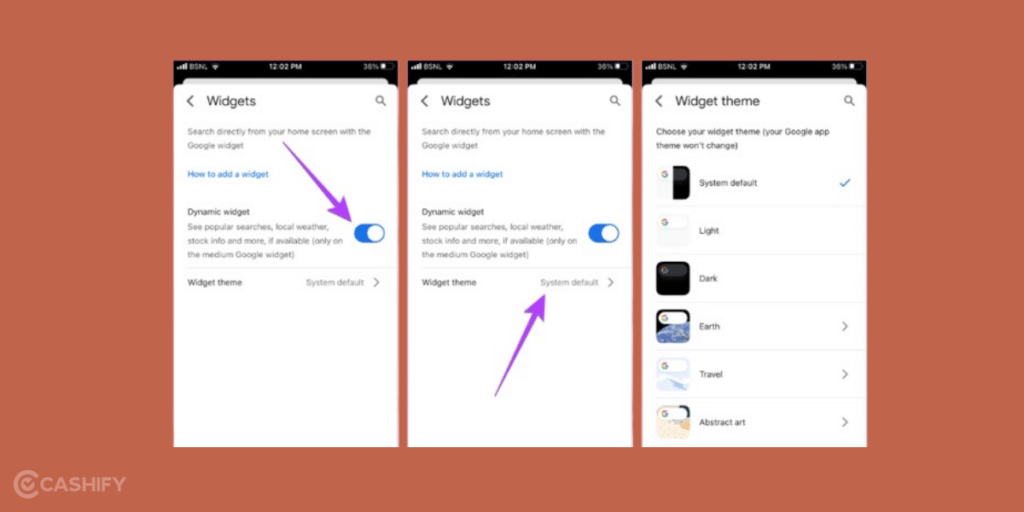
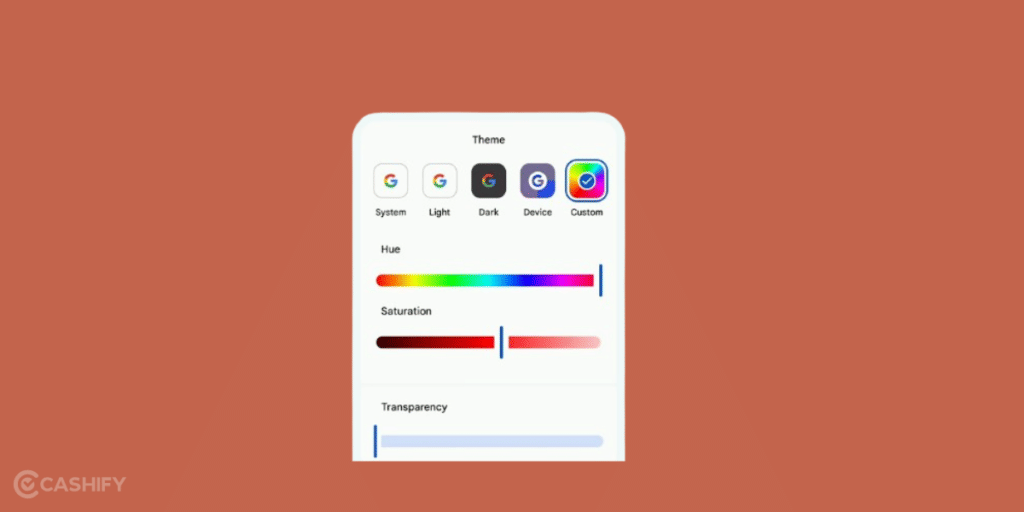
4. Adjust the colour, shape, transparency, and Google logo style, and set up to three shortcuts such as Lens, voice search, or Incognito.
Google Widget Not Showing On Home Screen? Try This
If the Google widget is missing from your widget list or will not add to your home screen, adding it back is usually a quick fix.
- Open the Play Store or App Store and update the Google app to the latest version.
- Make sure you have empty space on the home screen. A full screen leaves no room to drop the widget.
- Restart your phone and try again from the Widgets menu.
Final Thoughts
Adding the Google widget to your home screen gives you quick access to Search, voice search, and Google Lens without opening the app. Whether you use Android or iPhone, setting it up takes just a few taps. If the widget disappears, updating the Google app, freeing up home screen space, or restarting your phone can usually help. By following these simple steps, you can keep Google Search just a tap away whenever you need it.
FAQ
1. Why is my Google search bar missing from my home screen?
It was most likely removed by accident or during a home screen reset. You can add it back from the Widgets menu on Android or the widget gallery on iPhone.
2. Can I add the Google widget on an iPhone?
Yes. Install the Google app from the App Store, then long-press the home screen, tap Edit, choose Add Widget, and select Google.
3. How do I resize the Google search widget?
On Android, long-press the widget until a box appears, then drag the dots to resize. On iPhone, you choose from fixed widget sizes in the gallery.
4. Can I change the colour of the Google search bar?
Yes, on Android. Open the Google app, go to Settings, then Customise Search widget to change colour, shape, and transparency.
5. Does the Google widget only do search?
No. It also gives you one-tap access to voice search and Google Lens, and the customisable version on iPhone includes an Incognito shortcut.
If you’ve just bought a new phone and don’t know what to do with your old phone, then here’s your answer. Sell old mobile to Cashify and get the best price for it. If you are planning to buy a new phone, check out Cashify’s refurbished mobile phones. You can get your favourite phone at almost half price with six-month warranty, 15 days refund and free delivery.