You switch on your HP laptop expecting to start your work, but instead, the screen gets stuck on “Preparing Automatic Repair.” It loads for several minutes, restarts, and returns to the same message again. Frustrating, right?
This HP Laptop Preparing automatic repair problem doesn’t always mean serious damage. In many cases, it’s simply Windows trying to repair a startup problem but failing to complete the process.
Let’s understand why this happens and what you can do to get your HP laptop working again.
What Does “Preparing Automatic Repair” Mean?
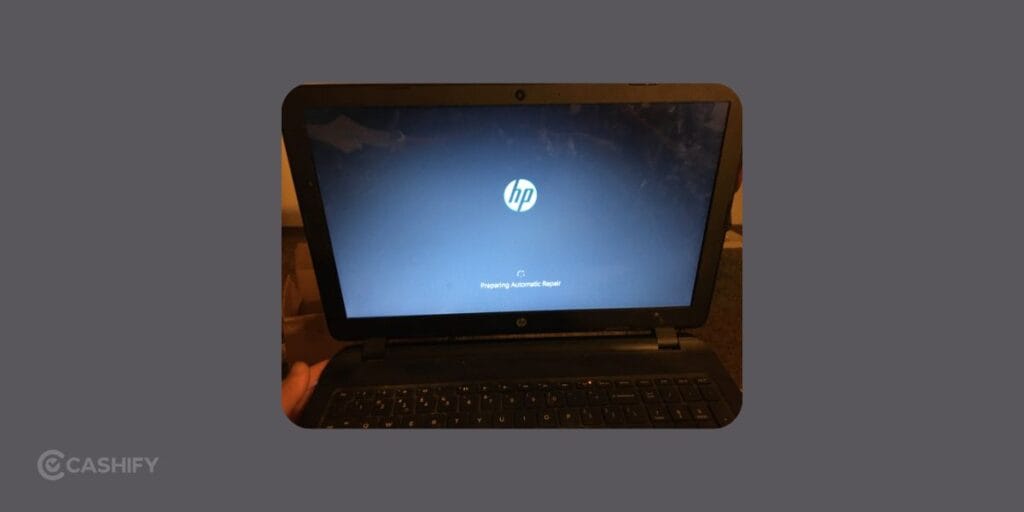
Automatic Repair is a built-in Windows recovery feature. It starts when Windows detects repeated startup failures or notices that important system files are damaged.
Its purpose is simple:
- Repair startup files
- Fix boot configuration errors
- Recover Windows after failed updates
- Help your laptop boot normally
If the repair process fails repeatedly, your laptop may enter an endless repair loop.
Why Is Your HP Laptop Stuck on Preparing Automatic Repair?
Several issues can trigger this problem.
1. Corrupted Windows System Files
Damaged or missing Windows files prevent the operating system from loading correctly.
Common reasons include:
- Improper shutdown
- Malware
- Interrupted updates
2. Failed Windows Update
If your laptop shuts down during an update or the update doesn’t install properly, Windows may fail to boot.
3. Damaged Hard Drive or SSD
Storage drives develop bad sectors over time. If Windows files are stored in damaged areas, startup problems become common.
Signs include:
- Slow performance
- Clicking sounds (HDD)
- Frequent crashes
4. Corrupted Boot Configuration
Windows relies on boot records to start correctly. If these become damaged, Automatic Repair keeps trying to fix them.
5. Faulty External Devices
Sometimes the issue isn’t your laptop at all.
USB drives, external hard disks, memory cards, or printers connected during startup can confuse the boot process.
Also read: Most Common Laptop Problems For Possible Repair Instead Of Replacing The Device!
How To Fix HP Laptop Preparing Automatic Repair
Start with the easiest methods first.
Fix 1: Force Restart Your Laptop
Sometimes Windows gets stuck temporarily.
Here’s what to do:
- Hold the Power button for 10-15 seconds.
- Wait for a minute.
- Turn the laptop back on.
If it still shows Automatic Repair, move to the next fix.
Fix 2: Disconnect External Devices
Remove everything connected to the laptop.
Disconnect:
- USB drives
- External HDD or SSD
- Mouse
- Keyboard
- Printer
- SD card
Restart the laptop and check if Windows boots normally.
Fix 3: Let Automatic Repair Finish
It can take longer than expected if Windows is repairing multiple files.
Wait around 30-60 minutes before assuming it’s frozen.
If the loading animation stops completely or keeps restarting, continue with the next steps.
Fix 4: Enter Windows Recovery Environment
If Windows won’t start normally:
- Turn the laptop on.
- When the HP logo appears, hold the Power button until it turns off.
- Repeat this process three times.
Windows usually enters Recovery Mode automatically.
Select:
Advanced Options > Troubleshoot
From here you can try several repair options.
Also Read: Do You Lose Data When Replacing LCD Screen?
Fix 5: Run Startup Repair
Inside Recovery Mode:
- Troubleshoot
- Advanced Options
- Startup Repair
Windows scans startup files and attempts automatic repairs.
This is often enough to solve boot-related issues.
Fix 6: Boot into Safe Mode
If Startup Repair doesn’t help:
Go to:
Advanced Options > Startup Settings > Restart
Press 4 or F4 for Safe Mode.
If Windows opens successfully:
- Remove recently installed software
- Uninstall problematic drivers
- Check for malware
- Restart normally
Fix 7: Run System File Checker
Open Command Prompt from Recovery Mode.
Run:
sfc /scannow
This command scans Windows files and replaces corrupted ones automatically.
Fix 8: Check the Disk for Errors
Still in Command Prompt, run:
chkdsk C: /f /r
This command:
- Finds bad sectors
- Repairs file system errors
- Attempts data recovery
The scan may take some time depending on your drive size.
Fix 9: Use System Restore
If your laptop worked fine a few days ago, System Restore can help.
Open:
Troubleshoot > Advanced Options > System Restore
Choose a restore point created before the problem started.
Your personal files remain untouched, though recently installed apps may be removed.
Fix 10: Reset Windows
If nothing else works, resetting Windows may solve the issue.
Go to:
Troubleshoot > Reset this PC
Choose:
- Keep my files
- Remove everything
Select Keep my files first if possible.
Also read: Screen Repair Vs Screen Glass Repair: Know The Whole Truth!
Why Choose Cashify for HP Laptop Repair?
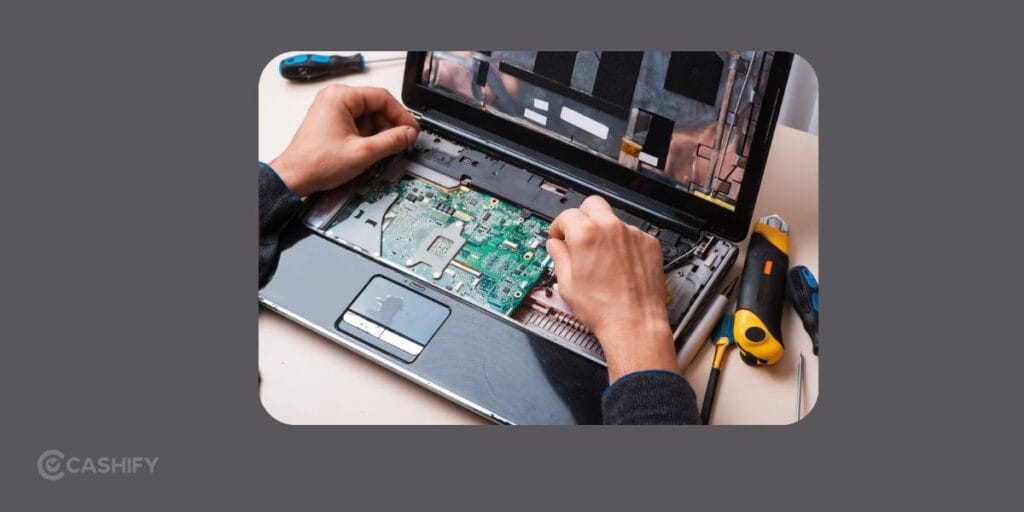
If you’re searching for a laptop repair near me after getting stuck on the HP Laptop Preparing Automatic Repair screen, choosing a reliable repair service. It can save you time and prevent further damage. While many startup issues can be fixed at home, persistent repair loops or hardware failures often need professional attention.
Cashify makes laptop repair simple and convenient. You can check the repair price online, book a doorstep repair, or visit your nearest Cashify store. A trained technician will diagnose the issue, repair your laptop using quality-tested certified replacement parts if required, and return it in excellent working condition.
Here’s why many users choose Cashify over a typical laptop repair shop near me:
- Easy price check before booking your repair.
- Doorstep laptop repair for added convenience, or visit your nearest Cashify store.
- Premium repairs using quality-tested certified replacement parts.
- Skilled and qualified technicians with experience handling HP laptop startup and hardware issues.
- Laptop repair anytime, anywhere, at home or at a Cashify store.
- 3-month warranty on replaced spare parts.
- 6-month warranty on replaced laptop screens.
- Guaranteed device and data safety throughout the repair process.
Say you have already tried fixing the HP Laptop Preparing Automatic Repair issue using the troubleshooting steps above. Your laptop still won’t boot. Then it’s a good idea to stop experimenting and get it professionally diagnosed. Instead of endlessly searching for a laptop repairing shop near me or another laptop repair shop near me, choose Cashify. It gives you a trusted repair experience with transparent pricing, convenient service options, and support from experienced technicians.
(*Repair warranties are subject to discretion based on Cashify’s terms and conditions. Please refer to our warranty policy for detailed information.)
How To Prevent This Problem in Future
These simple habits reduce the chances of startup failures.
- Always shut down Windows properly.
- Don’t interrupt Windows updates.
- Keep enough free storage space.
- Scan regularly for malware.
- Back up important files.
- Update drivers from trusted sources.
- Avoid force shutting down your laptop unless necessary.
In The End
The HP Laptop Preparing Automatic Repair screen can look alarming. However, it’s often caused by startup errors that you can fix with a few simple troubleshooting steps. If the issue persists after trying these solutions, Cashify’s professional laptop repair service can help get your HP laptop back up and running quickly and safely. Try today!
Also read: 5 Signs Your Laptop Needs Professional Repair Immediately!
If you’ve just bought a new phone and don’t know what to do with your old phone, then here’s your answer. Sell your old mobile to Cashify and get the best price for it. If you are planning to buy a new phone, check out Cashify’s refurbished mobile phones. You can get your favourite phone at almost half price with a six-month warranty, 15-day refund and free delivery.