Are you wondering how to turn off notifications for WhatsApp Web? If yes, this article is for you! WhatsApp is one of the most popular messaging apps in the world. It has billions of users. People use WhatsApp Web or WhatsApp Desktop to chat while working on computers. But sometimes, the constant notifications can be annoying. WhatsApp lets you turn off or manage notifications.
While WhatsApp notifications are useful for staying updated, they can be distracting. You can turn off notifications if you want to stay focused. This way, you can control when you get alerts.
Here’s a simple guide on how to turn off notifications for WhatsApp Web and Desktop.
Also Read: What is Instagram Trial Reels and How Does It Work?
How To Turn Off Notifications on WhatsApp Web?
You can these steps to manage notifications on WhatsApp Web or Desktop. All these steps are easy to understand so let’s have a lool:
Step 1: Open WhatsApp Web or Desktop
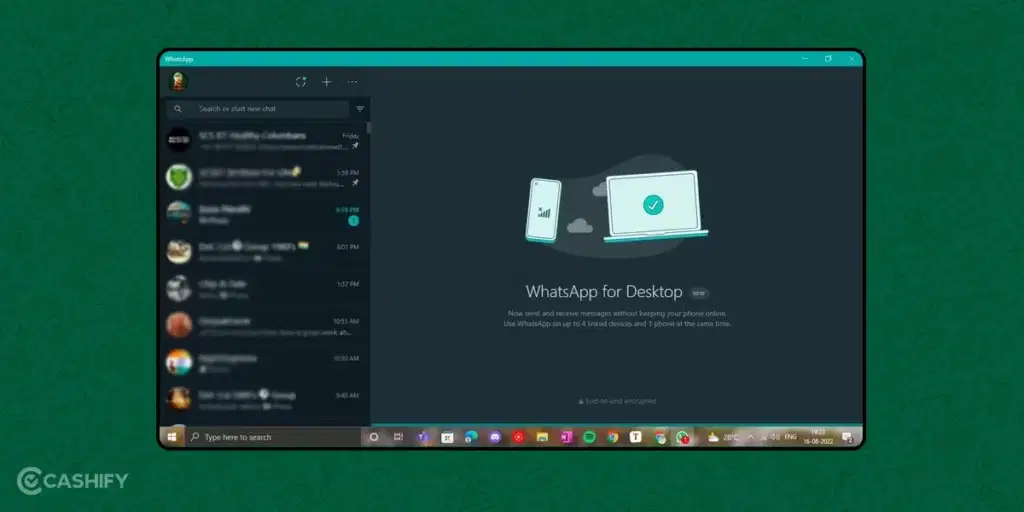
Make sure WhatsApp Web is open in your browser or the Whatsapp Desktop app is running on your computer.
Step 2: Go to Settings
- On WhatsApp Web, click the three dots (menu icon) in the top left corner.
- On WhatsApp Desktop, click the three dots (menu) in the top right corner.
Step 3: Click on “Settings”
From the drop-down menu, select Settings.
Step 4: Choose “Notifications”
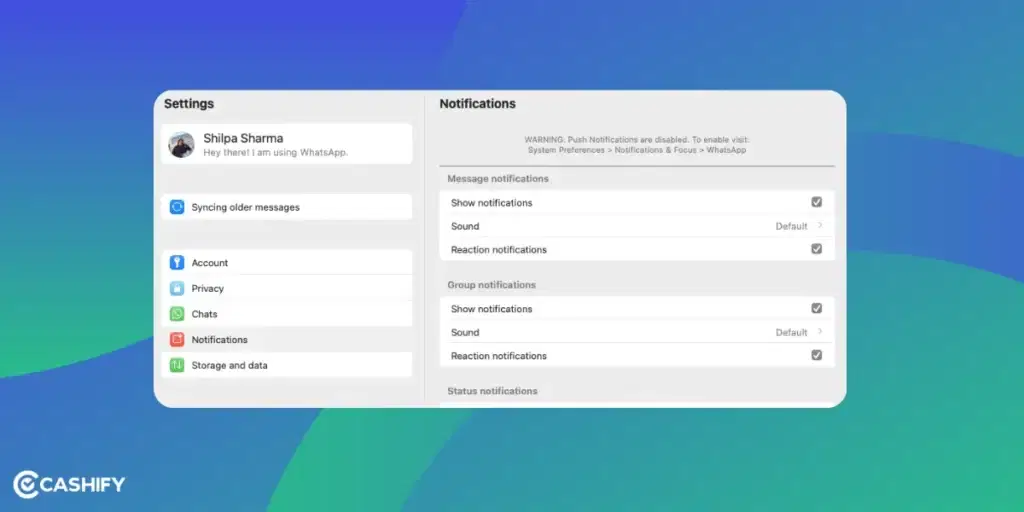
In the Settings menu, click on Notifications.
Step 5: Adjust Notification Options
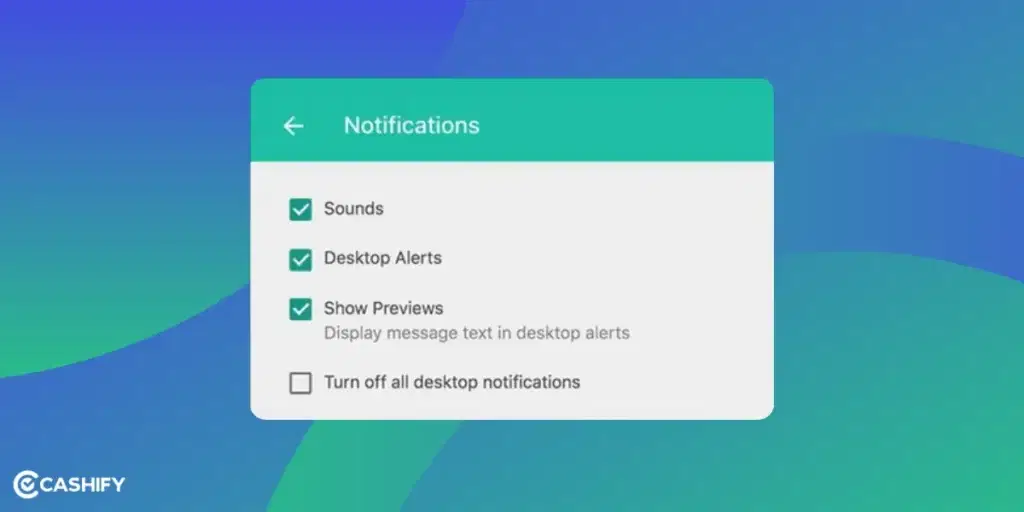
You’ll see three options here:
- Sounds: Here, you can turn off sounds for incoming messages and calls.
- Desktop Alerts: You can turn off pop-up alerts on your computer.
- Show Previews: Decide whether you want message previews to show in notifications.
You can also mute notifications for a set time (8 hours, 1 week, or 1 year). This can be helpful if you need a break from notifications.
Also Read: How To Create A WhatsApp Channel?
How To Mute Chats on WhatsApp Web or Desktop?
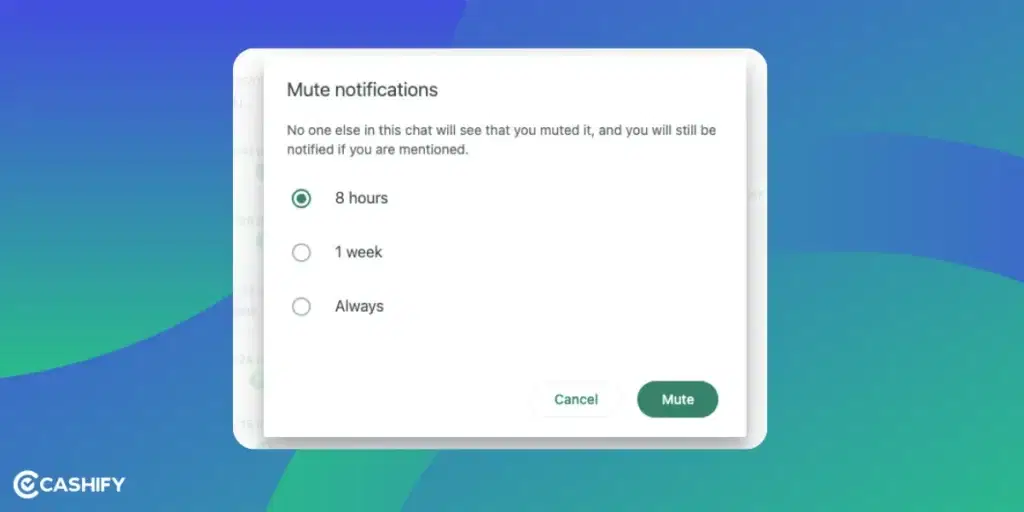
If any specific chats (individual or group) bother you, you can mute them for a specific time. Here’s how you can Mute Chats and turn off Notifications for WhatsApp Web:
Step 1: Open the Chat
Click on the individual or group chat you want to mute.
Step 2: Open the Menu
Click the three dots (menu icon) at the top of the chat.
Step 3: Choose “Mute Notifications”
Click Mute Notifications from the menu.
Step 4: Select the Mute Duration
Pick how long you want to mute notifications:
- 8 Hours
- One Week
- One Year
Step 5: Confirm the Action
Click Mute Notifications to confirm. To turn notifications back on, go back to the chat. There, click the menu and select Unmute Notifications.
Also Read: How To Delete My Activity In Facebook? Step-By-Step Guide Explained!
How To Turn Off WhatsApp Web Notifications On Your Phone?
If you don’t want notifications to pop up on, you can turn them off from your phone’s settings.
Turn Off Notifications For WhatsApp Web On Android:
- Open WhatsApp on your phone.
- Tap the three dots (menu) in the top right corner.
- Go to Settings > Notifications.
- Find Web/Desktop Notifications and turn it Off.
Turn Off Notifications For WhatsApp Web On iPhone:
- Open WhatsApp on your iPhone.
- Go to Settings > Notifications.
- Find Web/Desktop Notifications and toggle it Off.
This will stop WhatsApp Web notifications from showing up on your phone.
Tip: If you’re using WhatsApp Web on a browser, you can also turn off notifications from your browser. For example, go to Settings > Privacy and Security > Site Settings > Notifications. You can manage WhatsApp notifications there.
Also Read: How To Use WhatsApp Messenger To Boost Productivity?
Frequently Asked Questions
How can I turn off notifications on WhatsApp Web?
Go to Settings > Notifications on WhatsApp Web. There, turn off options like Sounds, Desktop Alerts, and Show Previews.
Can I mute specific chats on WhatsApp Web?
Yes, open the chat, click the three dots (menu), and choose Mute Notifications. You can mute for 8 hours, 1 week, or 1 year.
How do I stop WhatsApp Web notifications on my phone?
On Android: Go to Settings > Notifications and turn off Web/Desktop Notifications. On iPhone: Go to Settings > Notifications and toggle off Web/Desktop Notifications.
Can I mute notifications for all chats at once?
Yes, you can mute all notifications for a set time. Go to Settings > Notifications on WhatsApp Web/Desktop. You can choose 8 hours, 1 week, or 1 year.
How can I stop WhatsApp Web notifications on my computer?
To stop all notifications, you can log out from WhatsApp Web. You can do that by clicking the three dots and selecting Log out.
In A Nutshell
To turn off notifications for WhatsApp Web or Desktop is easy. You can mute chats, turn off sounds, or even stop all messages for a certain period. These settings give you more control over your WhatsApp experience. These settings help you focus when you need to.
With a few clicks, you can customize your WhatsApp notifications. It can make your messaging experience smoother and less distracting. Remember to share this article with your WhatsApp buddies. It can help them in managing their notifications easily.
Looking to upgrade to a better phone? We have a smart solution for you. Buy refurbished mobile phones at almost half price from Cashify. They come backed with a six-month warranty and 15-day refund policy. Check out refurbished mobile phone sale now!